PR MANAGEMENT:
The PR List screen displays all Purchase Requisitions (PRs) created in the system and allows users to filter, track, create, and take action on PRs.
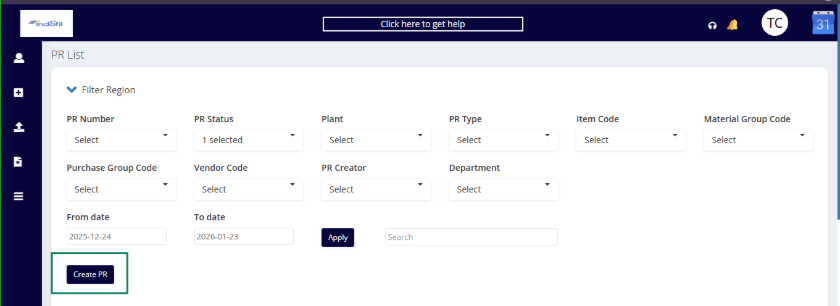
Filter Region: This section helps users quickly narrow down PR records based on multiple criteria.
PR Number: Dropdown to filter by a specific Purchase Requisition number.
PR Status: Filter PRs based on their current status.
Plant: Filters PRs based on the plant where the material or service is required.
PR Type: Type of PR created.
Item Code: Filter PRs based on the specific material/item code.
Material Group Code: Filters PRs using the material group classification.
Purchase Group Code: Filters PRs based on the responsible purchase group.
Vendor Code: Allows filtering PRs by vendor (if applicable).
PR Creator: Filters PRs based on the user who created them.
Department: Filters PRs by the requesting department.
From Date / To Date: Filters PRs based on PR creation date range.
Apply: Applies the selected filters and refreshes the PR list.
Search: Free-text search for quickly finding a PR by number, item code, or product name.
CREATE PR:
Used to create a new Purchase Requisition. Navigates the user to the PR creation screen.
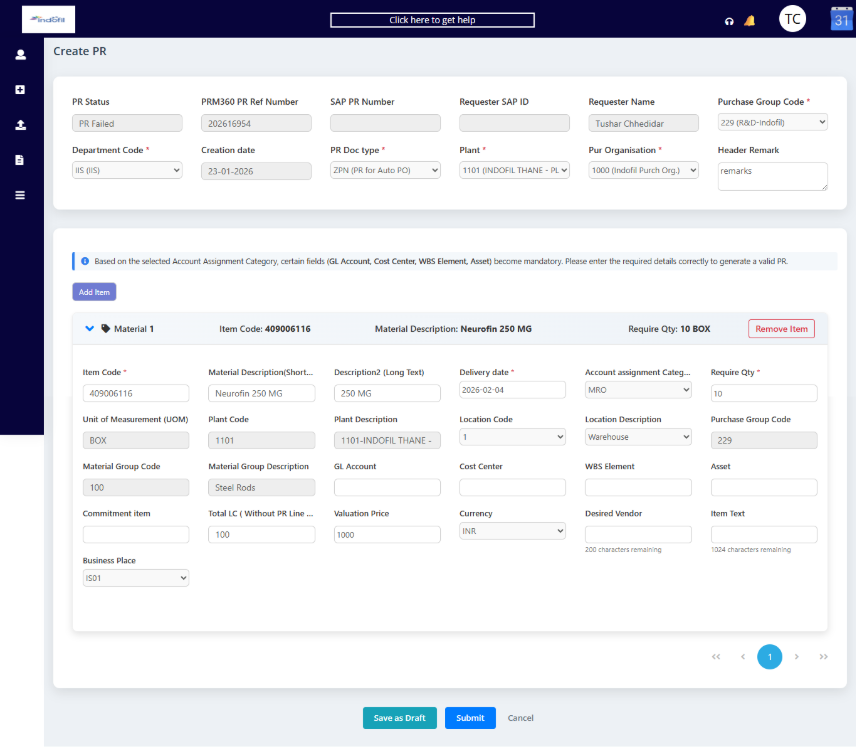
PR Status: System-generated status (Draft / Submitted / Approved etc.) once the PR is created.
PRM360 PR Ref Number: Internal reference number generated by the PRM360 system after the PR creation.
SAP PR Number: SAP PR number (auto-filled after successful posting to SAP).
Requester SAP ID: SAP user ID of the person raising the PR.
Requester Name: Name of the requester (auto-filled).
Purchase Group Code: Purchasing group select from the dropdown.
Department Code: Department raising the PR. Select from the dropdown.
Creation Date: Date on which PR is created.
PR Doc Type: Type of PR. Select from the dropdown.
Plant: Plant where material/service is required.
Purchase Organization: Purchasing organization handling the procurement. Select from the dropdown.
Header Remark: General comments if any.
Information Note: Based on Account Assignment Category, some fields become mandatory GL Account, Cost Center, WBS Element, Asset
Item Section: Each PR can have one or more items.
Basic Item Details
The material code for an item can only be entered after the user selects a purchase group code and a plant that is mapped to the item.
Material Description: Short description of material/service.
Description2: Detailed technical or functional description.
Unit of Measurement (UOM):
Fetched from the item master (catalogue) once the user selects the item.
Delivery Date: Required delivery date.
Account Assignment Category:
Defines where the cost is booked.
Select from the dropdown (e.g., K = Cost Center, A = Asset, P = Project (WBS)).
Required Quantity: Quantity required.
Plant Code: Auto-populated based on the plant selected at the header level.
Plant Description: Auto-derived from the selected plant.
Location Code / Location Description: Storage or delivery location within the plant; fetched from the item mapped to the plant.
Purchase Group Code: Fetched from the selected purchase group code at the header level.
Material Group Code / Description: Auto-fetched from the item master (catalogue).
GL Account, Cost Center, WBS Element, Asset: Mandated fields based on the account assignment category selected.
Commitment Item: Manually entered field.
Total LC (Without PR Line): Total value of item in local currency; manually entered.
Valuation Price: Estimated price per unit.
Currency: Default is INR (can vary).
Desired Vendor: Preferred vendor (optional).
Item Text: Buyer-facing notes (specifications, terms, etc.).
Business Place: Select from the dropdown.
Add Item – To add another line item.
Remove Item – To delete the current item.
Save as Draft – To save the PR in the list page without submitting it to SAP.
Submit – To send PR to SAP and save it to list page.
Cancel – Exit without saving.
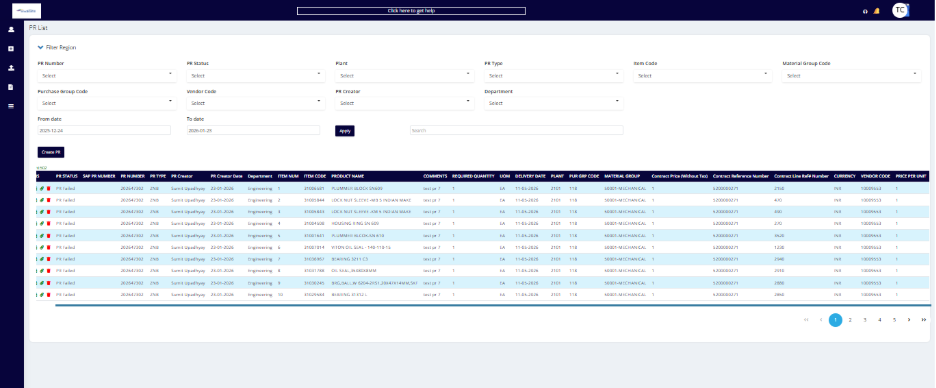
PR List:
Actions (Icons available for PR):
View: Used to view PR details.
Edit: Used to modify the PR (applicable only for draft or failed PRs).
Get Response: Used to view the response or error message received from SAP.
Payload: Used to download the PR payload.
Delete: Used to delete the PR (applicable only for draft and failed PRs).
PR Details:
PR Status: Displays the current processing status of the PR.
SAP PR Number: PR number generated in SAP after successful posting. This field remains blank if the PR is not yet posted or has failed.
PR Number: Internal system-generated PR number.
PR Type: Indicates the type of PR (ZPN, ZPR, ZPS).
PR Creator: Name of the user who created the PR.
PR Creator Date: Date on which the PR was created.
Department: Department that raised the PR.
Item Number: Line-item number within the PR. A single PR can contain multiple items.
Item Code: Unique material code associated with the PR item.
Product Name: Description of the material or service requested.
Comments: Remarks entered by the user for the PR line item.
Required Quantity: The quantity of the material requested in the PR.
UOM (Unit of Measure): Defines the unit in which the quantity is measured
Delivery Date: The required date by which the material should be delivered.
Plant: The plant/location where the material or service is required.
Purchase Group Code: Identifies the purchase group responsible for procuring the material.
Material Group: Classification of the material based on category.
Contract Price (Without Tax): The agreed unit price as per the contract, excluding taxes.
Contract Reference Number: The master contract number against which the PR item is created.
Contract Line Reference Number: The specific line-item number in the referenced contract that corresponds to the PR item.
Currency: Indicates the currency in which the price is quoted.
Vendor Code: Unique identification code assigned to the vendor in the system.
Used to link the price with the correct vendor.
Price Per Unit: The unit price given by the user for the material.
Was this article helpful?
That’s Great!
Thank you for your feedback
Sorry! We couldn't be helpful
Thank you for your feedback
Feedback sent
We appreciate your effort and will try to fix the article