DEPARTMENT:
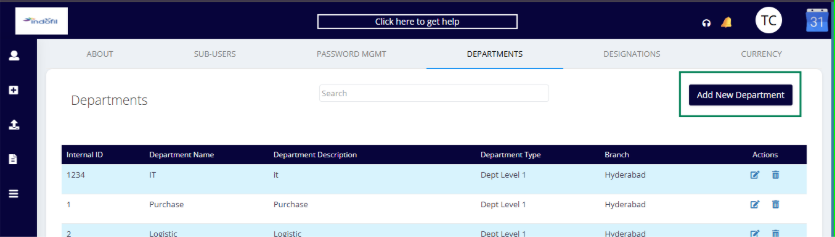
The department can be added by clicking on the Add New Department option available at the top right of the page.
Department list page:
Internal ID: The unique identifier for each department.
Department Name: Name of the department (e.g., IT, Purchase, Logistic).
Department Description: Description of each department.
Department Type: The level or category of the department (e.g., Dept. Level 1).
Branch: The branch location associated with the department (e.g., Hyderabad).
Actions:
Edit Icon (pencil): Click to edit the details of the department.
Delete Icon (trash bin): Click to delete the department from the list.
Add new department:
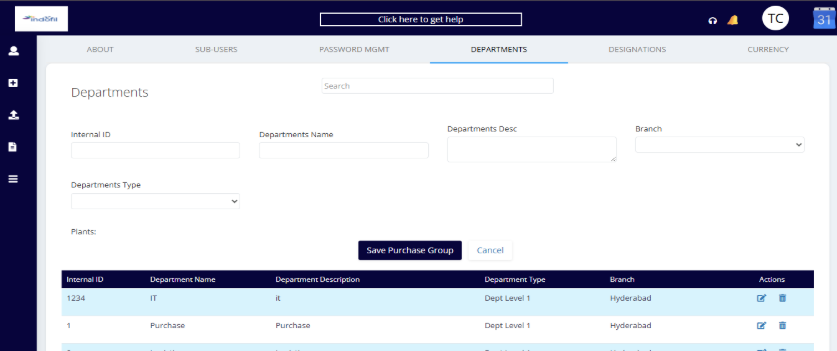
Internal ID: A unique identifier for the department. Usually system-generated or manually assigned to track departments internally.
Departments Name: The name of the department (e.g., IT, Purchase, Logistic). This is the main identifier visible to users.
Departments Description: A brief description or additional information about the department.
Branch: A dropdown to select the branch location the department belongs to (e.g., Hyderabad).
Departments Type: A dropdown to specify the level or type of department (e.g., Dept. Level 1).
Save Purchase Group: Saves the department information entered or edited. Cancel the current action and clear the fields or return to the previous state.
DESIGNATIONS:
Search Bar:
Allows users to search for specific designations by typing keywords.
Add New Designation Button:
Located at the top right, this button allows the user to add a new designation to the list.
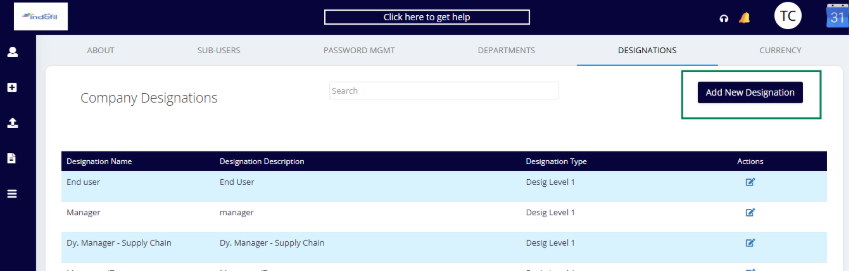
Designation Name: The name/title of the designation (e.g., End user, Manager, Dy. Manager - Supply Chain).
Designation Description: A brief description or details of the designation.
Designation Type: The level or category of the designation (e.g., Design Level 1).
Actions, contains action icons:
Edit Icon (pencil): Click to edit the designation details.
Add new designation:
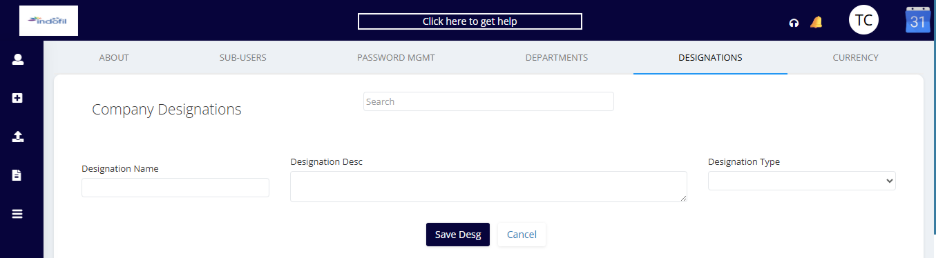
Designation Name: Text field to enter the name of the designation. This name will be assigned to users during user creation or update.
Designation Description: A detailed description of the designation.
Designation Type: Dropdown field to categorize the designation. This helps in role-based access control and workflow mapping.
Save Designation: Saves the newly created designation. Once saved, the designation becomes available for selection across the system.
Cancel: Clears entered values and canceled the current action. No data will be saved if this button is clicked.
CURRENCY:
Select a Date: Allows the user to filter currency records based on a selected date.
Apply: When a date is chosen and Apply is clicked, the system displays currencies active on that specific date in the currency list.
Add New Currency
Opens the currency creation form. Only authorized users (Admin) can add new currency records.
Currency Name: Enter the currency code or name.
Currency Factor: Defines the conversion factor with respect to INR.
Start Date: The date from which the currency factor becomes effective.
End Date: The last date until which the currency factor is valid. After this date, the system will not apply at this rate.
Save: Saves the currency configuration. Cancel will Clear the entered values and exits without saving.
The new currency will be displayed on the currency list.
Was this article helpful?
That’s Great!
Thank you for your feedback
Sorry! We couldn't be helpful
Thank you for your feedback
Feedback sent
We appreciate your effort and will try to fix the article