SUB USERS:
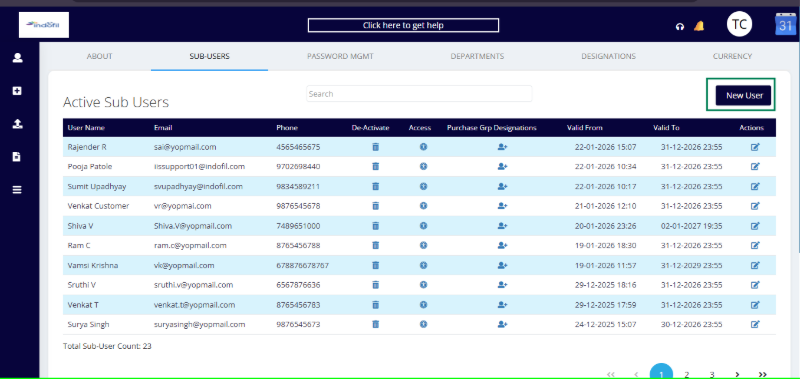
Once the sub user is created then it will be shown in the sub users list as below.
Create New Sub User:
The admin has access only to create sub-users.
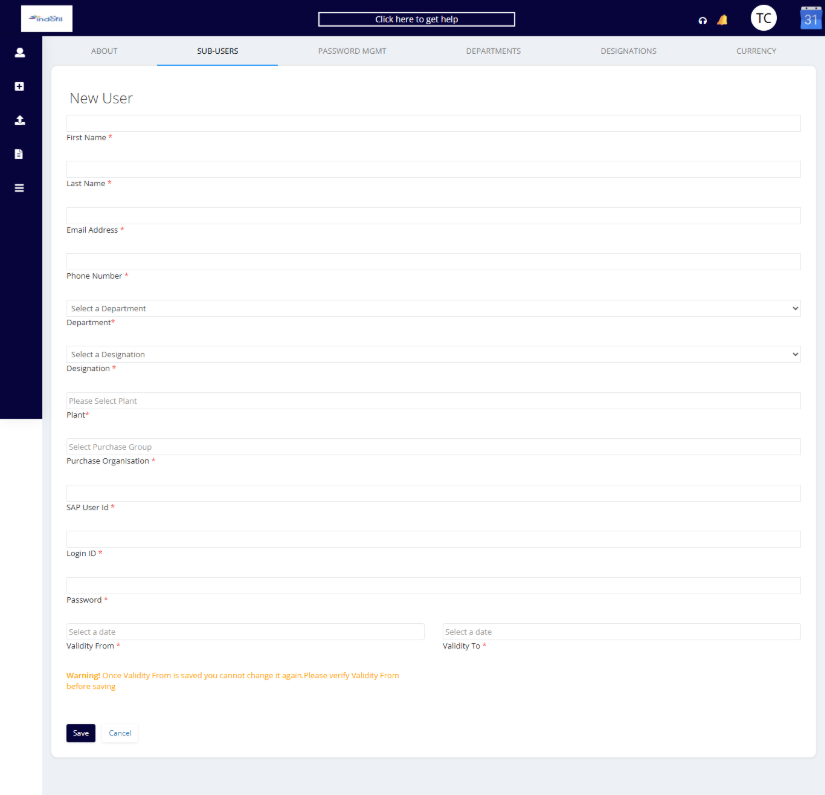
By clicking on New User, the Admin will be redirected to the following page.
User Details:
First Name: User’s first name
Last Name: User’s last name
Email Address: User’s email ID (all communication will be sent to this email ID)
Phone Number: User’s mobile number
Department: To be selected from the dropdown
Designation: To be selected from the dropdown
Plant: To be selected from the dropdown
Purchase Organization: To be selected from the dropdown
SAP User ID: A unique ID assigned to the user and registered in the SAP system. This ID can be used for multiple sub-users.
Login ID: The registered email ID can be set as the Login ID
Password: To be set by the admin as per their choice
Validity From / Validity To:
Validity From should be a future date and time
Validity To defines how long the user remains active for transactions
Once the validity period ends, the user will not be able to log in to the system.
Once all the details are filled in, click Save. The sub-user will then be saved and displayed in the sub-user list.
Active sub user:
All sub-users who have been created and are in active status will be visible here.
User name: Name of the sub user
Email: Registered email id.
Phone: Mobile number.
De-active:
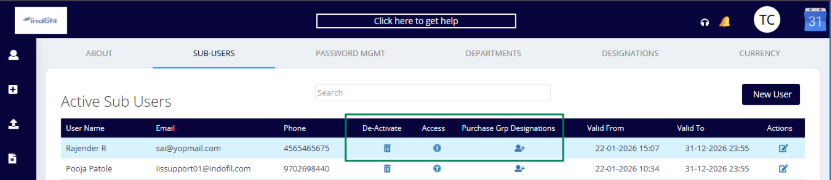
Once the Admin clicks on the Delete icon, the user will be deactivated and moved to the De-active list, as shown below.
Note: A deactivated sub-user can be reactivated by clicking the Active tick mark option available in the inactive users list.

Access:
These are the permissions granted by the admin to sub-users, allowing them to view or perform specific actions. Sub-users can only see and interact with the modules for which they have been given access to their login.
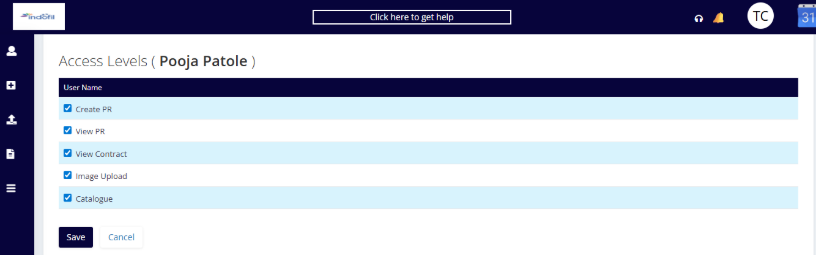
To grant access, the admin should click on the Access option available in the active sub-users list for a specific user. This will redirect to the access page, where the admin must select the modules to grant and then click Save. After the access is assigned, the sub-user must log out and then log back in to the PRM360 system for the changes to take effect.
Purchase Group Designation:
While creating a sub-user, a Department and Designation are initially assigned. However, if the sub-user needs to be mapped to additional departments, the admin can do so from the Active Sub-Users list by clicking the icon under Purchase Group / Designation. Then it will route to the page below.
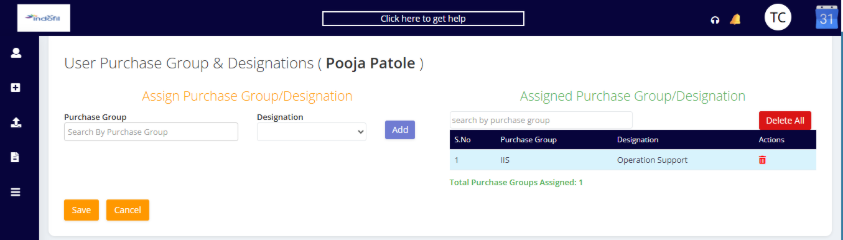
Here, the Admin should select the Purchase Group from the available dropdown. Based on the selected purchase group, the corresponding Designations will appear in the dropdown for selection.
Note: The sub-user can be assigned to multiple purchase groups, but the Designation must remain the same across all groups.
Valid from, valid to dates and time will be visible. Edit under actions to edit the details of the sub user.
Once the Admin selects the Purchase Group and the corresponding Designation, they need to click Save. The selection will then be saved under Assigned Purchase Groups/Designations. The admin can also delete any assigned purchase group or designation using the options available in the Actions column.
Was this article helpful?
That’s Great!
Thank you for your feedback
Sorry! We couldn't be helpful
Thank you for your feedback
Feedback sent
We appreciate your effort and will try to fix the article