My Accounts:
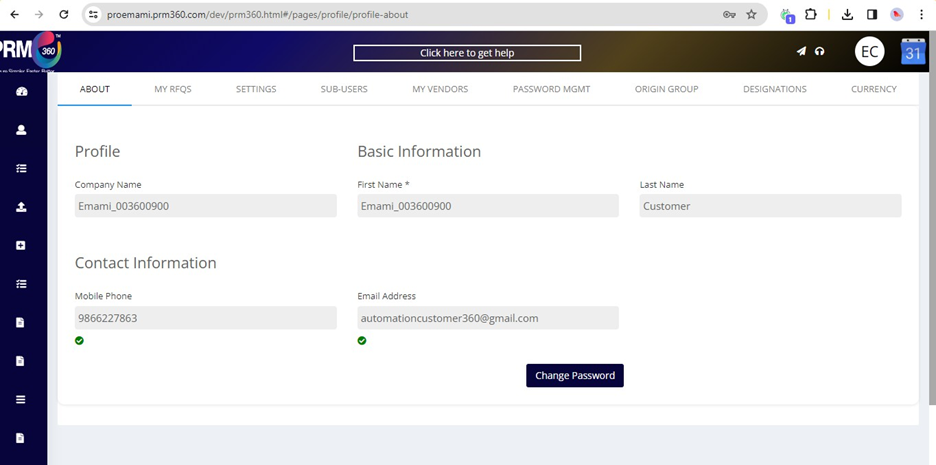
Through the dashboard, users can navigate to various screens using the left navigation pane. On the My Account page, users can view and manage details such as Basic Information, My RFQs, Sub-Users, Password Management, Vendors, Origin Group, Designation, Currency, and Settings, all organized under tab-level sections.
My RFQ:
In this section, users can utilize various filters to refine the list of RFQs. Filters include RFQ status, RFQ posted by, search by RFQ number, and date range (From and To dates) to help locate specific RFQs efficiently.
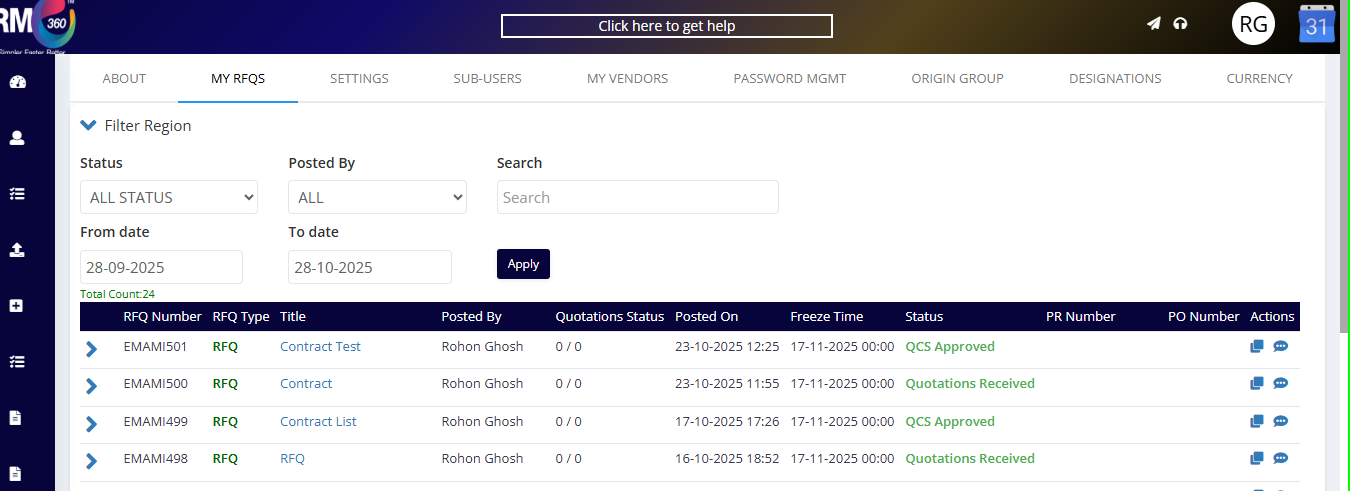
RFQ No: Displays the requirement number, which begins with “PRMXXXX.”
Title: Indicates the name of the requirement.
Posted By: Shows the user who created and posted the requirement.
Quotation Status: Displays the number of vendors who have submitted their quotations out of the total invited vendors.
Posted On: Shows the date when the RFQ was posted.
Freeze Time: Indicates the quotation freeze time.
Status: Displays the current status of the RFQ.
PR Number: If the RFQ is created from a PR, the corresponding PR number will be shown here.
Action:
Clone: Allows the user to duplicate the RFQ and create a new one with the same requirement details.
Chat: Enables the user to communicate directly with vendors.

Was this article helpful?
That’s Great!
Thank you for your feedback
Sorry! We couldn't be helpful
Thank you for your feedback
Feedback sent
We appreciate your effort and will try to fix the article