CATALOGUE:
Materials:
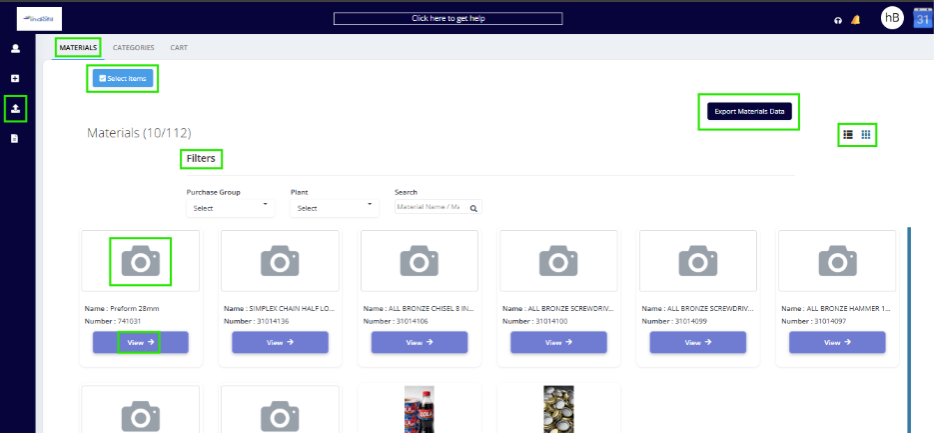
This page shows all the Materials that are available in the Application, which came from SAP through integration.
A user cannot edit any details of the Material except changing the Image if he has the access to do so.
To add an image for an Item user has to click on camera button/ Upload, select the image from his personal computer and upload.
When the Materials are many, user can filter them out using the given filters- Purchase Group, Plant, Search.
A user can see the completed details of a material by clicking on View.
Export Material Data: Using this, a user can export all the existing material into an excel.
System provides 2 types of views- Block view & List view.
Selecting the Items to Cart:
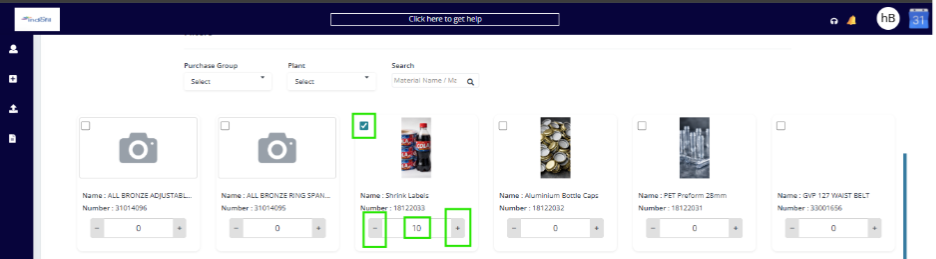
User has to click on the Select Items button, this enables the check box against each item, user can click on the check box against the desired item & select the quantity by either entering the value directly or by given buttons, +(for increasing) - (for decreasing).
CATEGORIES:
A user can add material categories over here.
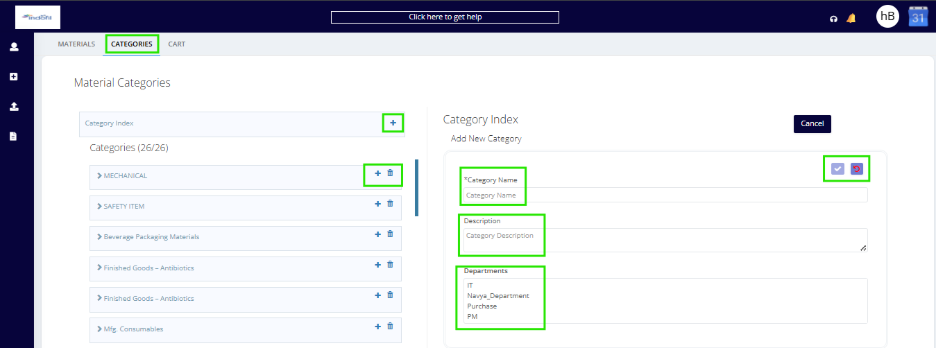
User must click on the + icon to add a new Category, give a Category Name, Description & select at least one Department & then click on the right tick icon.
Users can also create a subcategory for the existing main category in a similar fashion by clicking on the + icon available in the main category.
Users can even delete an existing main category by clicking on the delete icon.
CART:
One can collect all his shortlisted items here before pushing them for a PR creation.
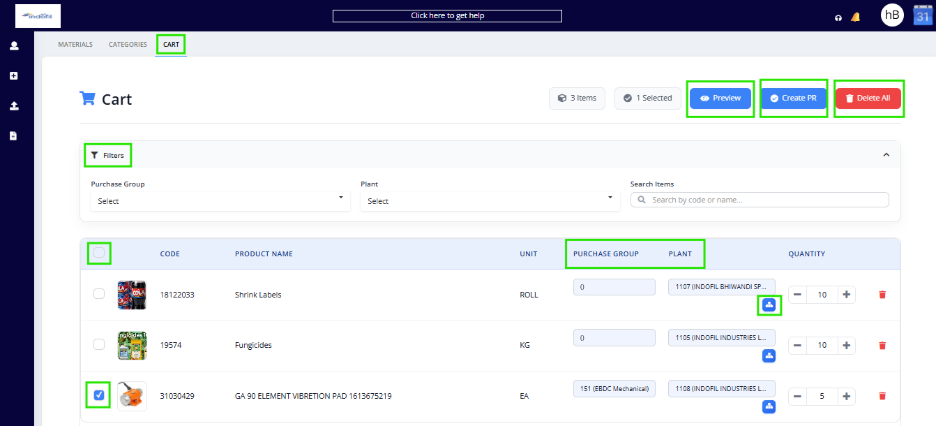
A user can club multiple materials into one PR with following conditions:
Purchase group & Plant of the clubbed materials should be same.
Materials should have same contract status, either all contracted or non-contracted.
Contracts will be auto reflected in the PR creation page when routed from cart if the Material Code, UOM, Purchase Group, Plant, & Storage Location match with both contract and material details.
Preview: This button shows complete details of the selected items before raising a PR, here one can validate the Contract Status, the selected items should have same contract status for creating the PR.
Delete All: This will delete the selected items from the Cart.
View Mapping: Users can see the mapping of the material with the Purchase group & Plant from this button.
Users can increase or decrease the quantity by “+” “-” icons or even delete that particular item by clicking on delete icon.
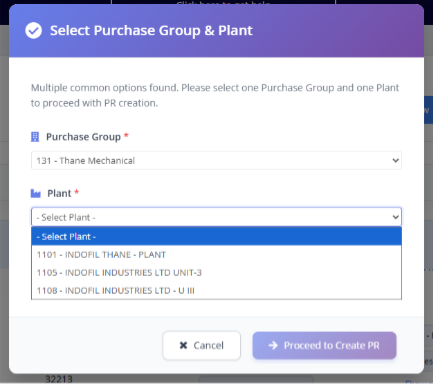
Create PR: This button will directly route to the Create PR page in case of single Plant and Purchase Group mapped to the users.
If Multiple Plant and Purchase Group details are present in the Item, user needs to choose for the details then system will automatically route to PR with the selected details.
Was this article helpful?
That’s Great!
Thank you for your feedback
Sorry! We couldn't be helpful
Thank you for your feedback
Feedback sent
We appreciate your effort and will try to fix the article