Create RFQ
Step 1: Requirement Specifications
Template Section: Users have to select the templates they want to post RFQ with
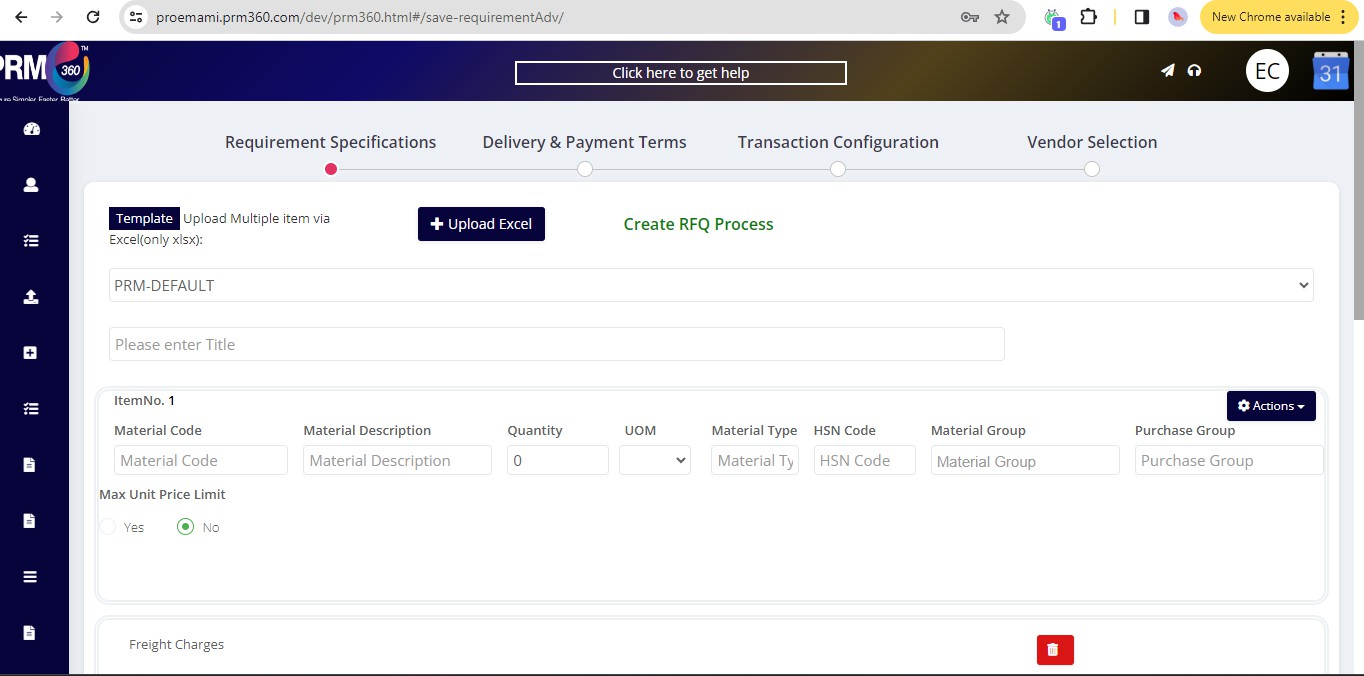
Title: Name of the Enquiry
RFP/RFI: Enabling this would flip the requirement to RFP/RFI instead of RFQ. In the requirement level user can add products not part of existing item codes in ERP and float the RFP/RFI.
Similar Negotiation: Similar Negotiation feature is used to see how many times the similar kind of requirement is posted in system. Which helps us in fetching the.
information such as posted date and what was the least price we have received. The search criteria are the text entered in the Title box.
Based on the template selected users would have their respective RFQ Item attributes are displayed to initiate the requirement process for the products.
User would be searching the existing product codes in the system through Product code attribute of the template. User once selects the existing products in the system the relevant
Product Name, Product No, UOM, HSN Code, Product Description details are auto furnished on the screen for user to update the quantity to add item to the RFQ.
The following messages are displayed during the RFP/RFI Process:
- Unlike RFQ process, for RFP user can create materials to post the RFP upon successful creation the user would be updated with the success message
- System throws an error in-case if user trying to create a Product Number/Name which already exists in the system with the following error respectively.
- User can also leverage Actions button available in the item cart. Through Actions user can perform following activities:
- “Minimize”: To minimize the item frame
- “Attachment”: Use can add attachments related to the product
- “$Best Price”: User can click on the best price to retrieve the best price at which the PO was issued for the product as per the data ranges mentioned in setting page of MY Account tab.
- “i Last Price”: User can click on the last price to retrieve the last price at which the PO was issued for the product as per the data ranges mentioned in setting page of MY Account tab.
- The below table would display the list of last purchase prices of the product along with the qty, vendor and the Last purchase date of the product for user to evaluate price points w.r.to the product selected
- “Delete Item”: User uses this option to delete the existing product from the RFQ/RFP process
- “Add New quantity”: User uses this option to add multiple quantity details to the item to retrieve prices from the vendors for each price quantity requested. This is to avoid duplicate user activity of furnishing all details of the same item during the creation process.
- Add Item: To Add a new Item while posting a requirement
- Line items: User can select different line items he wanted to add w.r.to charges i.e., for example
- Packing & Forwarding charges, Insurance, Freight charges, Miscellaneous. User can configure the same products in Catalogue under category “Requirement Items”. All the configured Line items would be displayed on selection of Line items.
Requirement Comments attribute data: User can share any additional comments or information they wanted to share with Vendors as part of the requirement process.
Attachment: User can upload an image or any reference file with respect to requirement.
Save As Draft: saving incomplete requirement for future reference. The saved requirements can be accessed from My requirement page under “Saved_As_Draft” status.
Step 2: Delivery & Payment Terms
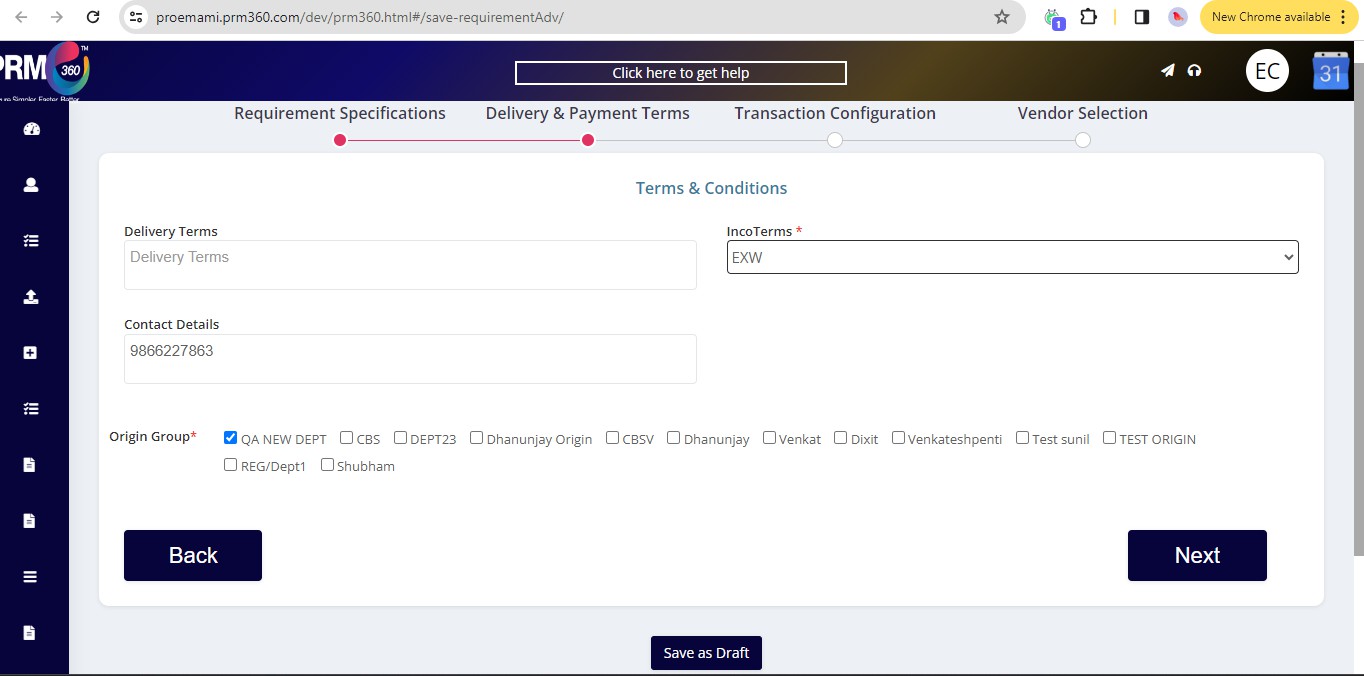
Departments –User would be able to view the list of the departments he is assigned to in the system. User has to check the department for which this RFQ is posted.
Department selection is to provide visibility of RFQ to specific department, only the users in the respective department would have the access to view this requirement.
Step 3: Transaction Configuration.
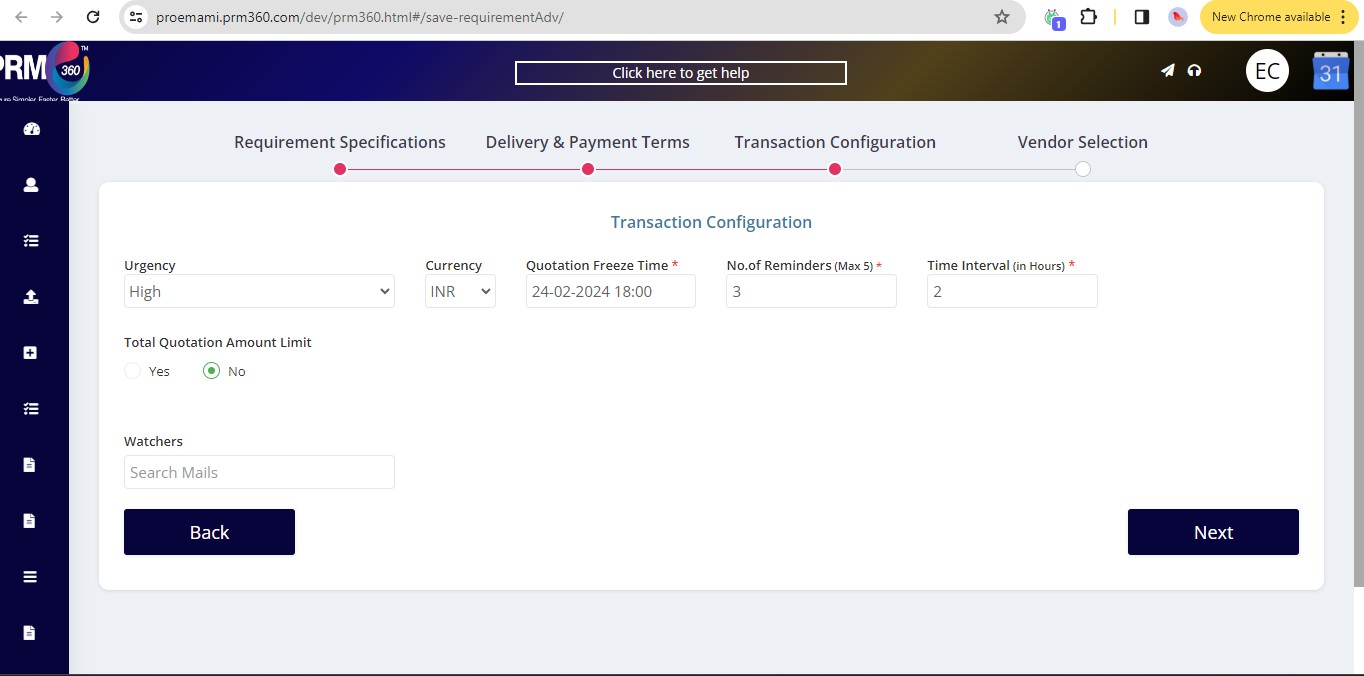
Urgency: Requirement Urgency based on the customer requirement closing time Critical - Will closed on Current day
High - Will closed in two days Medium - Will closed in 5 days Low - Will closed in 10 - 15 Days.
Currency: Select the currency in which the transaction should happen.
Quotation freeze Time: Total Time given to vendor to upload Quotation. Vendor cannot submit the quotation post Quotation Freeze Time.
No of Reminders (Max 5): Number of reminders which system will automatically send to the vendors who has not uploaded the Quotation. Max allowed reminders are 5 per requirement.
Time Interval (In Hours): Time gap for sending reminders to vendors for Quotation upload based on the Quotation freeze time. If 1, then automated reminders would be sent to vendors at every one-hour interval before the Quotation Freeze time.
Expected Negotiation Time –Expected start time of Auction. This option is used to intimate vendors on the possible time for Auction. This would help vendors plan their activity well in advance to be available for online negotiation.
Step 4: Choose Vendors
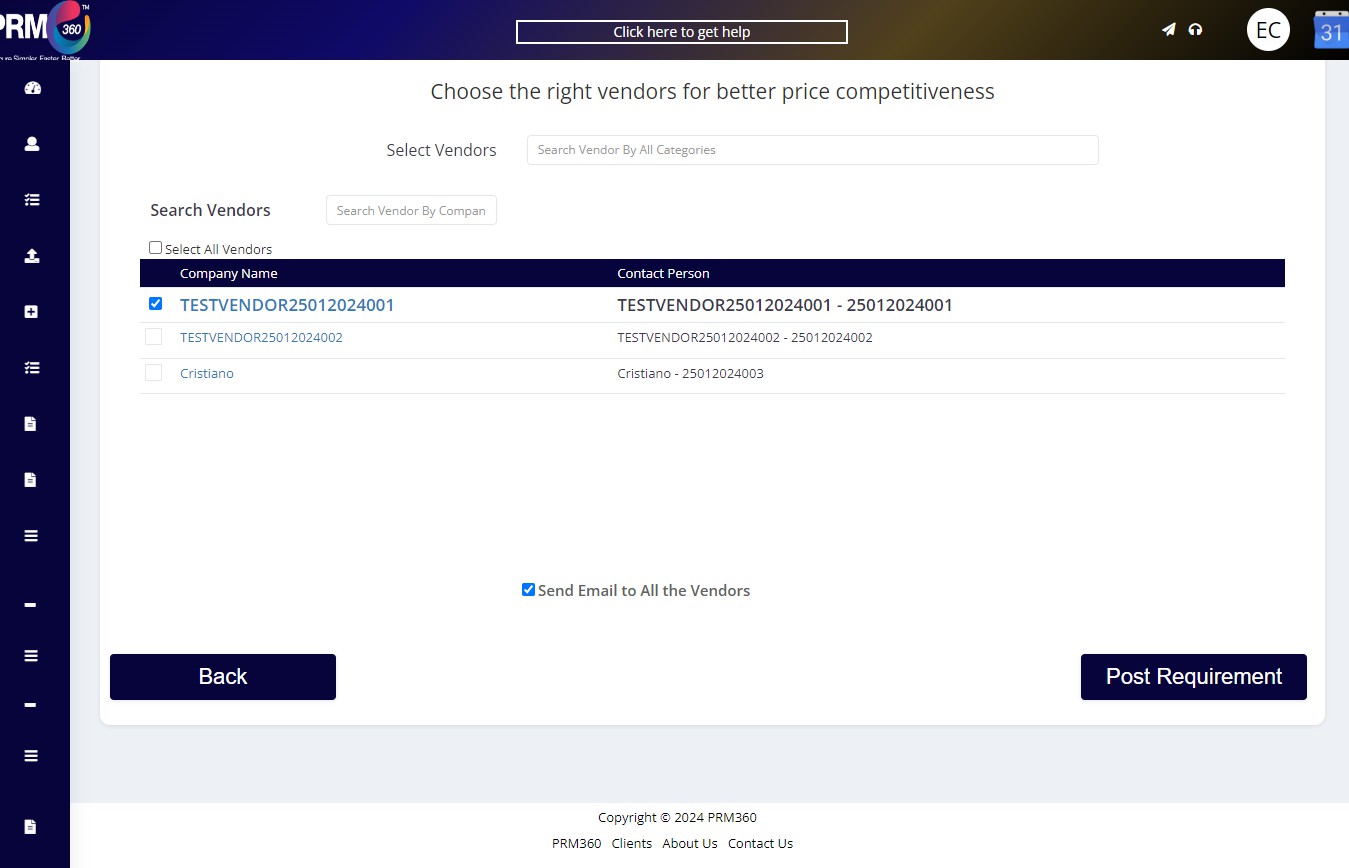
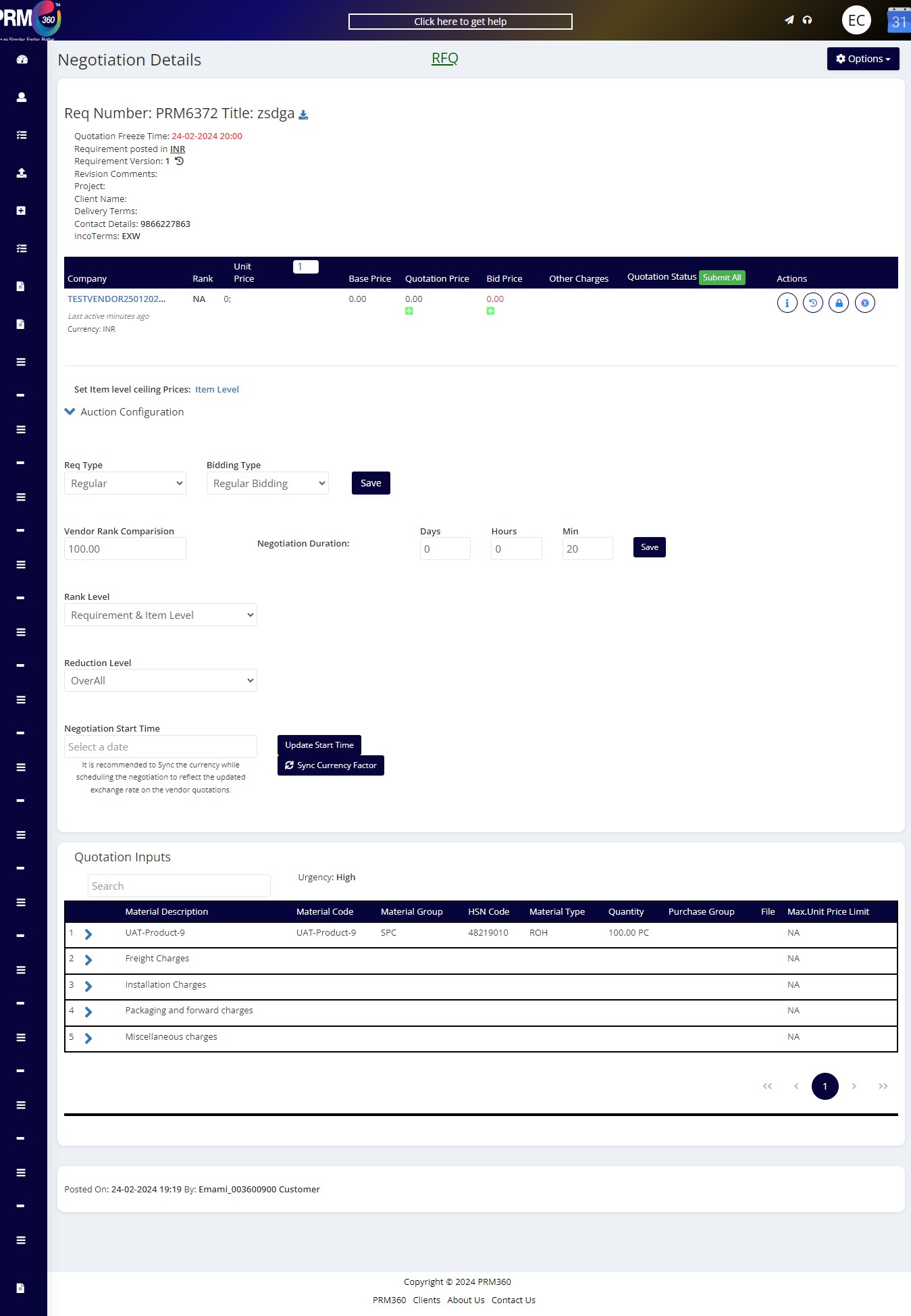
After posting the requirement, the negotiation page would appear.
Was this article helpful?
That’s Great!
Thank you for your feedback
Sorry! We couldn't be helpful
Thank you for your feedback
Feedback sent
We appreciate your effort and will try to fix the article