QUOTATION COMPARISON STATEMENT: (QCS)
Once the user successfully completes the negotiation process user has to create the QCS to initiate the vendor finalization process. The user has to select the “QCS” to create the QCS sheet.
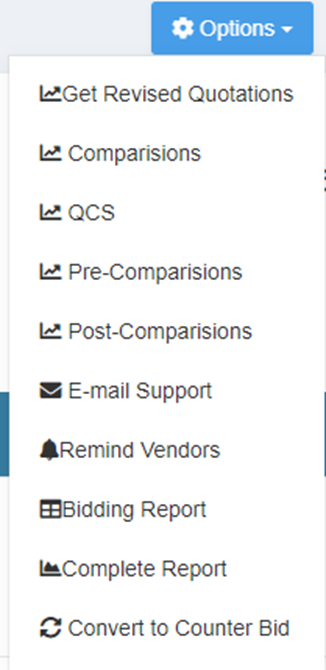
1. Import QCS: The user creates the import QCS Sheet if the vendors who participated in the RFQ are outside the current location of the purchase user and the delivery of the products/service is from a different country. This QCS will help users to calibrate the quotations of the vendors including the IMPORT duties and other cost parameters needed for the user to evaluate the landing cost of the requirement.
2. Domestic QCS: The user creates the Domestic QCS Sheet if the vendors participating in the RFQ are local vendors from the same country and delivery of the products/service is from the same country. This QCS will help users calibrate the quotations of the vendors to evaluate the total landing cost of the requirement.
In the QCS Page:
The QCS number would be auto-generated by the system and the user can select the below options to view the QCS report as per user choice.

Including taxes, if selected the taxes of the quotations would be included in calculating the total cost of the requirement.
Users can download the QCS sheet by clicking on the Export option.
Vendor filter and item filter can be applied by the user to limit the data visibility for better understanding and vendor evaluation
In the QCS, the prices of the vendors who quote the least for items would be highlighted in Yellow color.
Users can perform quantity distribution to the vendors as per their choice. This option will allow users to split the order to multiple vendors.
Based on the INCO Terms provided by the vendors the input fields would be enabled for users while performing the edit QCS to apply the additional cost the Organization has to bear w.r.to vendor quotation to ascertain the total cost of the vendors.
Once the QCS evaluation is performed user can update the comments for each vendor update the PURCHASER Comments on the page and select the workflow to initiate the QCS approval process.

Users can review all the approval current status along with comments from the respective approvers. Once all the approvals are done then the QCS is all set to be flipped to Purchase Order.
QCS page: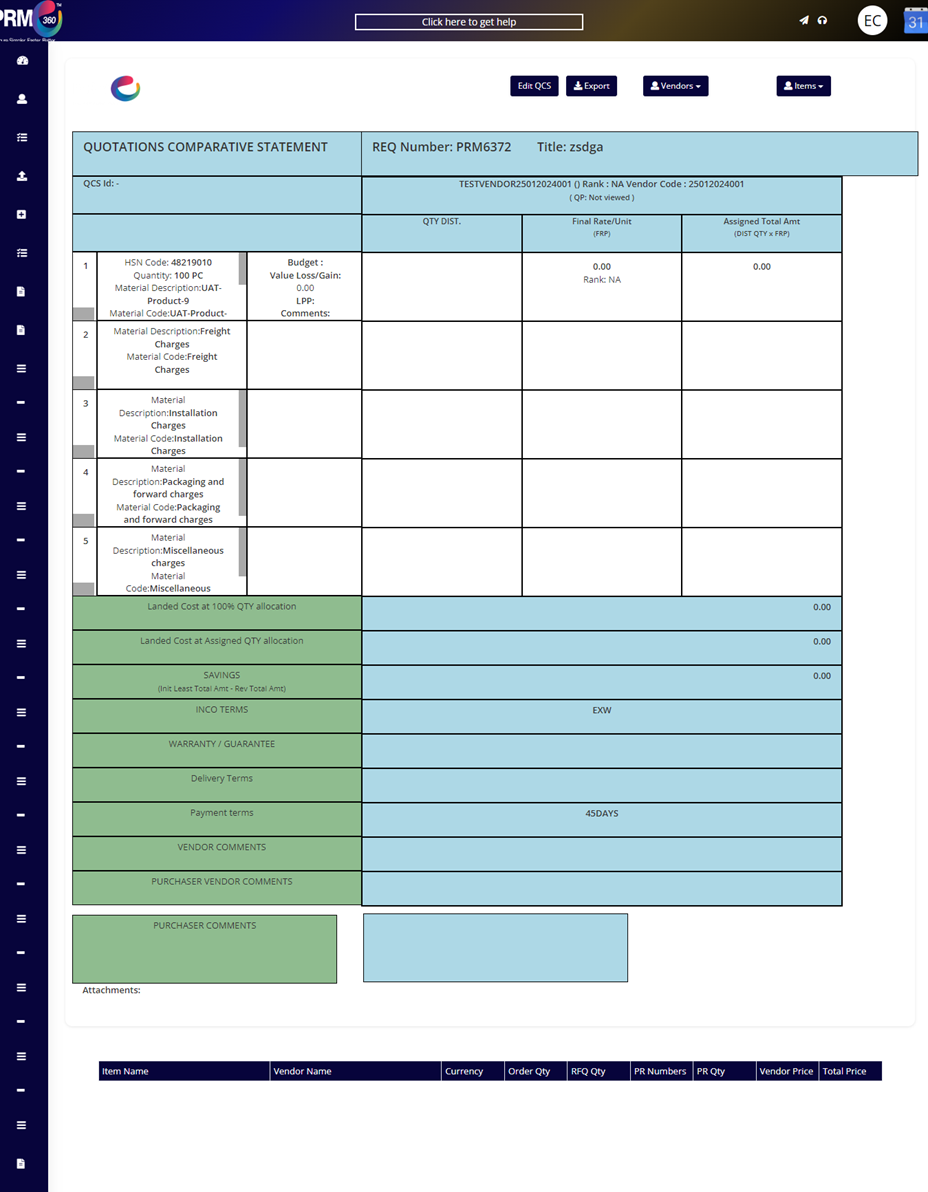
Was this article helpful?
That’s Great!
Thank you for your feedback
Sorry! We couldn't be helpful
Thank you for your feedback
Feedback sent
We appreciate your effort and will try to fix the article