Dashboard:
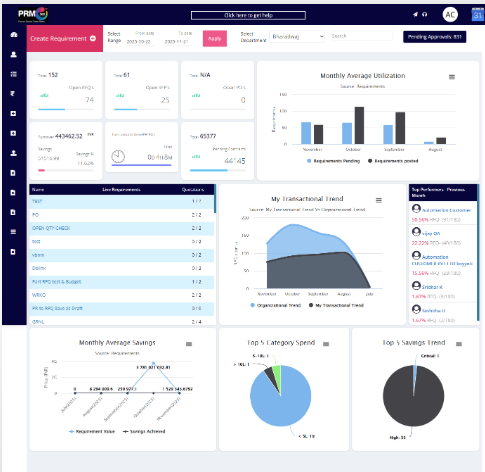
The Dashboard is divided into several sections. Each section displays data based on the selected date range and department filters. The details of these sections are as follows:

Create Requirement
The user can create a requirement by clicking on the Create Requirement option available on the dashboard. It will route to the requirement creation step1.
Date Range (From and To Dates)
The date range is set to 1 month by default.
If the user updates the date range, the dashboard will refresh and display data according to the newly selected duration.
Select Department
Based on the department selected from the dropdown, the dashboard will show the corresponding data within the chosen date range.
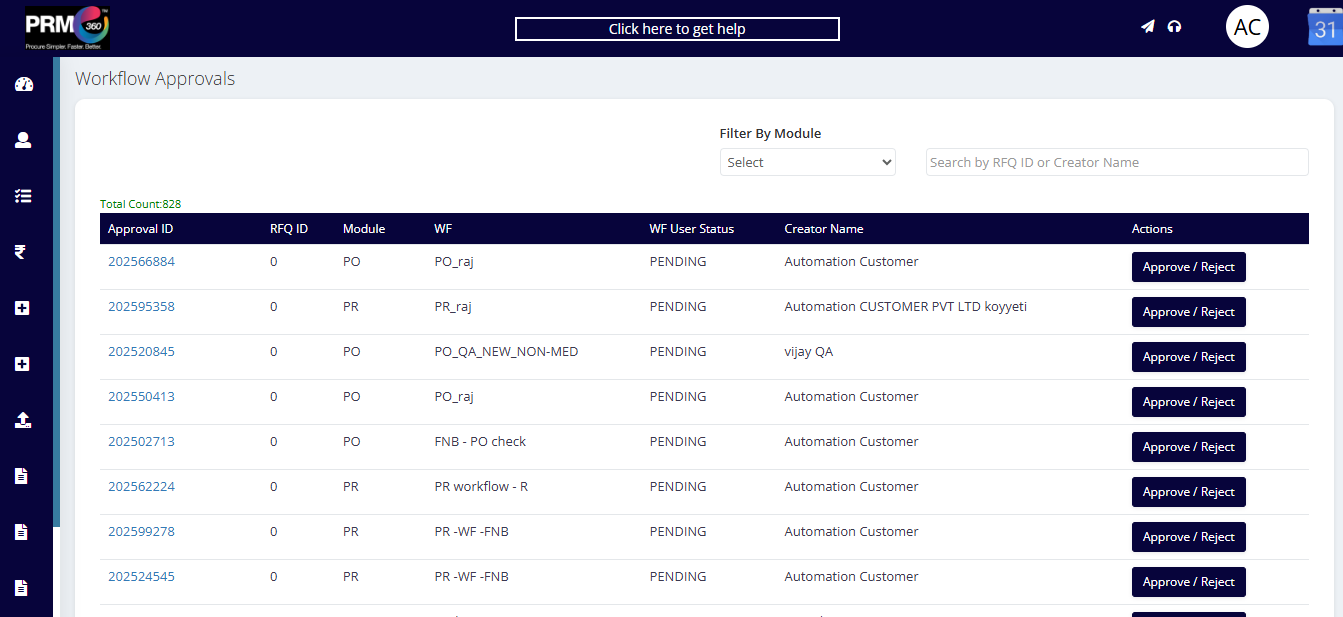
Pending approvals: All the transactions which are pending for approval count will be shown here. Clicking on the pending approval option will route to the new page shown below.
Open RFQ: This shows the total numbers which RFQs are raised but not converted to QCS during the selected timeframe in the respective department.
Open RFP: This shows the total numbers which RFPs are raised but not converted to QCS during the selected timeframe in the respective department.
Open POs: This shows the total numbers submitted POs during the selected timeframe in the respective department.
Savings: This displays the total savings achieved through the RFQs posted during the selected timeframe in the respective department.
Turnaround round Time: Time taken for the whole transaction from PR to PO during the selected timeframe in the respective department.
Monthly Average Utilization
This section displays
Among the requirements that have already been posted and the number of pending requirements—that is, the requirements for which quotation submission is still pending will be shown month-wise, helping the user understand the monthly average utilization and pending workload.
Live Requirement Table:
The Live Requirement table lists all the pending requirements in the system. Users can quickly navigate to any requirement by clicking on the corresponding RFQ ID, which directly opens the respective RFQ.
This feature serves as a shortcut for quick access, helping users efficiently manage and act on pending RFQs.
My Transaction Trend:
This section shows the transaction trend of the selected department compared with the overall organizational trend.
The data is displayed based on the RFQ (Request for Quotation) count within the selected date range, helping users understand how their department is performing in relation to the entire organization.
Top Performers:
This section displays the top-performing users from the previous month.
The performance is calculated based on the percentage of RFQs posted by the user and the number of those RFQs that were successfully converted into POs.
This helps identify users who have demonstrated strong efficiency and conversion rates in the procurement process.
Monthly Average Savings:
Monthly average savings are calculated based on the requirements created in the PRM360 application.
This section displays two trend lines:
Requirement Value – The total sum of the initial vendor list prices for all requirements.
Savings Achieved – The total savings accumulated after negotiations or final purchase decisions.
Top 5 Categories Spend:
Based on the released PO values, the system identifies and displays the Top 5 Spend Categories.
Each category shows the total sum of the released PO values, helping users quickly understand where the highest procurement spend is occurring.
Top 5 Savings trend:
The Top 5 category savings section displays the categories that have achieved the highest savings. These savings are calculated based on RFQ → QCS approved cases, considering each individual line item.
Savings Formula: Savings = Initial Price - Final Price
This calculation helps identify the most cost-effective categories and highlights procurement efficiency across different segments.
Was this article helpful?
That’s Great!
Thank you for your feedback
Sorry! We couldn't be helpful
Thank you for your feedback
Feedback sent
We appreciate your effort and will try to fix the article