Budget Upload:
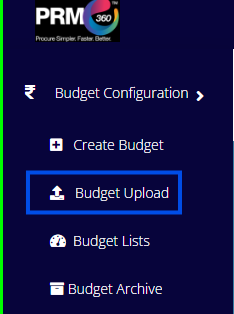
Upon clicking Budget Upload, the system will display a screen where the Calendar Year dropdown is available. The user must select the desired year from this dropdown to proceed.

Once the year is selected, the following fields and options will be enabled for the user to proceed.
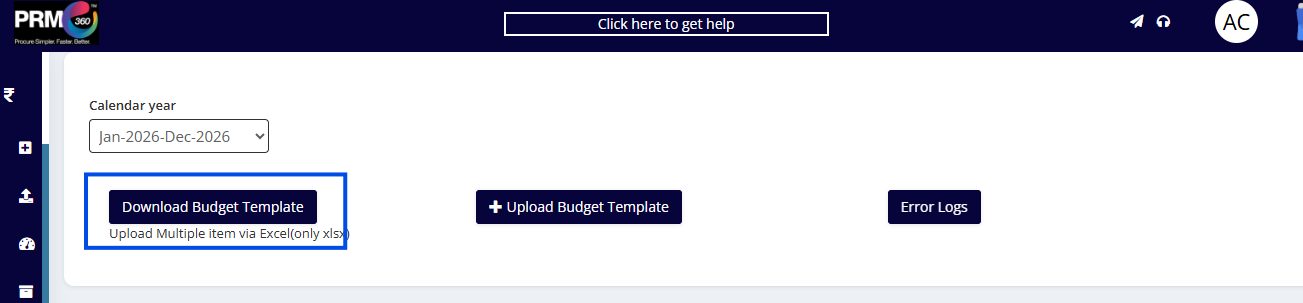
Download Budget Template:
On clicking Download Budget Template, the system will download an Excel file that contains the required format for uploading the budget details. All the fields highlighted in red are mandatory.

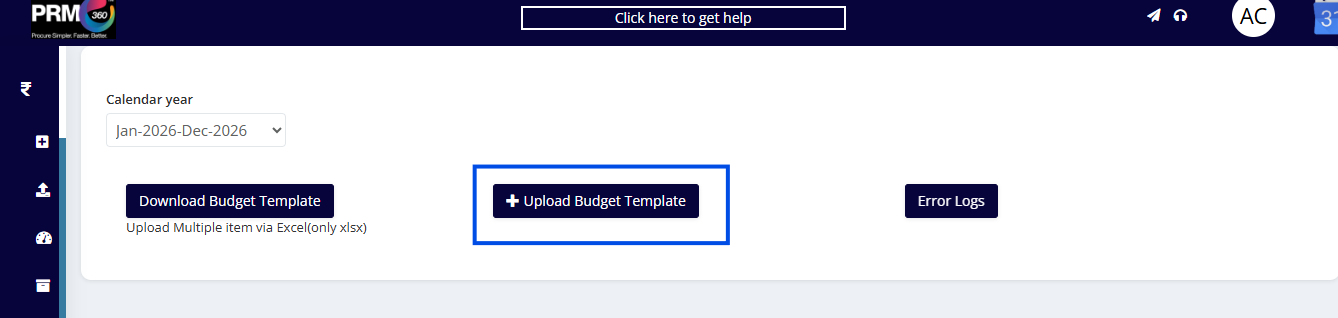
The user needs to fill in the required details in the Excel file and save it. Once the file is saved, the user must click on Upload Budget Template to upload the completed sheet into the system.
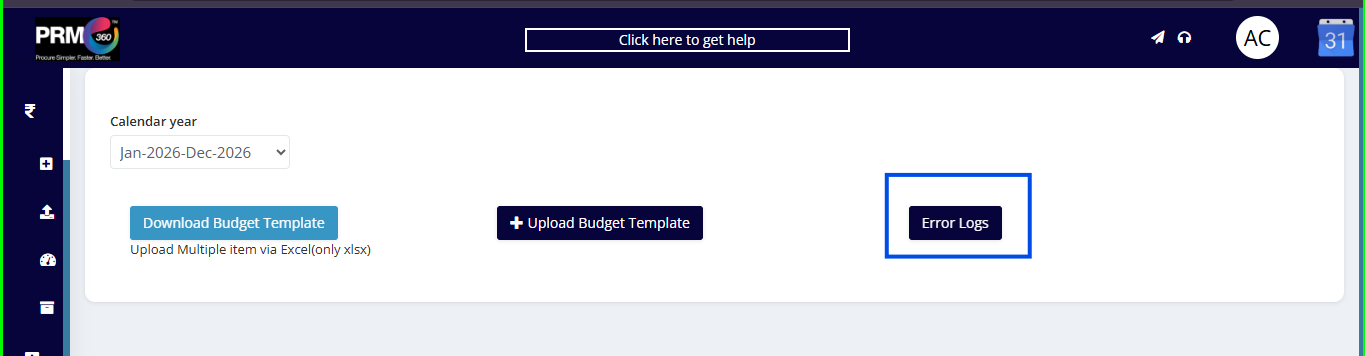
If there are any errors while uploading the Excel file, they will be displayed in the Error Logs section.
Was this article helpful?
That’s Great!
Thank you for your feedback
Sorry! We couldn't be helpful
Thank you for your feedback
Feedback sent
We appreciate your effort and will try to fix the article