Budget list:
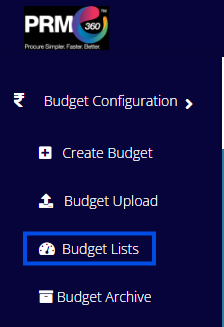
Once the user clicks on Budget List, they will be redirected to the page shown below. After creating a budget manually and getting it approved by the approver, or after uploading it through the Excel template, all corresponding budget records will be displayed on this page. Budgets that are saved as drafts will also be visible here.
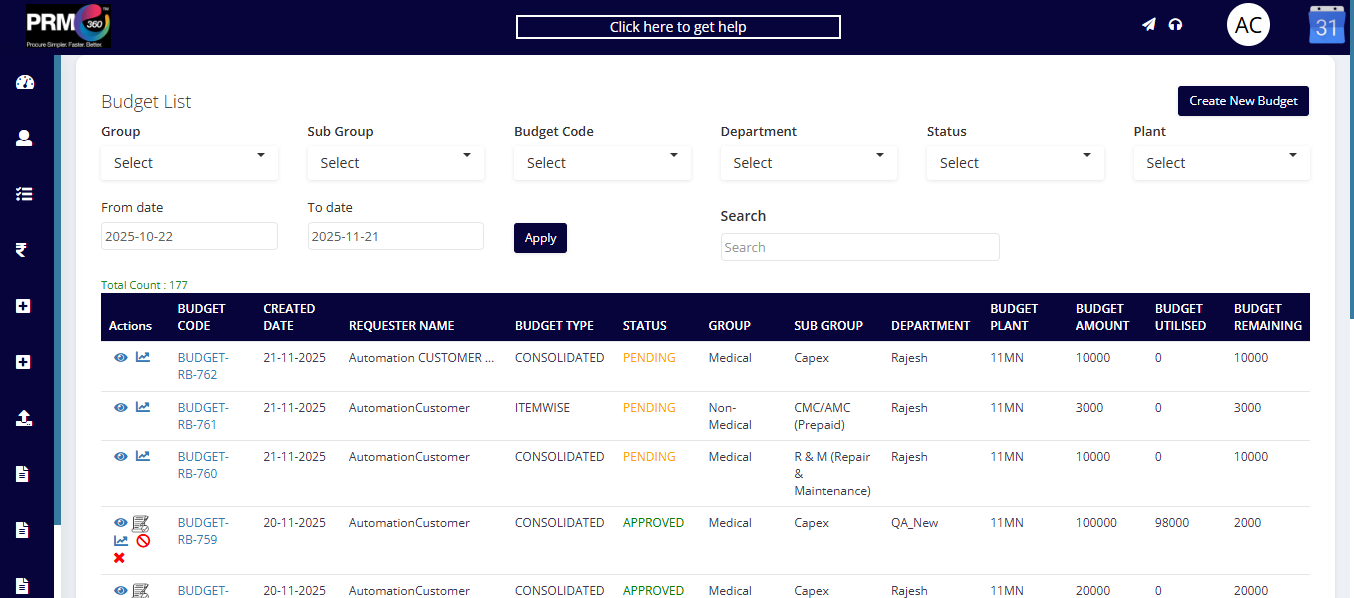
In the Budget List, users can apply various filters to retrieve the required data. The available filters include Group, Sub-Group, Budget Code, Department, Status, and Plant, along with the option to filter budgets based on the selected Start Date and End Date. The user can search option to find a specific budget based on the budget code.
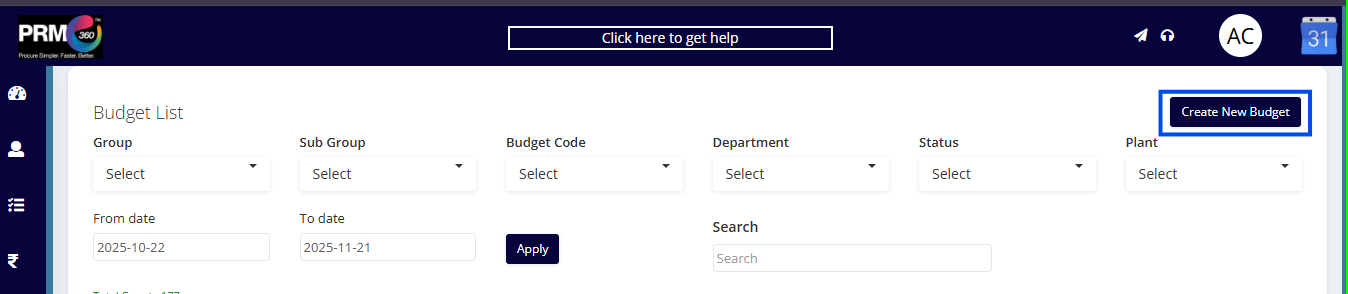
A budget can be created directly using the "Create New Budget" option available on the Budget List page.
In the budget list the following are the fields shown.
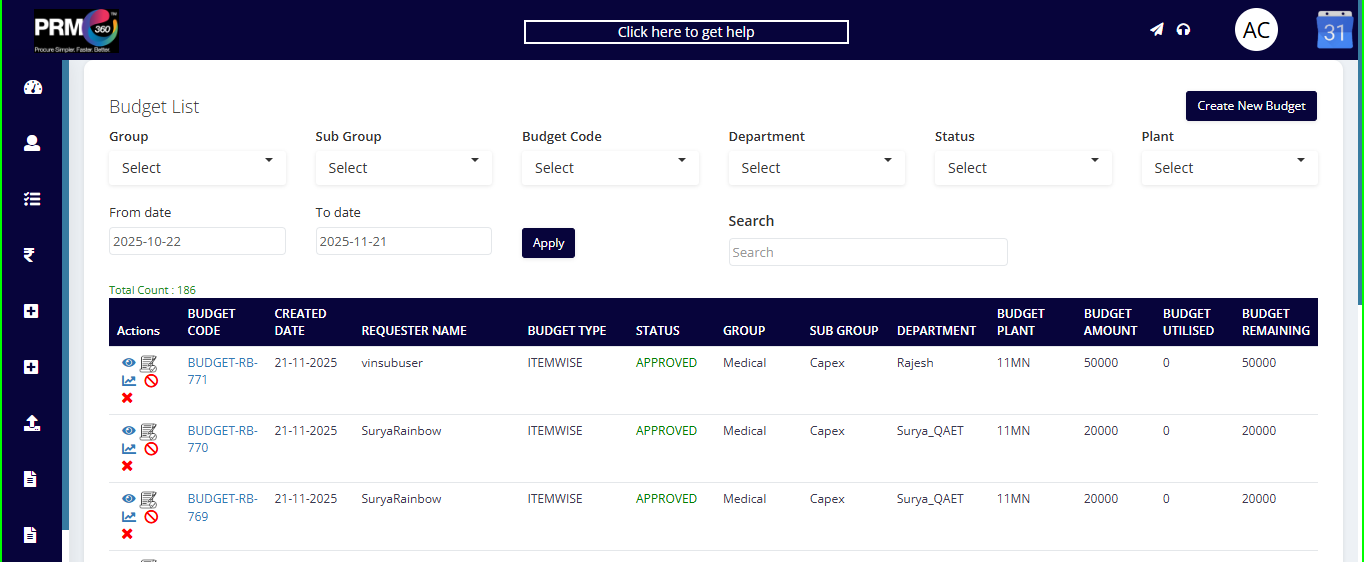
Actions: Under actions we can see the following options:
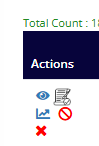
Eye Icon (View):
By clicking the eye icon, the user can view the complete budget details on a separate page.
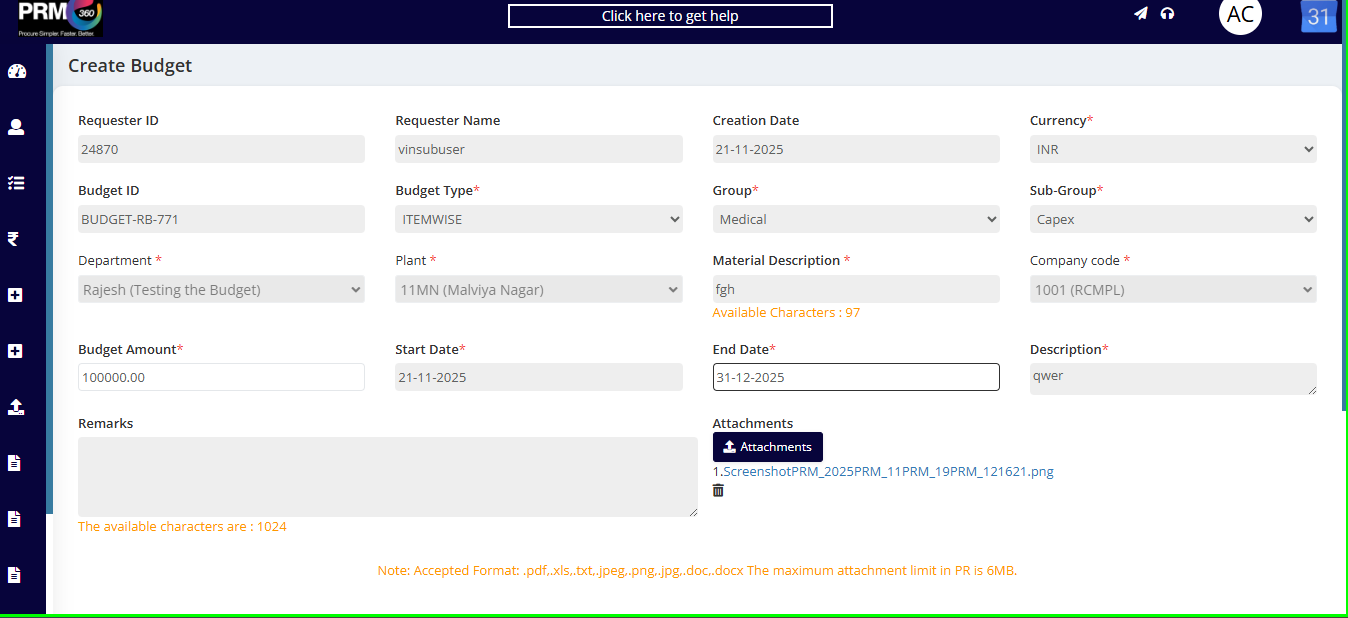
Amend Budget:
This option allows the user to edit the budget. Only the budget amount and end date can be modified. After making the necessary changes, the user can submit the updated budget. Only the approved budget will get the Amend option.
Budget Report:
When the user clicks on Budget Report, the system will redirect to the page shown below, where they can view and analyze the budget-related data.

Budget Summary:
The Budget Summary section displays key details of each budget, including:
Budget ID – The unique identifier assigned to the budget.
Budget Amount – The total amount allocated for the budget.
Utilized Amount – The amount already used against the budget.
Remaining Amount – The balance available for use.
Budget PR:
Shows all Purchase Requisitions (PRs) created using the selected budget.
Budget QCS:
Displays all QCS documents generated under the specific budget.
Budget PO:
Lists all Purchase Orders (POs) created using the budget.
Budget Direct PO:
Shows all direct Purchase Orders that were created directly from the PR using the allocated budget.
Cancel Budget:
When a budget is cancelled, it can no longer be used for any further transactions.
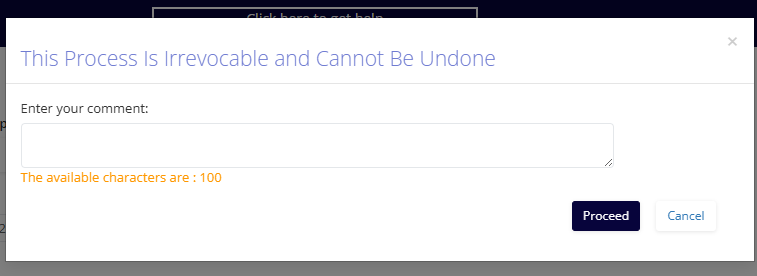
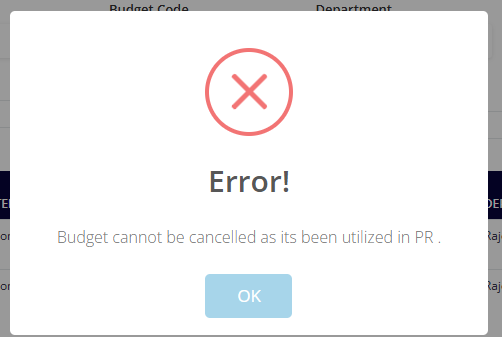
If the budget is utilized it cannot be cancelled.
Close budget:
When a budget is closed, it can no longer be used for any further transactions. Even budgets that have already been partially utilized can be closed. Once closed, the budget becomes inactive and cannot be selected or applied anywhere in the system.

Draft Budget:
If a budget is saved as a draft, the user will have the options to edit, delete, or archive it. These actions are available only until the budget is submitted for approval.
Additionally, the following details will be displayed:
Budget Code: A unique ID generated by the PRM360 system.
Created Date: The date on which the budget was created.
Requester Name: Name of the user who created the budget.
Budget Type: Indicates whether the budget is Consolidated or Item Wise.
Status: Shows the current stage of the budget—Draft, Closed, Cancelled, Pending (awaiting approval), Approved (approved by the approver), or Rejected (rejected by the approver).
Group: Category of the budget (e.g., Medical or Non-Medical).
Sub-Group: The sub-category that the budget belongs to.
Department: The department associated with the budget.
Budget Plant: The plant linked to the budget.
Budget Amount: The total amount allocated for the budget.
Budget Utilized: The portion of the budget amount already used.
Budget Remaining: The balance amount available after utilization.
All the above details will be visible by default for a one-month period, and the data will update based on the date range selected by the user.
Was this article helpful?
That’s Great!
Thank you for your feedback
Sorry! We couldn't be helpful
Thank you for your feedback
Feedback sent
We appreciate your effort and will try to fix the article