My Vendors:
Users can add multiple vendors in one go, can directly upload an Excel file with vendor details to onboard multiple vendors at a go, or can add each vendor individually.
To manually add a new vendor, the user must click on the “Manage Vendor Excel” option.
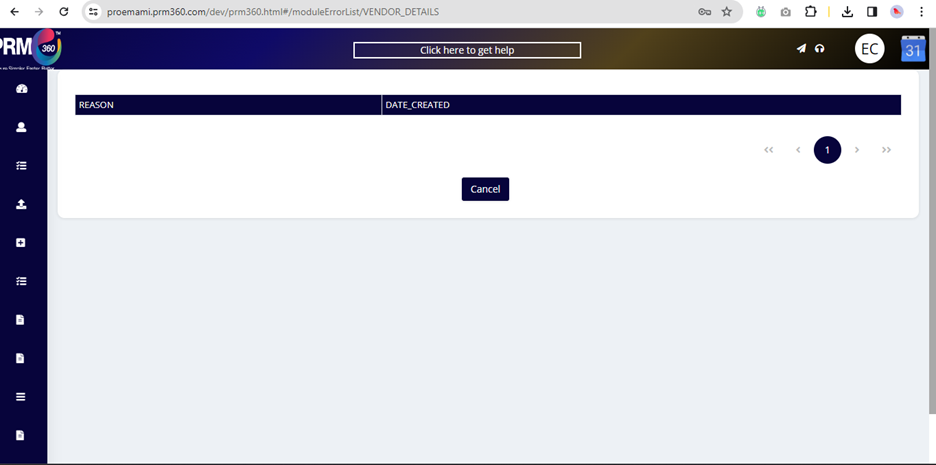
In case any vendor data is not uploaded, then the user will have a chance to view the error in the Error Logs which is present under the Manage Vendor Excel drop-down.
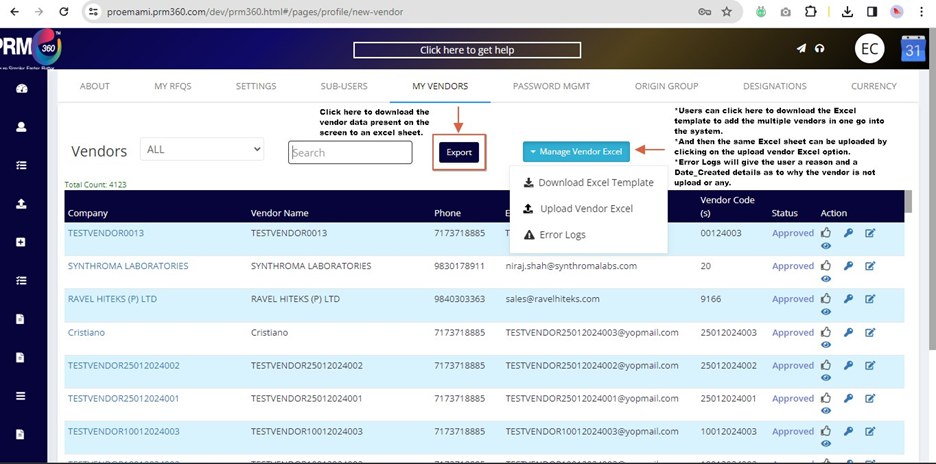
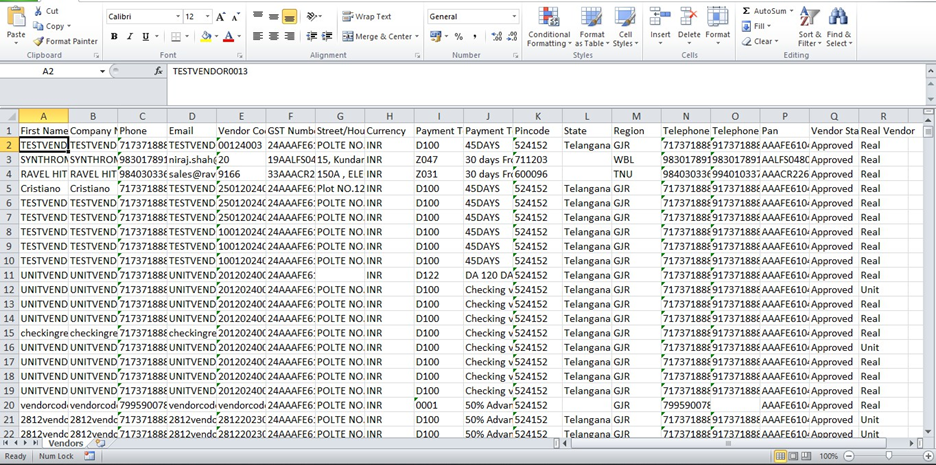
Once the user clicks on the Export option, an Excel sheet will be downloaded, which will give you a view of all the vendors received from SAP.
When the user clicks on the Error Logs page, they will be routed to the new page where the reason for the error can be viewed with the Date_Created.
Vendors are of two types in Emami
- Real Vendors - Only Real vendors will be visible in the RFQ creation
- Unit Vendors - These vendors are not visible in RFQ rather they are available for the allocation process.
Actions:
Approve vendor: Once the user clicks on the approve thumps-up button then a popup will be displayed as below.
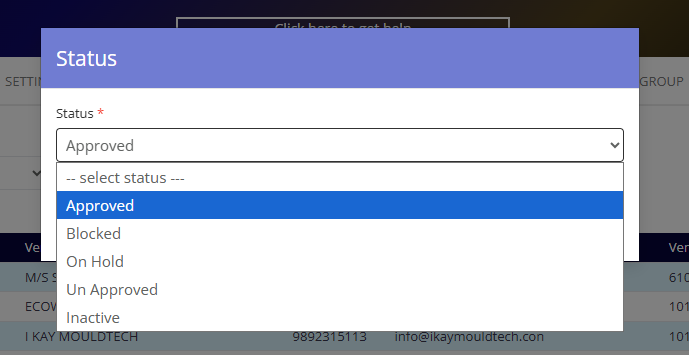
From the dropdown the user can select the required action and proceed further.
Reset Password: the user can reset the password using this option.
Edit: the vendor details can be edited here.
View: To view the vendor details.
Was this article helpful?
That’s Great!
Thank you for your feedback
Sorry! We couldn't be helpful
Thank you for your feedback
Feedback sent
We appreciate your effort and will try to fix the article