1. Login Page
Vendor has to enter the Login ID (registered email ID) and the password and click on "LOG IN" to login into the application.
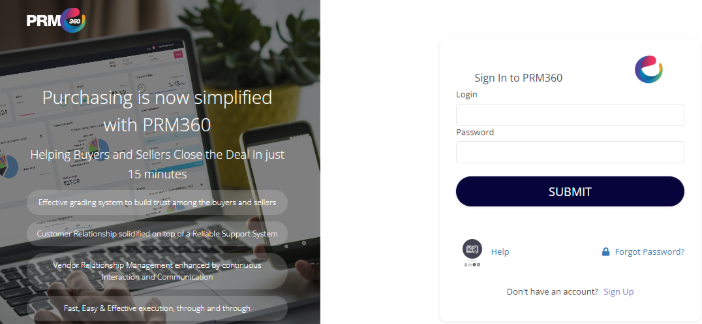
Note: The vendor can click on Forgot Password if they don't remember the current password.
a) Forgot Password
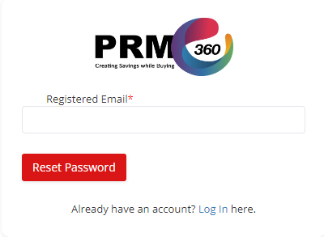
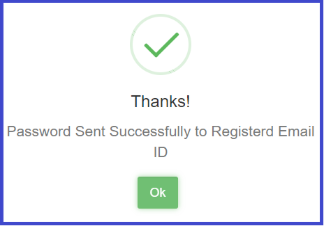
To reset the password, the vendor has the option to use Forgot Password. Enter the registered email ID and click on "RESET PASSWORD". A new password (OTP) will be sent to the vendor's registered email ID. The vendor must use this OTP as the password to log in to the portal.
b) Initiate OTP
After successful login for the first time in the system, an OTP is triggered to the login email ID to complete the email verification process. Once the vendor clicks on "Click to verify EMAIL", the system will trigger an OTP to the vendor's registered email ID.
i) Verify Email:
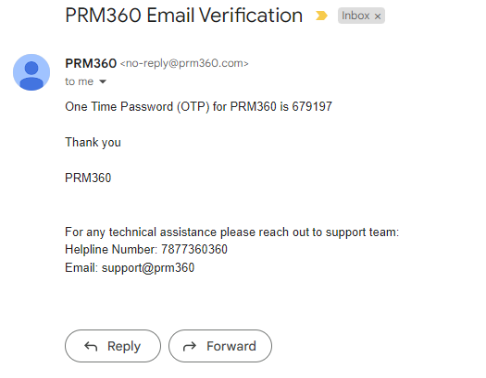
The vendor has to click on the option below the email address to complete the email ID verification process. The vendor would have already received the OTP to the registered email address. A sample email format is shown below.
ii) Enter OTP:
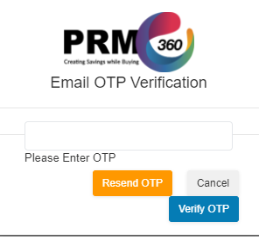
The vendor will be prompted to enter the OTP after clicking "Click to verify EMAIL". The popup below will be displayed to enter the OTP received in the email.
iii) Verify OTP:
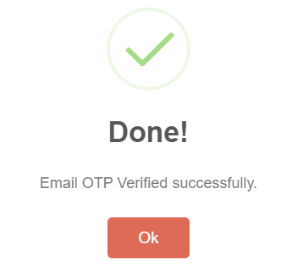
The vendor has to click on "Verify OTP" and complete the verification process. After entering the OTP received over email, the success message will be displayed confirming "Email OTP Verified successfully."
2. My Accounts
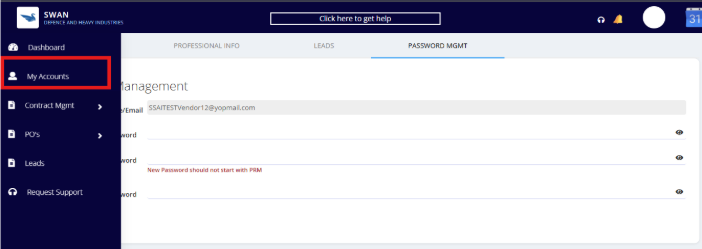
Once the vendor logs in to PRM360, they will be navigated to "My Accounts".
a) About:
The My Accounts page holds all the basic information of the vendor which was provided to SWAN during the vendor registration process. It is a very important page with three sections: Profile, Basic Information, and Contact Information.
b) Professional Info:
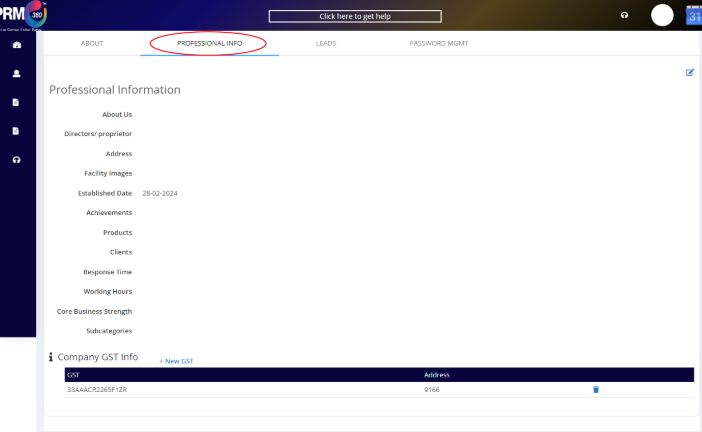
This is another very important page. It contains the vendor profile — buyers may shortlist vendors based on this profile information. The information must be filled in by the vendor. Key fields include:
About Us
Directors / Proprietor
Address
Facility Images
Established Date
Achievements, Products, and Clients
Response Time and Working Hours
Core Business Strength and Sub-categories
Company GST Info
c) Change Password:
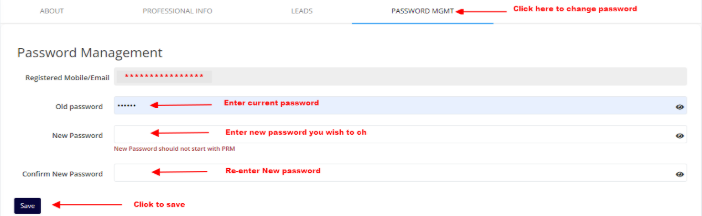
To change the password, the vendor must navigate to the "PASSWORD MGMT" page in the My Accounts tab or click on the "Change Password" button on the "About" page.
Enter the Old Password received as part of the introduction email (for new vendor login).
New Password should not start with "PRM-".
New Password and Confirm New Password must be the same.
Vendor can click on the eye icon to view the password entered.
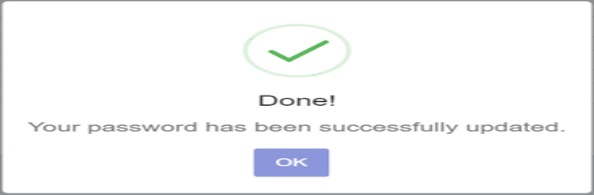
Upon clicking Save, a success message is displayed: "Your Password is Successfully changed".
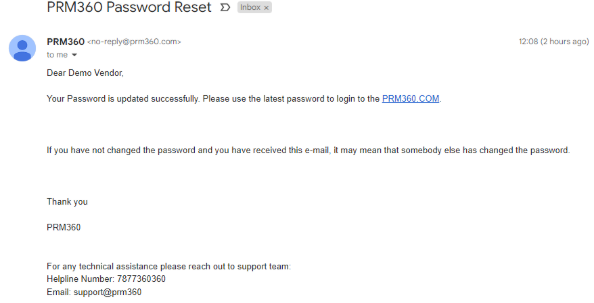
A confirmation email will be sent to the registered email ID.
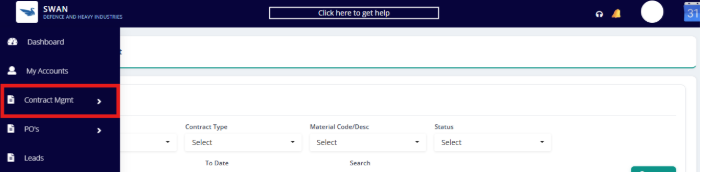
CONTRACT
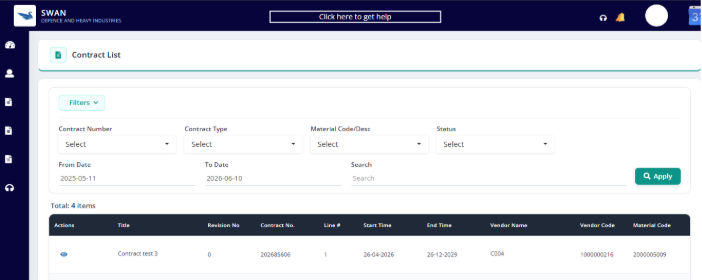
The Contract Management module allows vendors to view and manage their active contracts with SWAN Defence and Heavy Industries.
3. PO's
a) PO List
Vendors can view the Purchase Orders (POs) posted by the client in PO List. Once the vendor clicks on the PO List and selects the fields in the filter region, it navigates to PO details where the vendor will be able to view the PO details and upload the invoice.
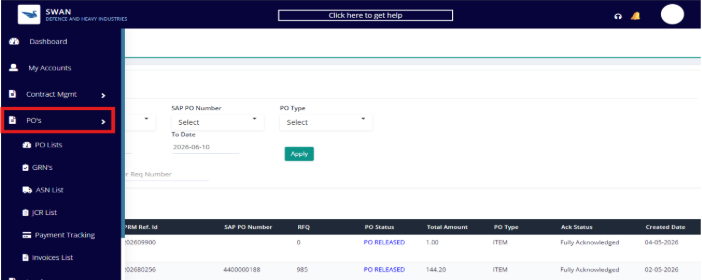
PO List — Filter region — Apply
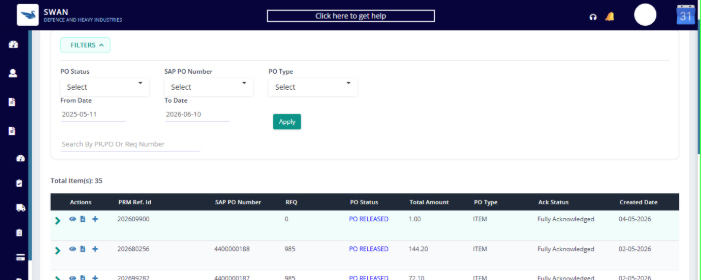
Click on the dropdown to see the details of the PO and items listed.
Click on the eye icon to view the PO.
The vendor can select a date range to view the PO posted on certain dates. Also search for the PO by entering the PO number in the search column. The vendor can view the PO by clicking on the eye symbol.
The vendor can acknowledge the PO by clicking on the green tick option.
ASN Creation:
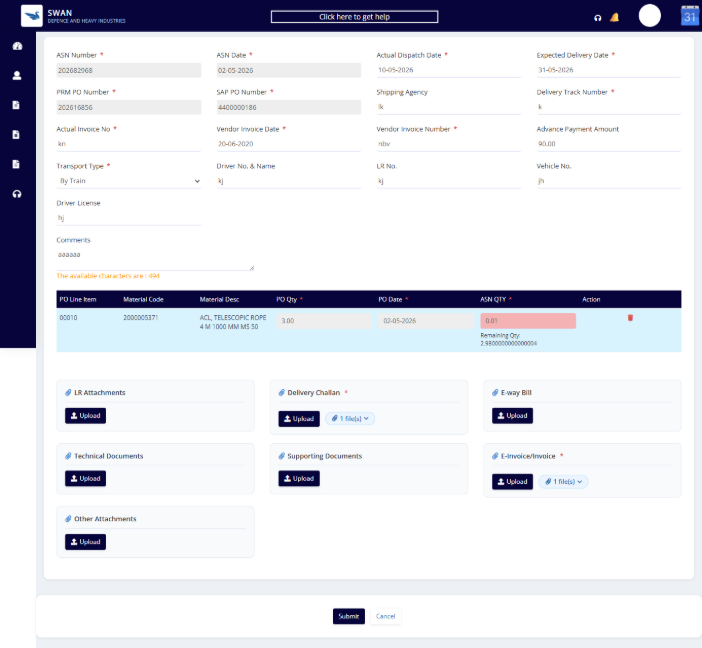
After acknowledging the PO, the vendor can create an ASN by clicking the "+" icon.
Steps:
Enter the PRM PO number, item number, item description, ASN code, creation date, ASN quantity, actual dispatch date, expected delivery date, shipping agency, delivery track, invoice number, invoice date, and invoice line value.
Click on "Attachment" to add the ASN attachment.
Add the invoice by clicking on "Invoice Attachment."
Finally, click "Save" / "Submit" to complete the process.
b) GRN's
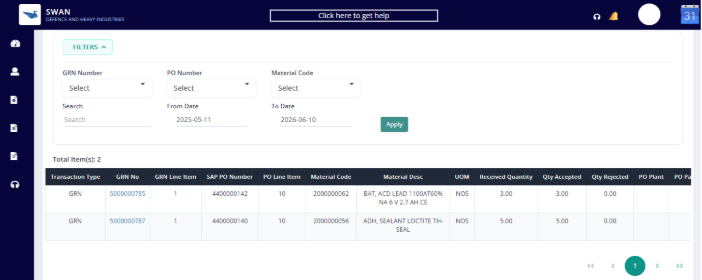
Vendors can view the GRN details in GRNs. Once the vendor clicks on GRNs and selects the fields in the filter region, it navigates to Invoice details where the vendor will be able to view the GRN details. The vendor can select a date range to view the GRN on certain dates. Then click on Apply to check the status.
c) JCR List
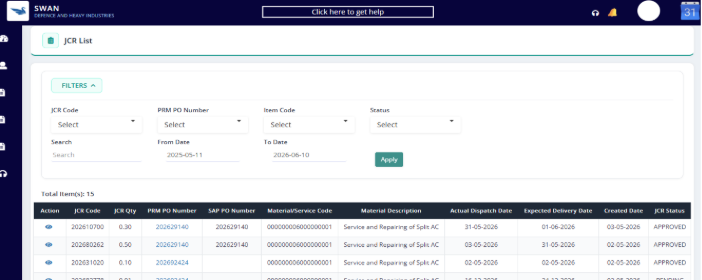
The JCR (Job Completion Report) List allows vendors to view and track service-related completion reports. Vendors can filter by JCR Code, PRM PO Number, Item Code, Status, and date range.
d) Payment Tracking
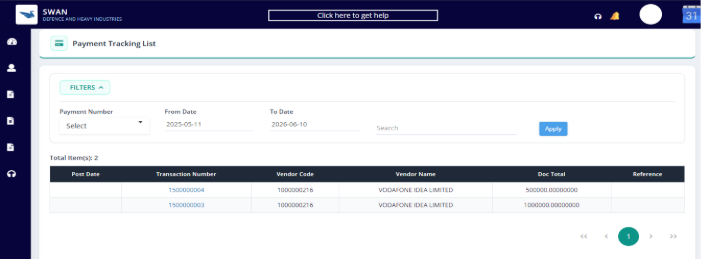
By clicking on the Payment Tracking option, the vendor can view the payment status.
Steps:
Select the payment status from the drop-down menu.
Choose the branch from the drop-down menu.
Filter the dates by adjusting the "From" and "To" dates.
Finally, click "Apply" to view the details.
e) ASN List
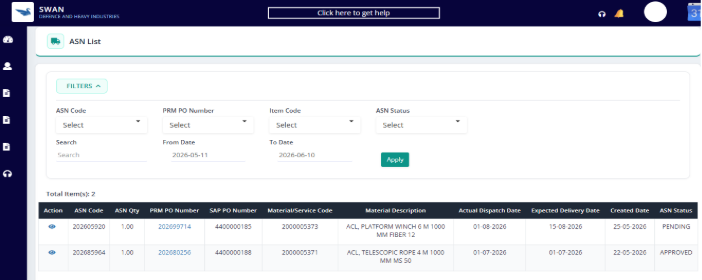
Click on the ASN List to navigate to the ASN page, where you can create and review ASN details.
Steps:
The vendor should select the ASN code.
Select the PO number and item code.
To view the details, choose the "From" and "To" dates.
Click on "Apply."
Click on the eye icon to view the ASN.
f) Invoice List
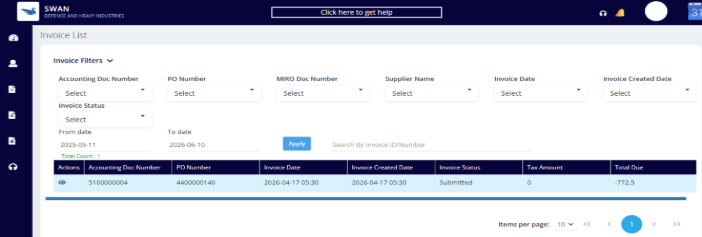
The Invoice List allows vendors to track all submitted invoices. Vendors can filter by Accounting Doc Number, PO Number, MIRO Doc Number, Supplier Name, Invoice Date, Invoice Status, and date range.
4. Leads
Vendors can also view the latest requirements posted by the client in the Leads section. Once the vendor clicks on the Title of the requirement, it navigates to view the requirement details where the vendor will input their prices and submit the quotation.
All requirements shared by the SWAN client will be shown in the Leads tab. Vendors can navigate to the leads page as described below:
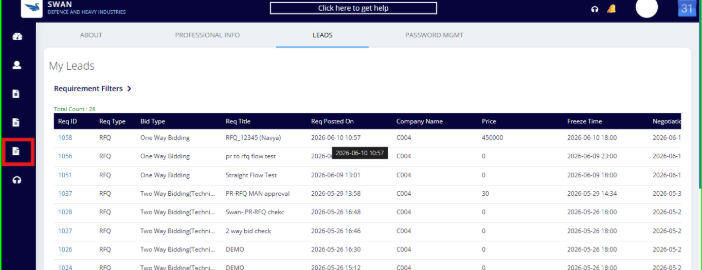
RFQ Number: Unique ID of the Requirement posted (e.g. SWAN687).
Title: Requirement title provided by the client. Clicking the Title navigates to view the requirement details where you can input prices and submit the quotation.
Price: Total quotation price given for the requirement.
RFQ Posted: The date when the requirement was posted.
Freeze Time: Deadline by when the Quotation must be submitted.
Negotiation Start Time: Approximate time when the negotiation will start.
Priority: Set by the buyer while posting the requirement; vendor can submit the quotation accordingly.
Status: Status of the requirement:
New — Requirement posted by the SWAN team, awaiting vendor quotations.
WIP (Work in Progress) — Prices submitted but negotiation not yet scheduled.
Negotiation Scheduled — Negotiation has been scheduled.
Negotiation Started — Negotiation has started.
Negotiation Closed — Negotiation has ended.
Negotiation Cancelled — Negotiation has been cancelled.
Type: Type of the requirement.
Actions (Chat): Vendor can message the SWAN team buyer for any queries so everything is documented.
a) Quotation Submission
Once you click on the title of the requirement, you will be able to see the complete details of the requirement. It is good practice to submit the quotation after reviewing the specifications of the material, payment terms, and the delivery terms.
The entire vendor quotation process will only run through the following screen.
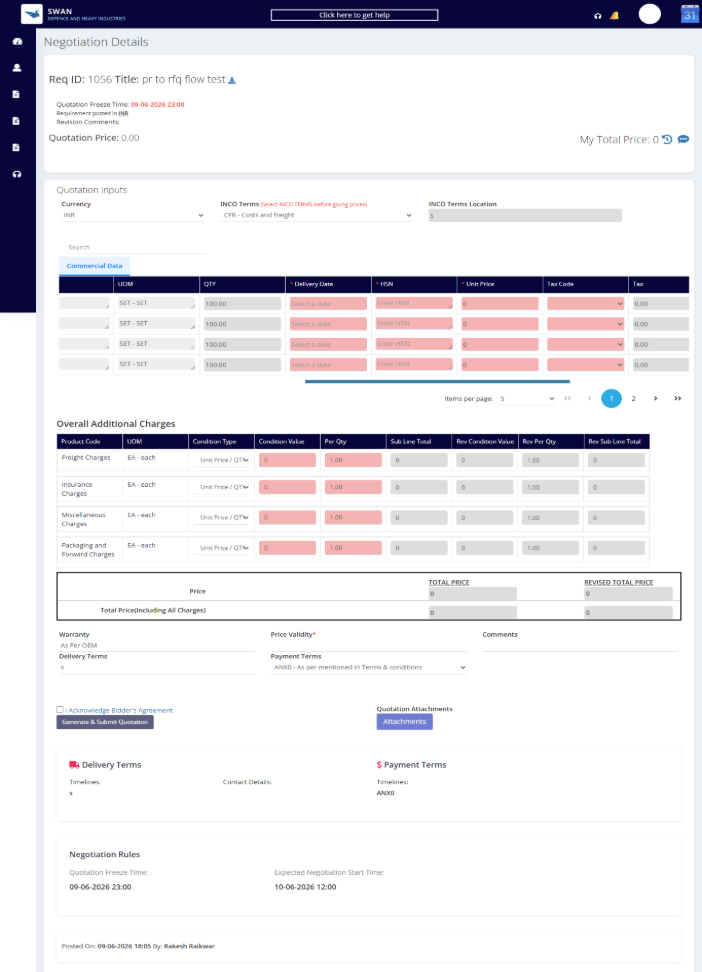
The selection of Currency is mandatory if there are two currencies in one single transaction.
Unit Price: Enter the per unit price applicable.
Regret: Vendors can regret the requirement by mentioning their comments (e.g. no stock, not dealing with this product, not preferable payment terms, etc.).
Terms & Conditions: Edit all fields based on your terms.
Delivery Terms: Vendor can review delivery terms, delivery location, and contact details (purchase team).
Payment Terms: Vendor can review timelines and general terms & conditions.
Attachment: Can attach files (PDF, Word, etc.) regarding quotation. Max 6 MB file size.
Generate & Submit Quotation: Click on General Terms and Conditions to review the terms and conditions. Select the checkbox to acknowledge.
As soon as you click on the acknowledge tick box, a pop-up page appears. Select the tick box again to proceed further. Please review the terms and conditions and click on "I Acknowledge".
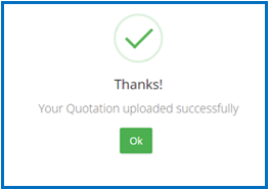
After acknowledging, you can download the system-generated PDF of the quotation. A success message will appear confirming "Your Quotation uploaded successfully."
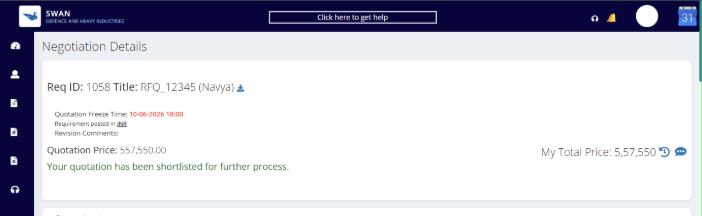
i) Quotation Status if Approved
If your quotation is selected for further process, you will be able to see the message: "Your quotation has been shortlisted for further process".
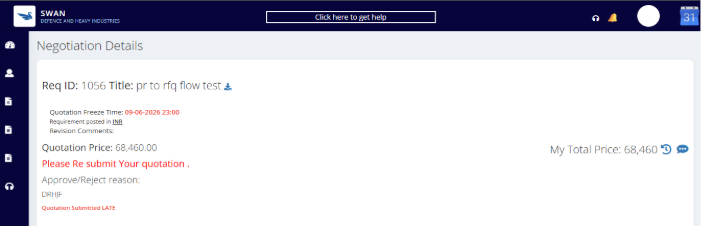
ii) Quotation Status is Rejected
If your quotation is rejected by the client, the screen will display the reason for rejection so that you can rework on the reject reason and resubmit the quotation.
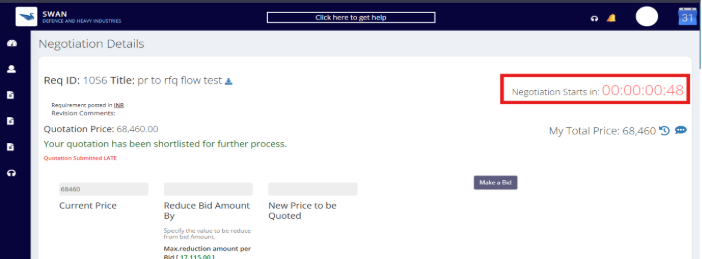
5. Bidding Process
Negotiation Ends in: Total time left for the negotiation process to complete.
Negotiation Starts in: Total time left for the negotiation process to start.
Negotiation Closed: Negotiation has ended and vendor can't bid anymore.
Price: Initial price submitted by vendor.
Discount: Initial Discount % offered (Discount type only).
Rank: Current position of the vendor in the requirement.
Rev. Unit Price: The revised unit price the vendor intends to bid must be mentioned here for each item. Vendor can only decrease the price from the current running price during the bidding process. (Enabled when quote type is "PRICE".)
Rev. Discount%: The revised discount % the vendor intends to bid must be mentioned for each item. Vendor can only increase the discount % during the bidding process. (Enabled when quote type is "DISCOUNT".)
Make a Bid: After reducing the prices, click here to submit the revised price.
a) Reverse Bid Process:
Reverse bid process is a negotiation methodology helping both suppliers and buyers negotiate online in a stipulated timeframe. In a reverse auction, the buyer puts up a request for a required good or service. Sellers then place bids for the amount they are willing to be paid, and at the end of the auction the seller with the lowest amount wins.
In the Reverse Bid process, the vendor can offer their best prices in the Rev. Unit Price column and click on "Make a Bid" to submit their revised prices to the SWAN Buyer. There is no limit on the number of bids to be submitted during the negotiation timeline. Vendors can review their position during the negotiation by referring to the Rank on screen. For example, if the Rank is 2, the current bid amount stands at L2 position.
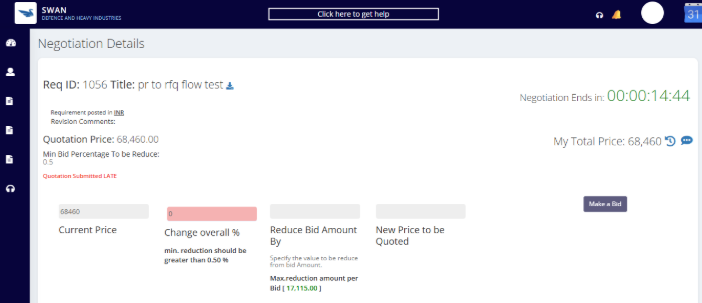
i) Overall Reduction Bid Screen:
The system will enable the "Change Overall %" column for the vendor to update the reduction % at the overall quotation level. The vendor will not be able to update prices at product level — only at requirement level. After entering a valid "Change Overall %", the vendor must click on "Make a Bid" to submit the bid.
Min. reduction % below the Change Overall % field indicates the minimum % reduction allowed per bid. The vendor can enter a % equal to or greater than this minimum.
Error Cases:
Case 1: "Please enter the reduction % greater than the min. reduction %" — If the vendor attempts to make a bid with lesser than the min. reduction allowed, the system will throw this error.
Case 2: "Maximum Reduction Error" — If the vendor attempts to make a single bid with more than 25% min. reduction, the system will throw this error. To change the bid more than 25%, submit through multiple bids instead.
ii) Item Level Reduction
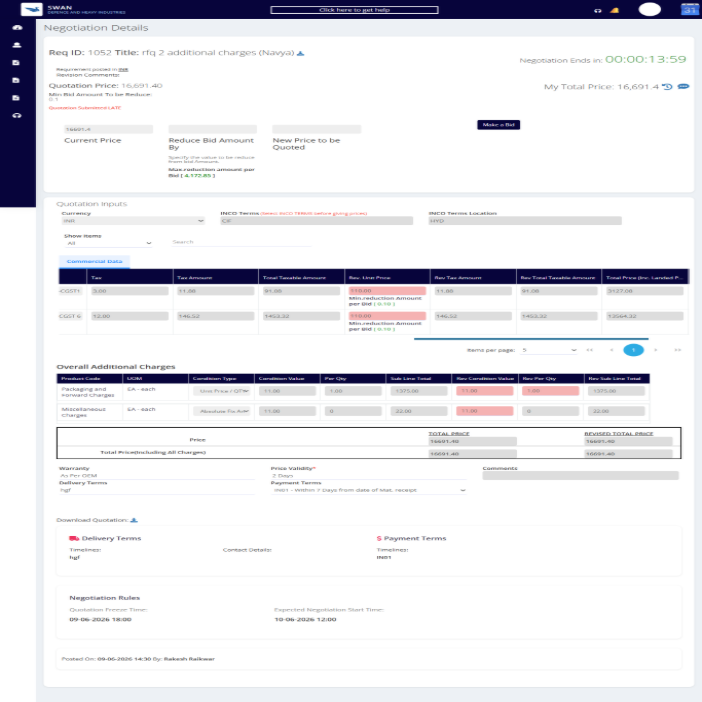
The system will enable the Rev. Unit Price column for the vendor to update their revised prices at each product level. All vendor entry fields are highlighted in pink for easier identification. After entering the "Rev. Unit Price", the vendor must click on "Make a Bid".
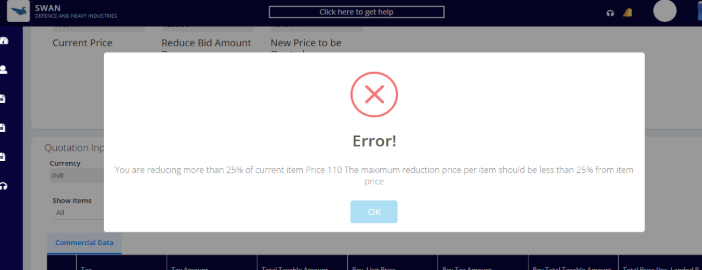
Error Cases:
Case 1: "Error! Your amount must be at least XX less than your previous bid" — If the vendor attempts to make a bid lesser than the min. reduction allowed.
Case 2: "Maximum Reduction Error" — If the vendor attempts to make a single bid with more than 25% min. reduction. Submit through multiple bids instead.
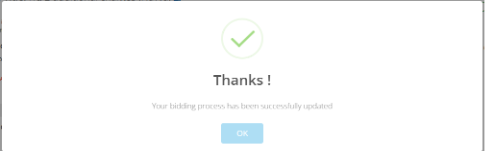
After clicking on "Make a Bid", a confirmation pop-up will appear mentioning that the bid amount has been submitted.
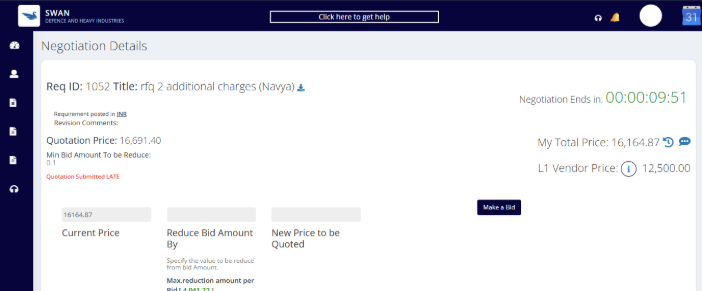
After the negotiation is completed, the vendor will be able to see the negotiation status as "Negotiation Closed" and the Rank Number will be updated according to the price submitted (least quoted price as Rank 1 and so on).
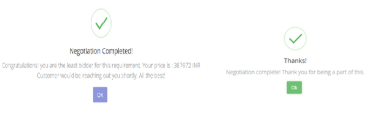
Once the negotiation is over, a pop-up will appear with Congratulations if the vendor is in rank one. For other ranks, the system will display a confirmation message.
After entering the Rev. Unit price and clicking on "SUBMIT", the below popup will appear. Click "OK" and new prices will be updated.
If you are submitting your final prices by clicking on "FINAL PRICE", the below popup will appear. Click "OK" and your prices will be submitted.
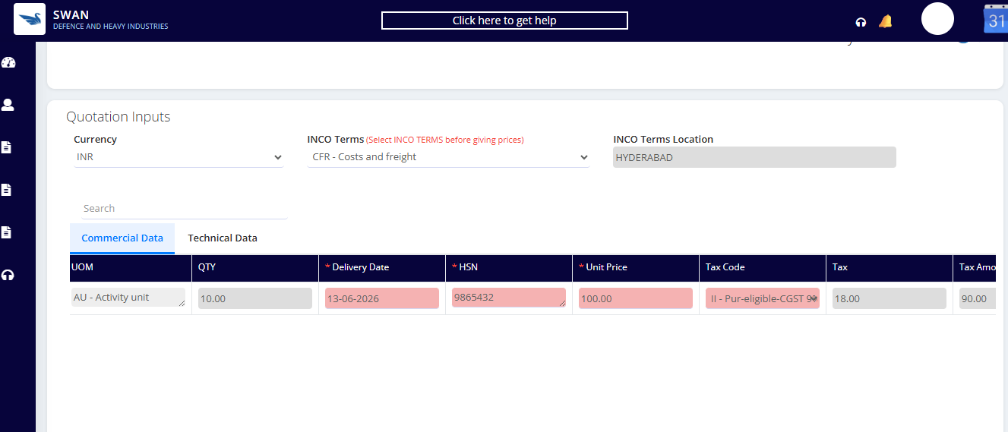
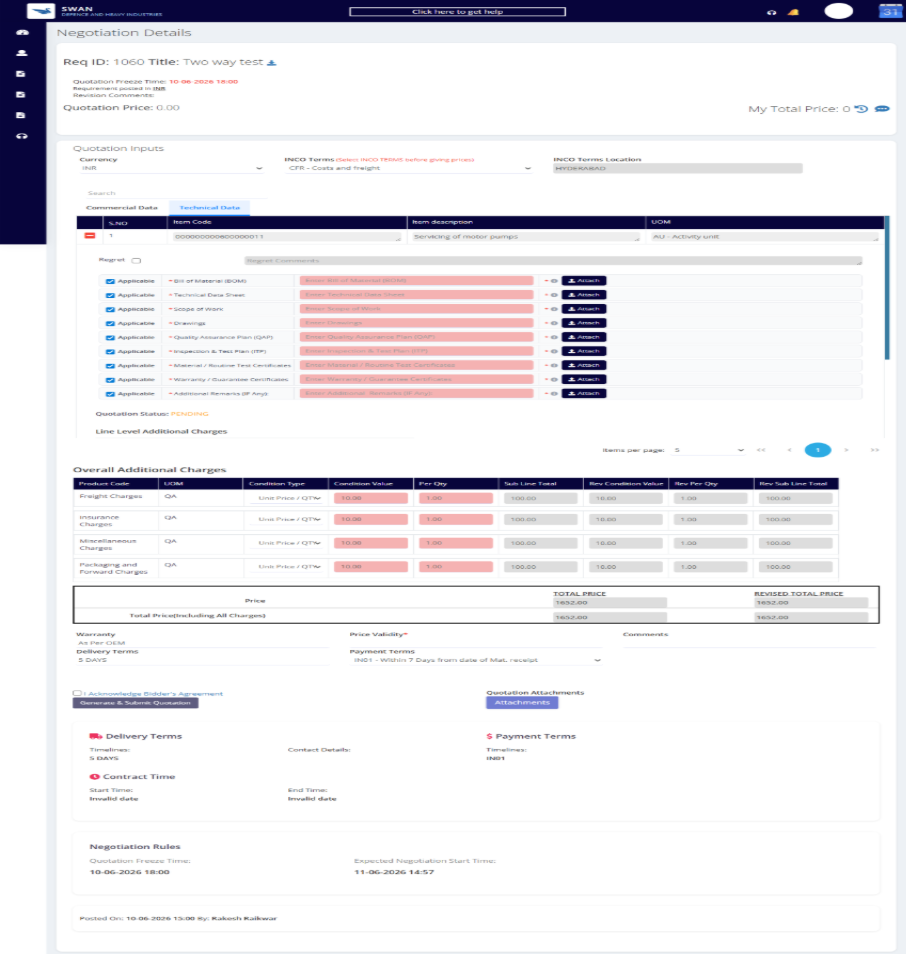
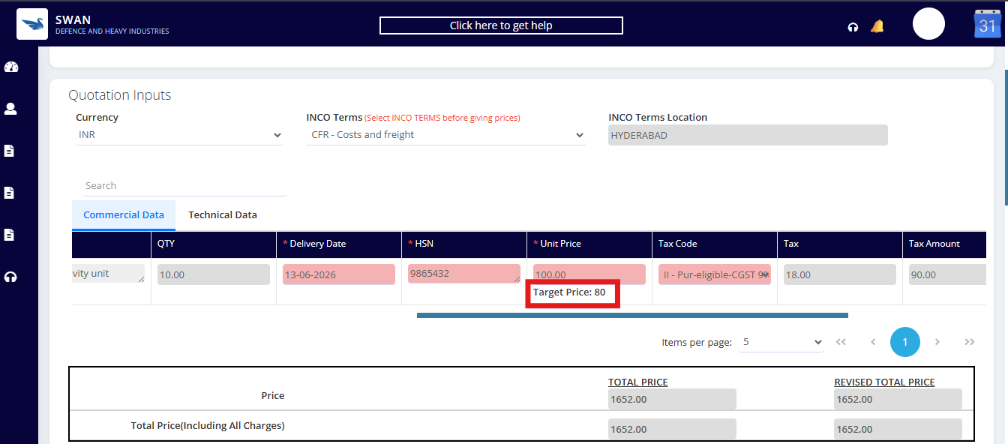
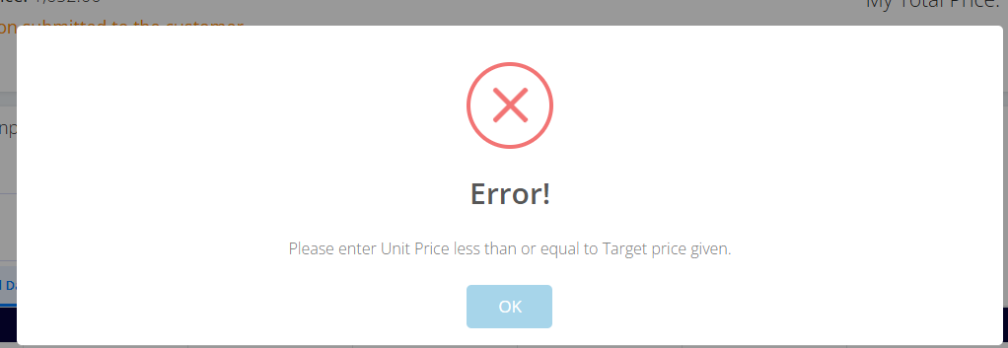
TWO way bidding:
6. Request Support
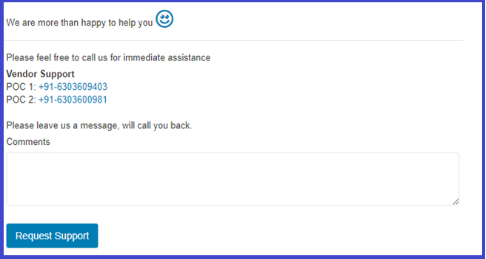
For any assistance on the product, the vendor may reach out to the hotline number and email box mentioned below. An available Support Analyst will reach out to address the queries, especially those related to quotation submission.
Note: If the queries are related to requirement products, specifications, etc., the vendor must reach out to the respective SWAN Buyer who posted the requirement. The contact details of the buyer are available in three places:
Request for quotation email received for this requirement.
Contact details placeholder in the Delivery Terms section on the Negotiation Details Page.
Last section of the Negotiation Details page showing "Posted On" and details of the buyer who posted the requirement.
Was this article helpful?
That’s Great!
Thank you for your feedback
Sorry! We couldn't be helpful
Thank you for your feedback
Feedback sent
We appreciate your effort and will try to fix the article