PHARMA CODE:
Once the user logs into the system, they need to navigate to the left-hand menu and click on the Pharma Code module.
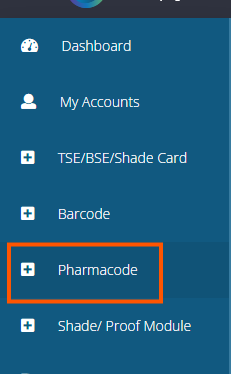
After clicking on the Pharma Code module, the system will redirect to the corresponding page.
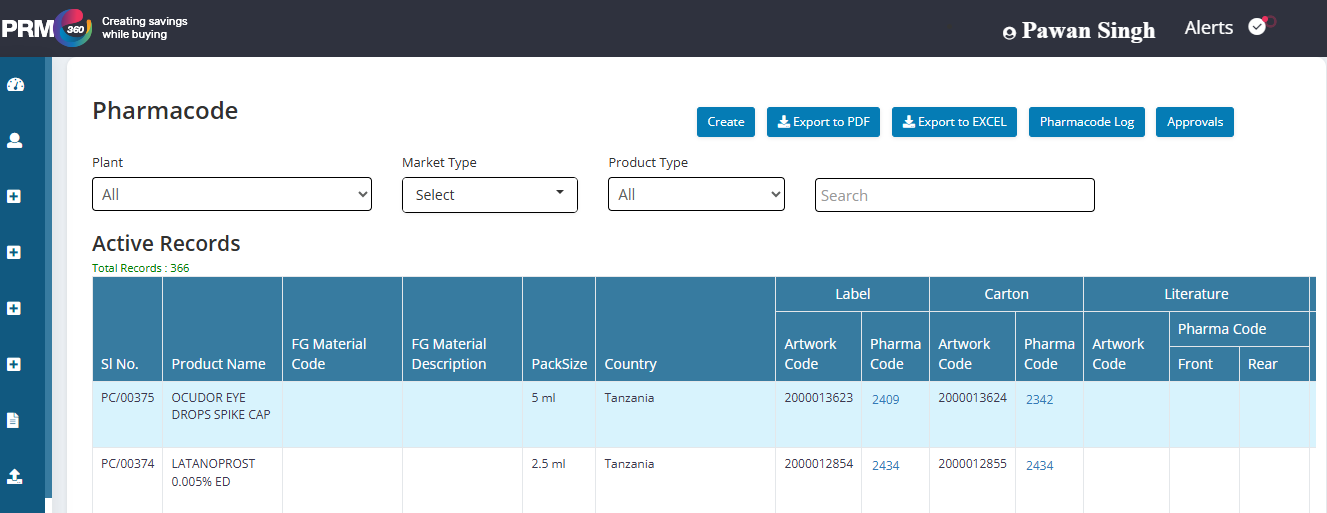
How to create a pharma code:
Once the user is redirected to the Pharma Code page, they should click on the "Create" button to initiate the creation of a new Pharma Code record.
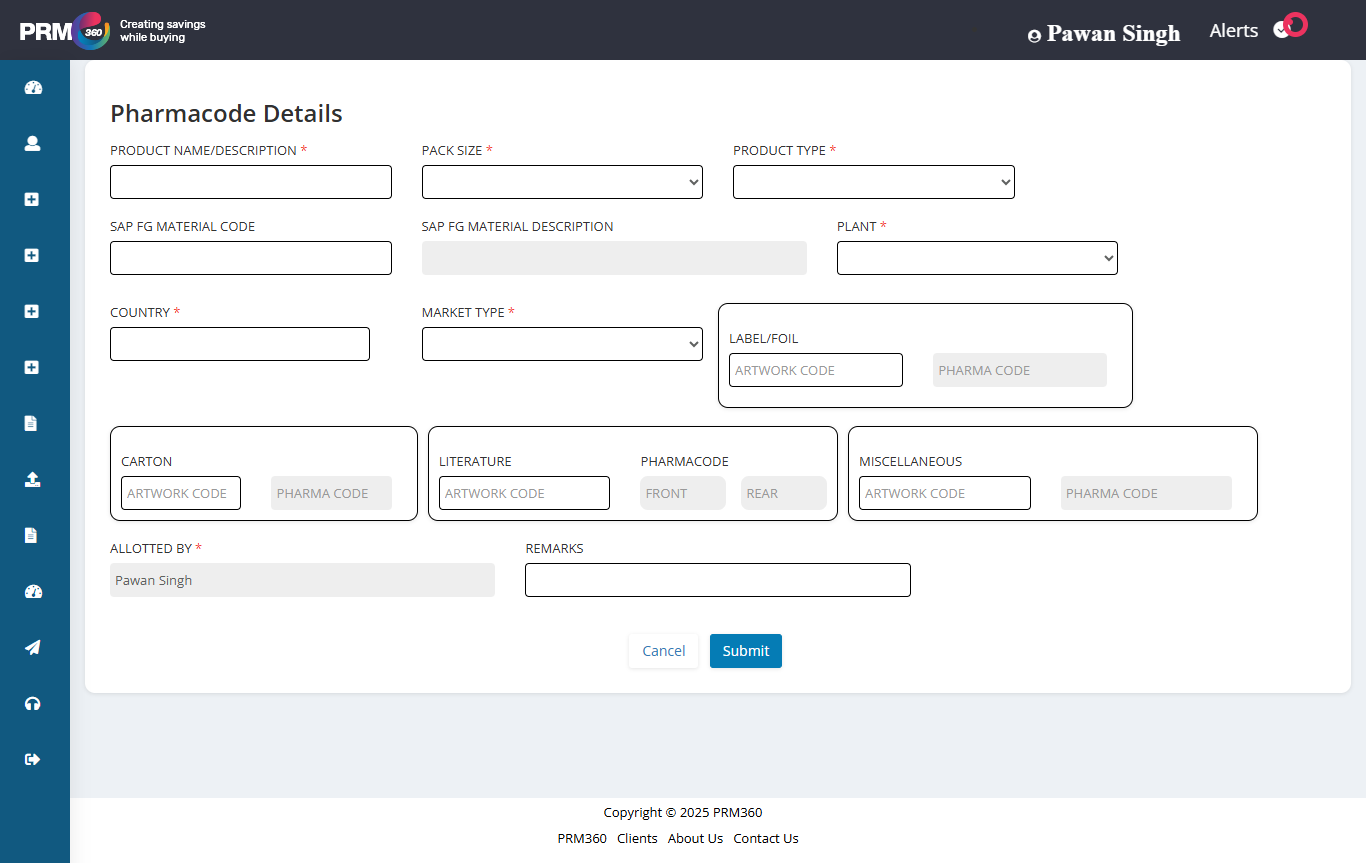
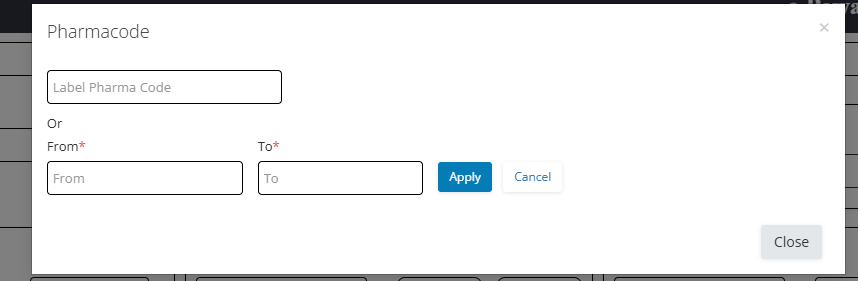
Enter all the mandatory fields either manually or by selecting from the dropdown options. After filling in the required details, proceed to enter the LABEL/FOIL artwork code. A pop-up will appear prompting you to enter the Pharma Code, From Date, and To Date—fill in the details and click Apply. Follow the same process for the other sections such as CARTON, LITERATURE, and MISCELLANEOUS. Once all the information is filled in, click on Submit to complete the process.
Once the user creates the Pharma Code record, it will appear on the list page. You can use filters such as Plant, Market Type, Product Type, or search directly using the Pharma Code record number in the search bar to locate the desired entry.
Export to PDF: when the user clicks on the export to PDF all the record will be exported to a PDF.
Export to excel: when the user clicks on the export to excel all the record will be exported to excel.

Under actions we have the following options.
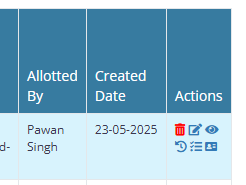
Delete: Allows you to delete the selected record.
Edit: Enables editing of the existing record.
View: Displays the details of the selected record.
Audit: Shows the audit history of the record, if available.
Assign: Used to assign the record from one user to another.
Assign Audit: Displays the assignment history of the record.
Approval:
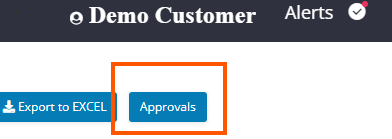
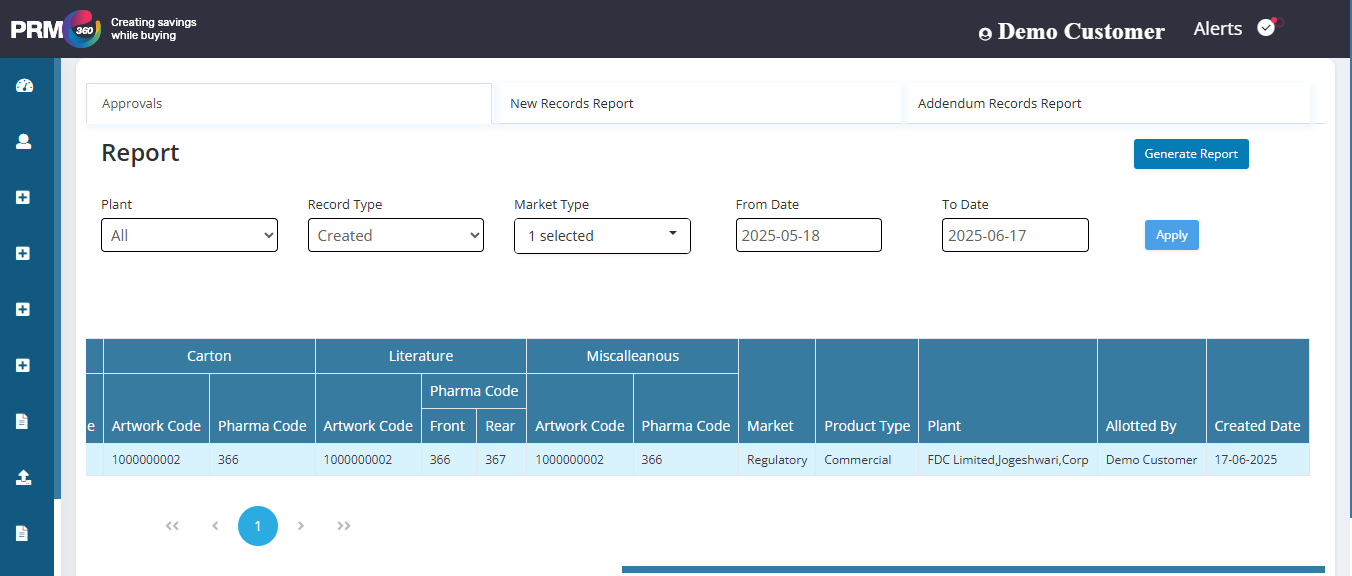
When you click on the Approval option, you will be redirected to a page that displays Approvals, New Records, and Addendum Records with a filters of plant, record type and market type with a date filter.
All records pending for approval will be listed under the Approvals section.
Once the user select the filters in the below page and click on apply then the user will get an open to generate report.
User will get a pop up message as shown below after clicking on the generate report.
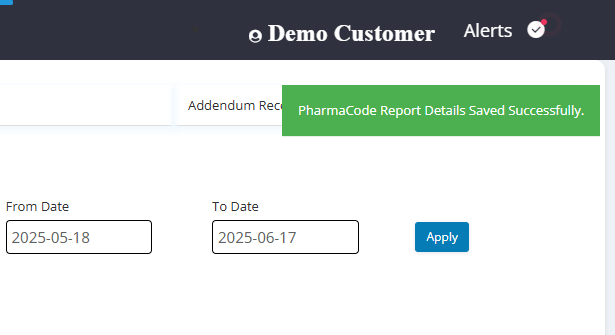
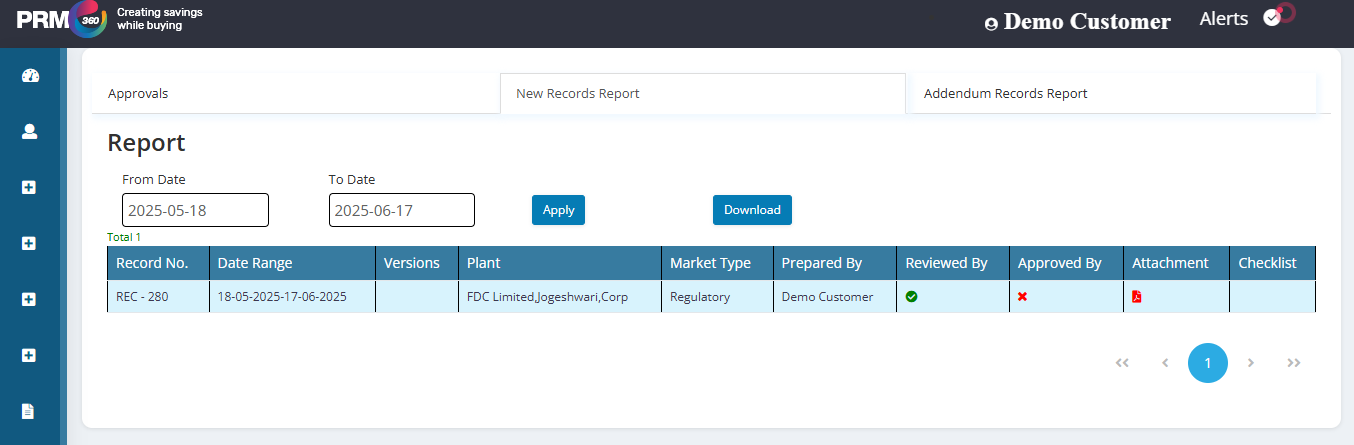
Newly created records will appear under the New Records report, and any modified records will be displayed under the Addendum Records report once after generating the report.
In the new record or addendum records the reviewer need to review the record by clicking on the green check symbol. The reviewer reviews the record them it will go to the approver.
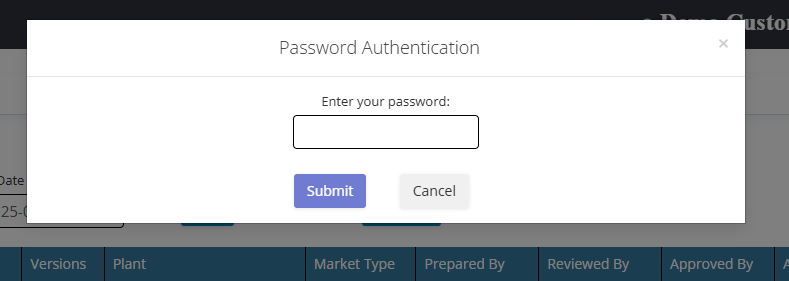
If the reviewer want to review or the approver want to approve then they need to enter the password of PRM360 logins. Same will be for the approval as well.
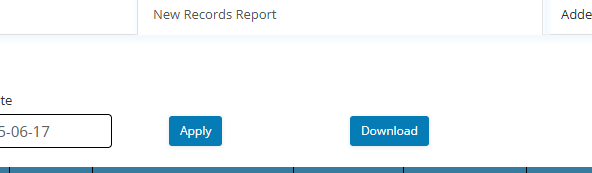
Download option is available to download all the records.
Was this article helpful?
That’s Great!
Thank you for your feedback
Sorry! We couldn't be helpful
Thank you for your feedback
Feedback sent
We appreciate your effort and will try to fix the article