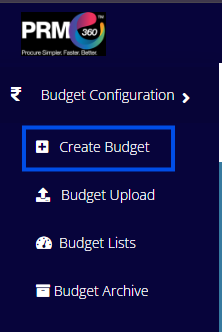
Create budget:
Upon clicking on Create Budget, the system will redirect you to the page shown below.
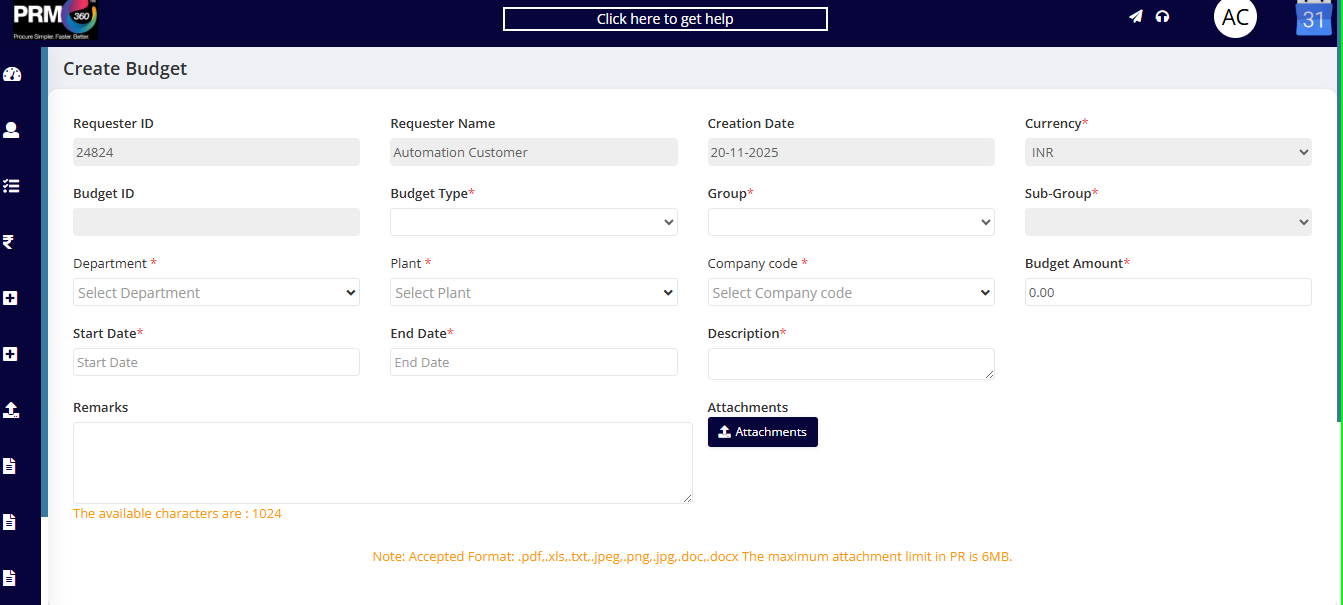
Requester ID: The system will automatically display the user ID of the requester.
Requester Name: The name of the user creating the budget will be shown here.
Creation Date: This field reflects the date on which the budget is created.
Currency: The default currency displayed will be INR.
All these fields are automatically fetched by the system.
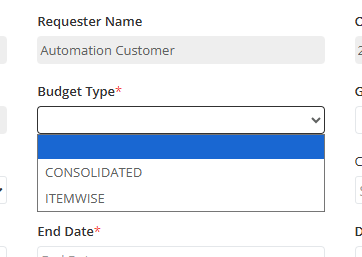
Budget Type
There are two types of budgets available in the system:
Consolidated:
This type can be used for any item.
Item-wise:
This type is restricted to the specific item selected in the budget.
Budget Details
Once the Budget Type and Group are selected, the Sub-group field will be enabled.
Department, Plant, and Company Code are dropdown fields that the user must select.
Budget Amount: Enter the amount you want to allocate for the budget to be used further.
Validity Period
Start Date: The date from which the budget becomes active.
End Date: The date until which the budget can be used.
Attachments
Users can attach relevant files to the budget.
Accepted Formats:
.pdf, .xls, .txt, .jpeg, .png, .jpg, .doc, .docx. Maximum Attachment Size: 6 MB.
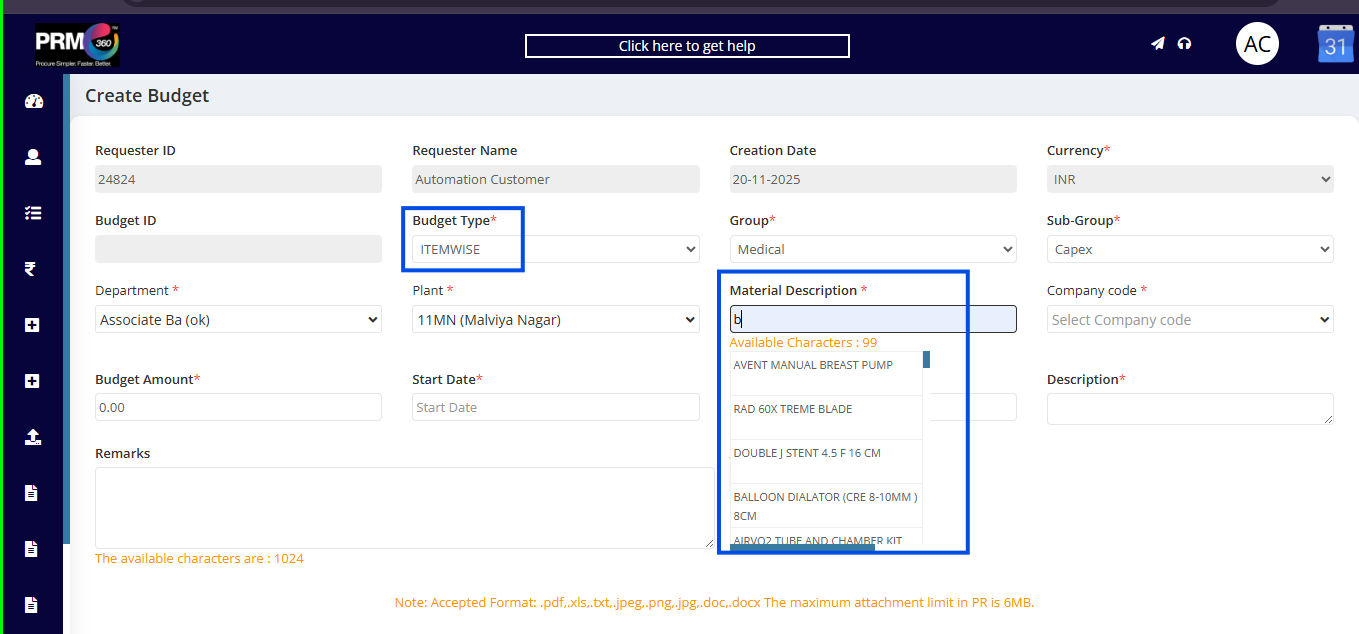
If the user selects the Budget Type as Item-wise, an additional field—Material Description—will become visible. The user can enter the item description here, after which a dropdown list will appear to select the specific material.
Please note that Item-wise budgets can be used only for a single item.
Once the budget is created, the user will have the option to either save it as a draft or submit it.
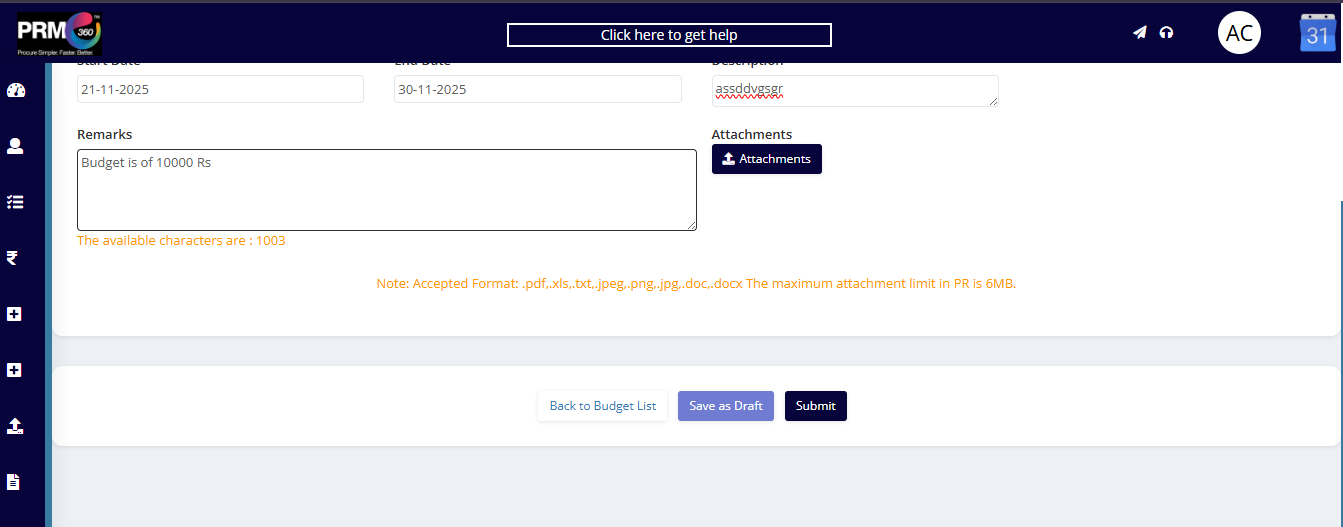
If the user submits the budget, a workflow will be triggered and routed to the respective approvers assigned in that workflow.

Was this article helpful?
That’s Great!
Thank you for your feedback
Sorry! We couldn't be helpful
Thank you for your feedback
Feedback sent
We appreciate your effort and will try to fix the article