Step1:
How to install Citrix server:
https://docs.google.com/presentation/d/1AyHNDjcFRx0kgKMTUI_3hjypnQLNjugyI9ydE5Z8AtM/edit#slide=id.p1
Connect to the Citrix server
URL: NetScaler AAA (syngeneintl.com)
User name: AFRONA(Application & DB)
Password: $syn22122023
User name : SANJTH(DB)
Password : $syn22122023


Enter the passcode received in Google Authenticator and click on the submit button
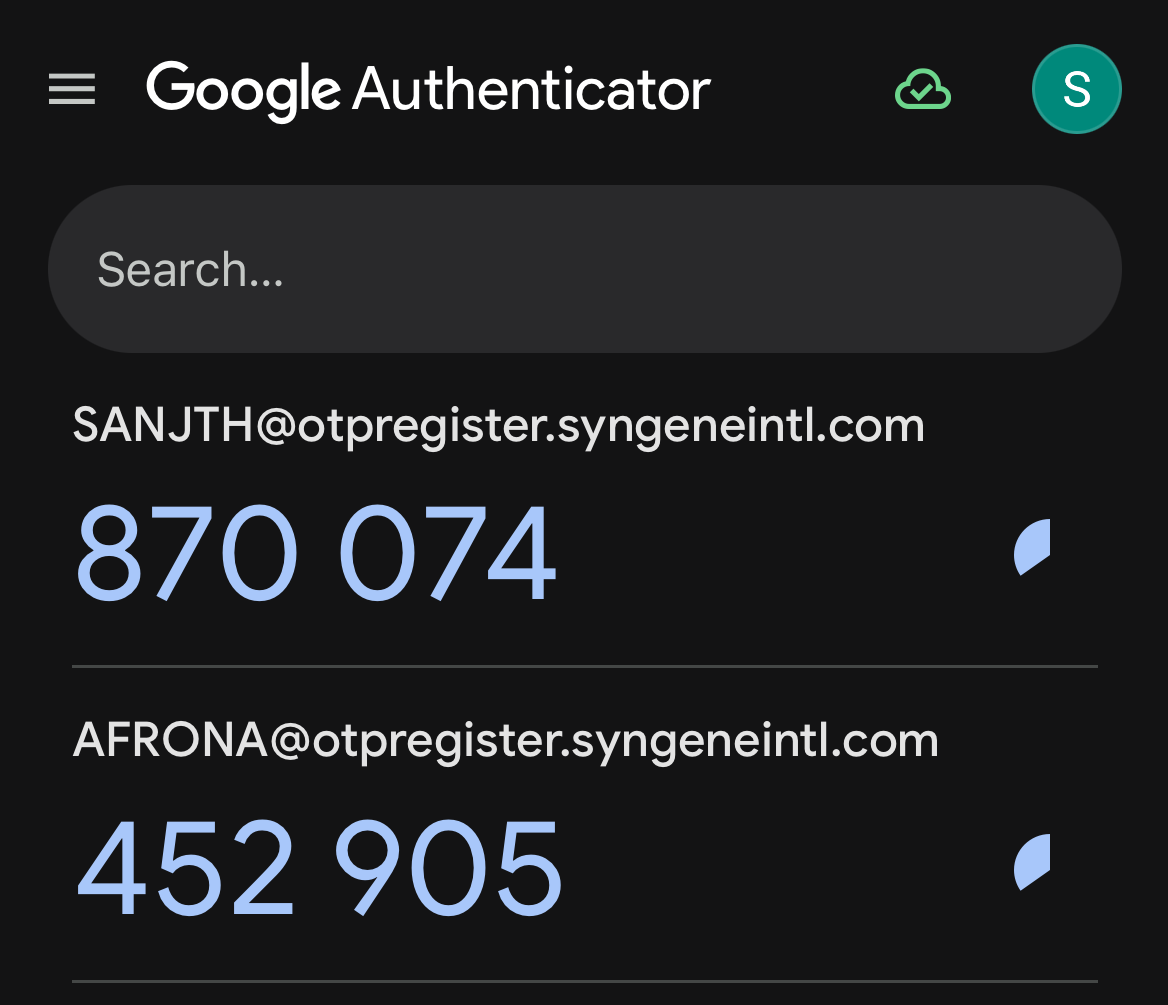
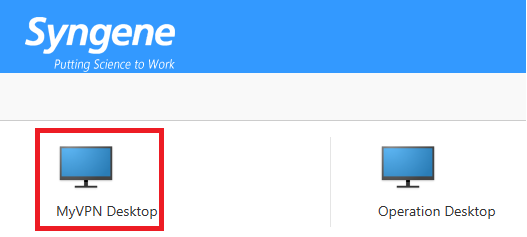
Step 2: Click on MyVPN Desktop->A file will be downloaded, and then double-click on the downloaded file
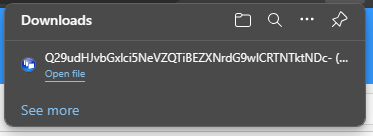
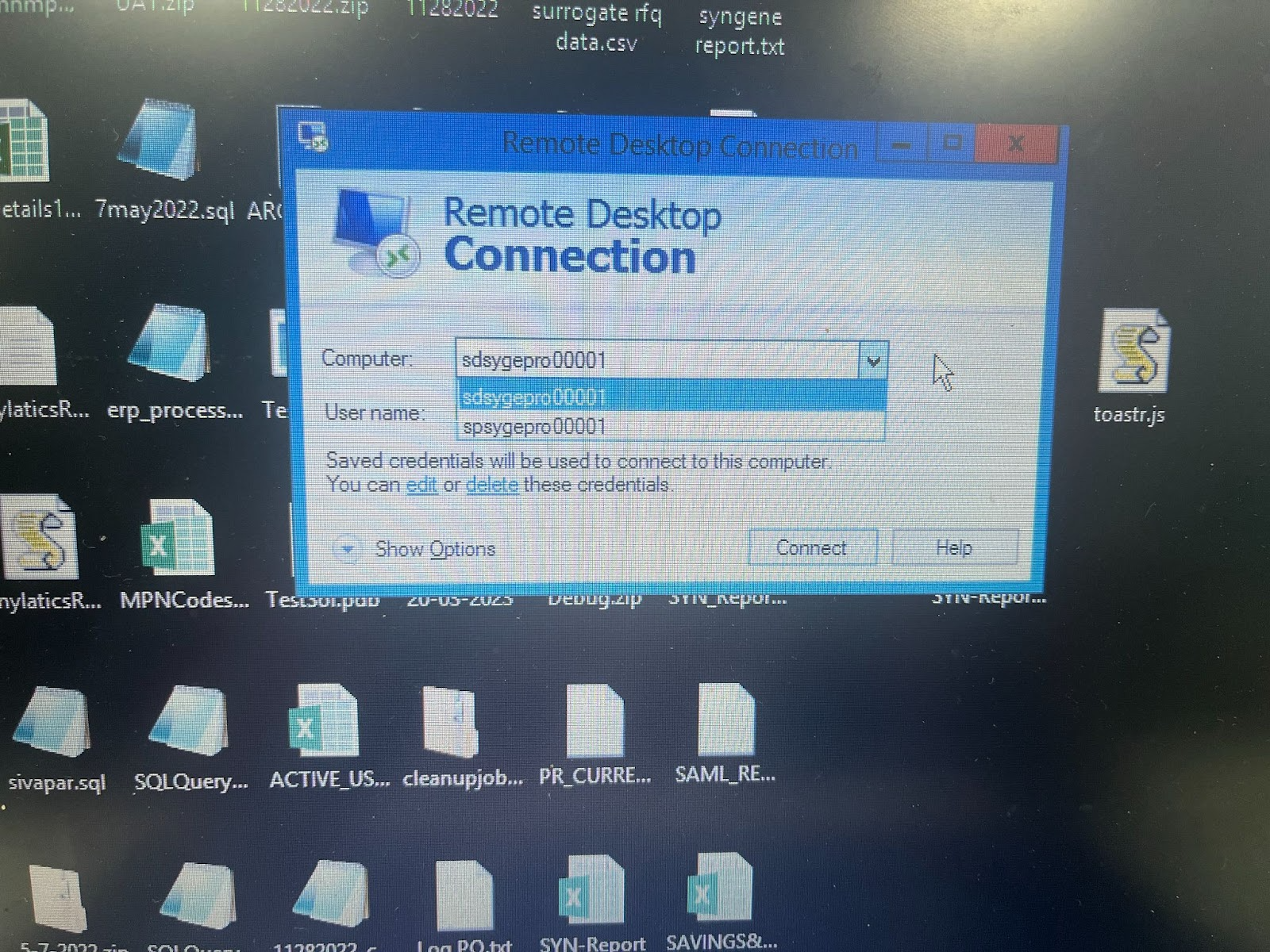
Step 3: Once connected to the server->Win+S->Remote Desktop Connection
You will be getting 2 options to select the server
1)sdsygepro00001(UAT server)
2)spsygepro00001(Prod server)
PR JOB:1
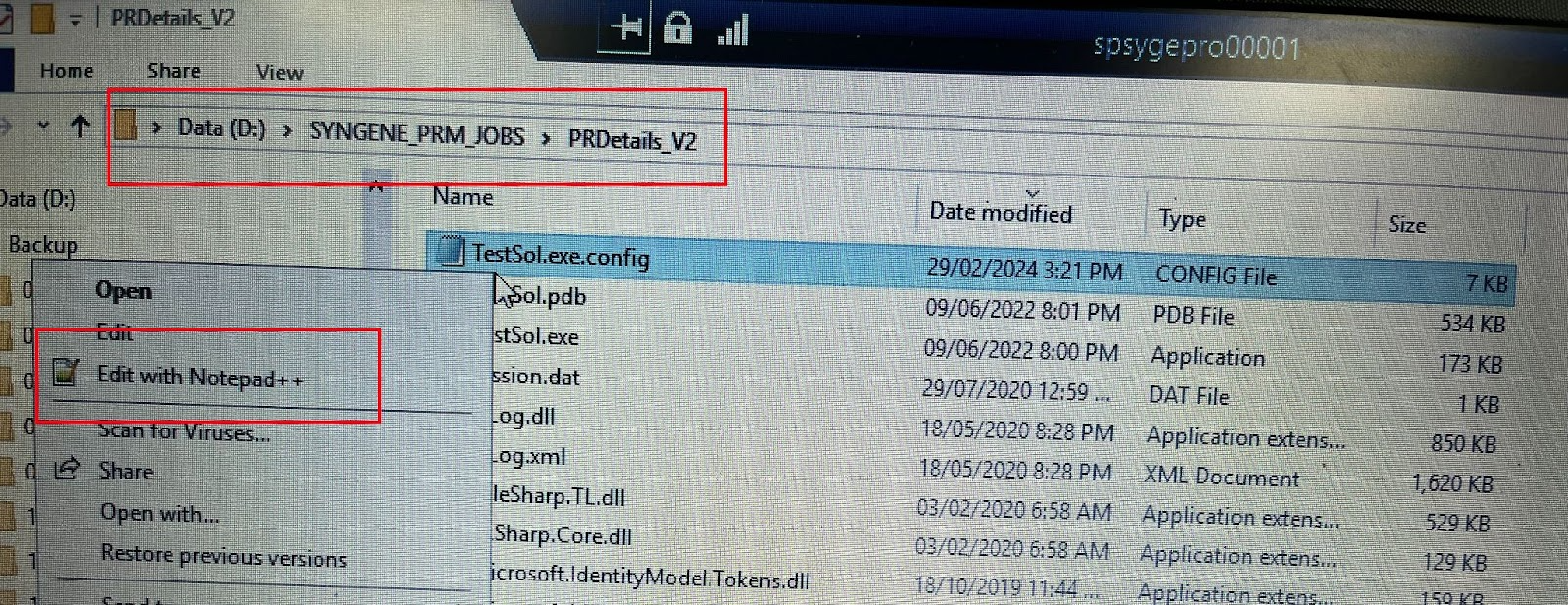
Step 1:Select PROD server(spsygepro00001) to run PR jobs
Navigate to the Path:D:\SYNGENE_PRM_JOBS\PRDetails_V2
Right click on the config file and select Edit with Notepad++ option
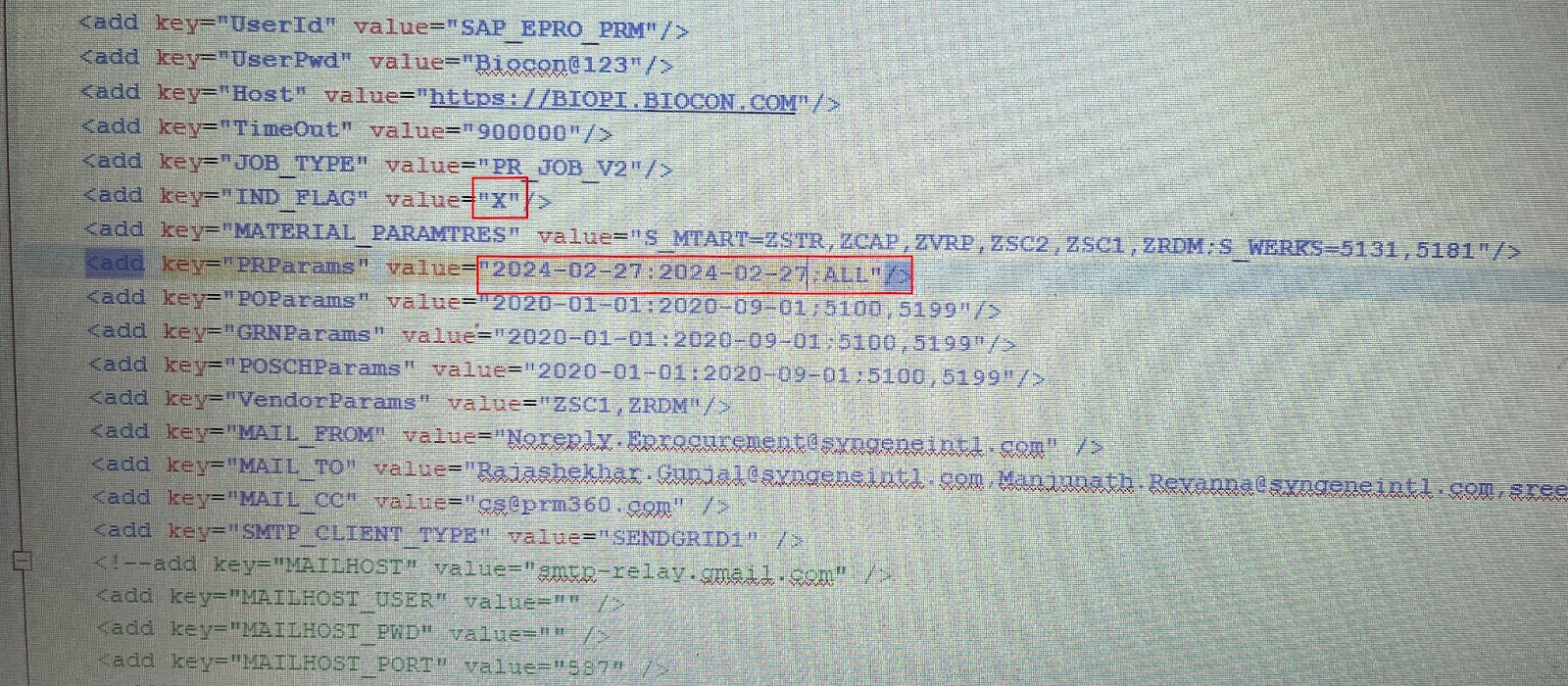
Step 2:
a)Remove the X indicator as <add key=’IND_FLAG” value=” ”/>
b)Change the date range and replace “ALL” with the respective PR “Plant_Code”(If the PR plant lies between 5100-5199) as per the request received
c)Remove the X indicator in Do Pass=””
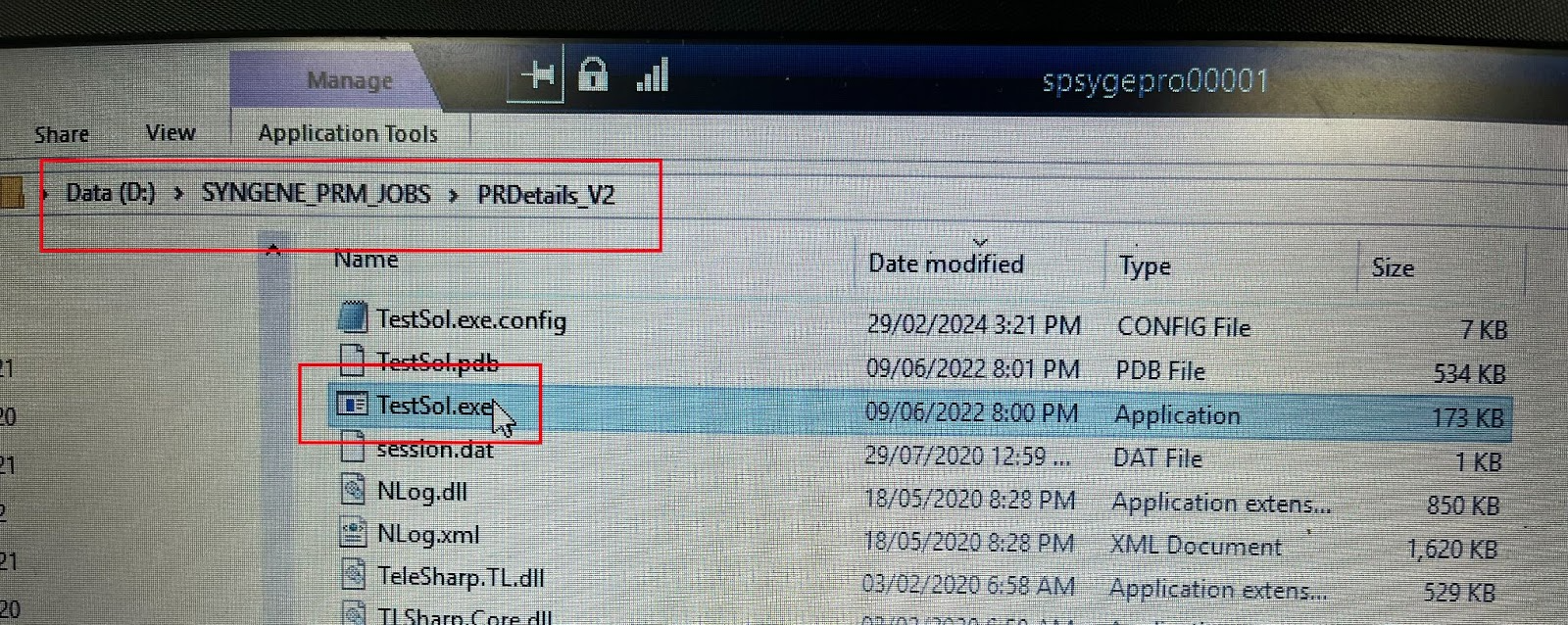
Step 3:
As per the above-mentioned changes have been made then double click on the .exe application to run the job
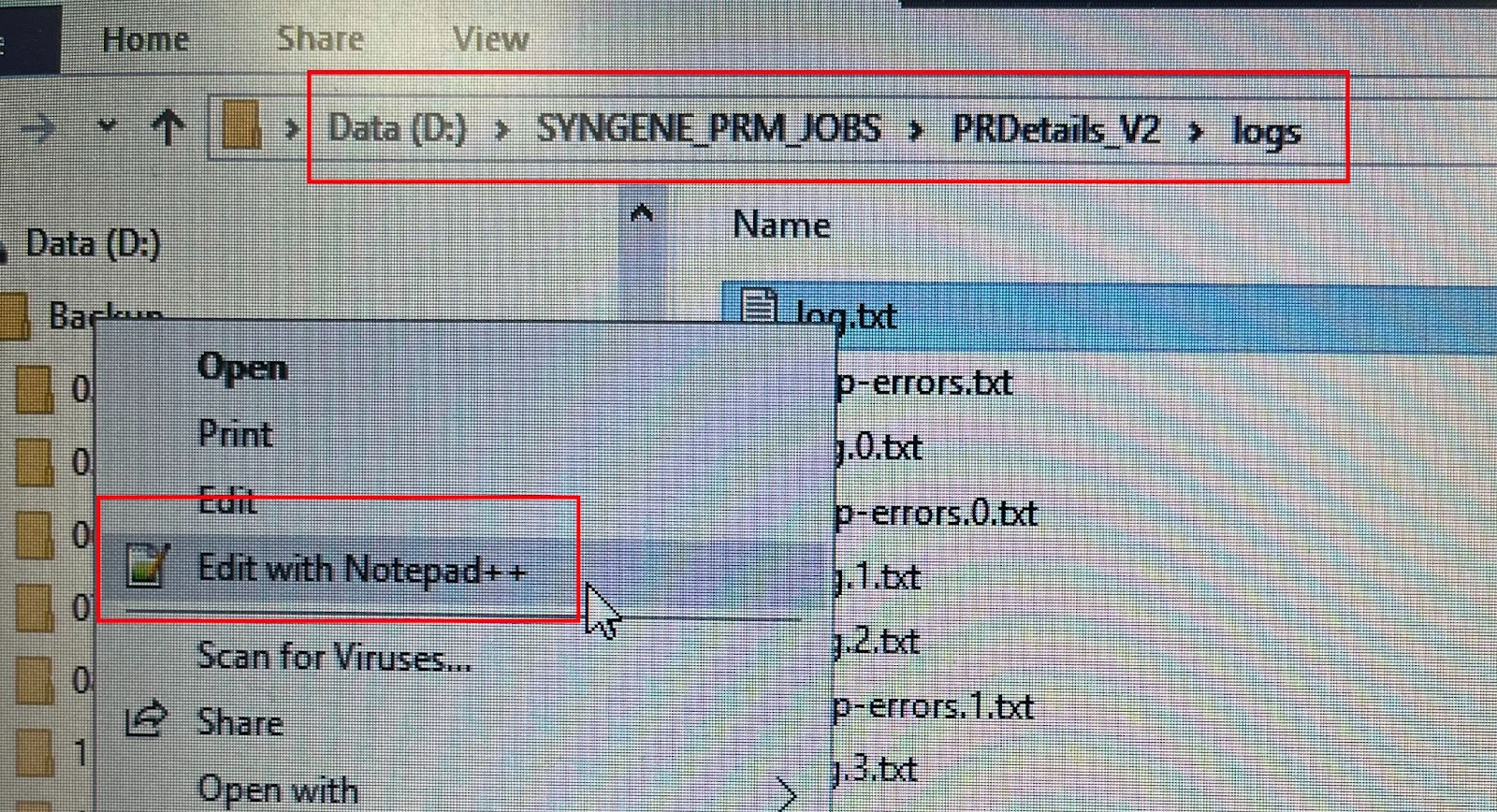
Step:4
Check the logs to see if the data is being received or if any errors are being displayed.
Path:D:\SYNGENE_PRM_JOBS\PRDetails_V2\logs
Right-click on the config file and select Edit with the Notepad++ option
PR JOB:2
Step : 1
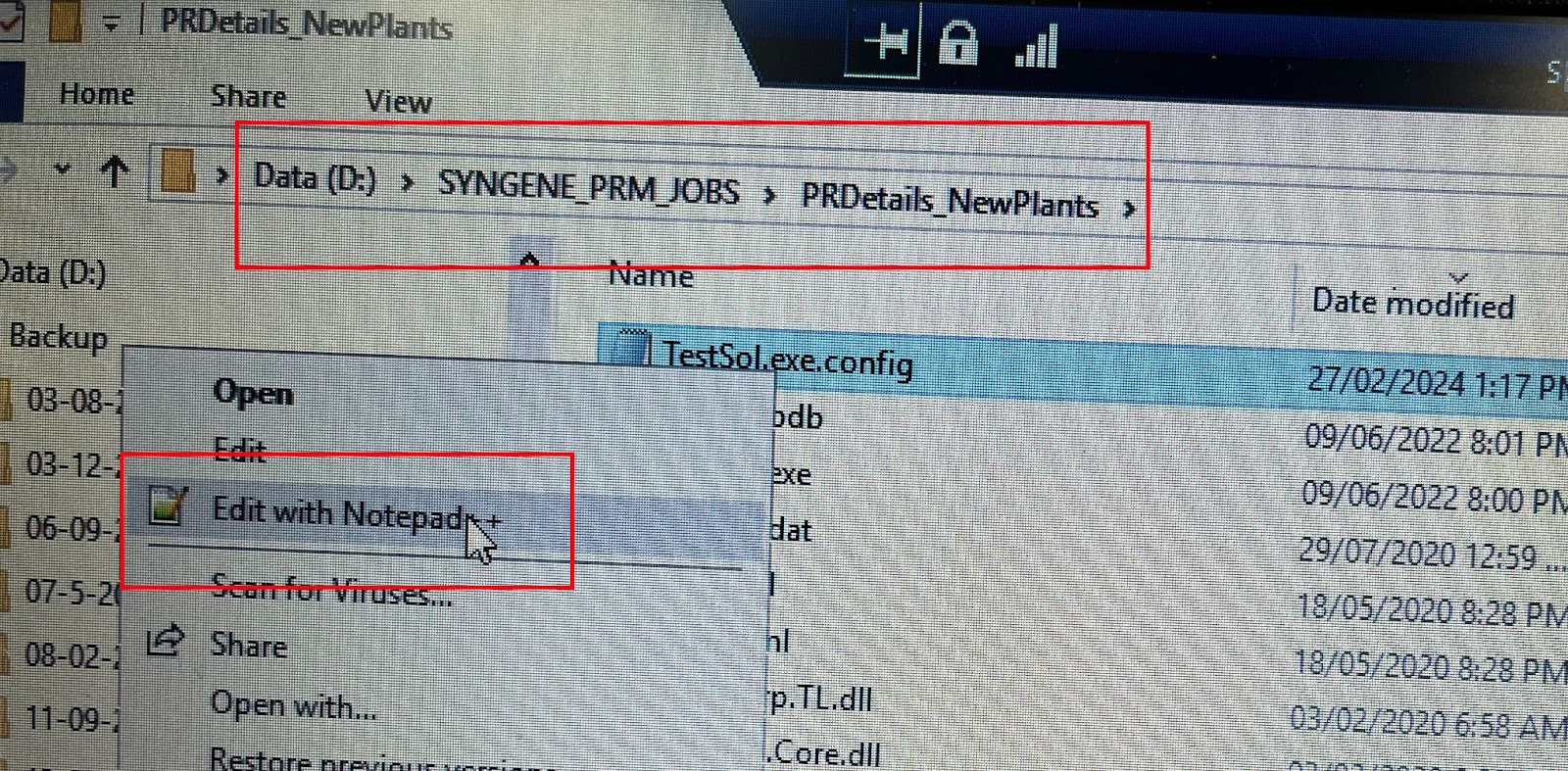
Navigate to the Path:D:\SYNGENE_PRM_JOBS\PRDetails_NewPlants
Right click on the config file and select Edit with Notepad++ option
Step 2:
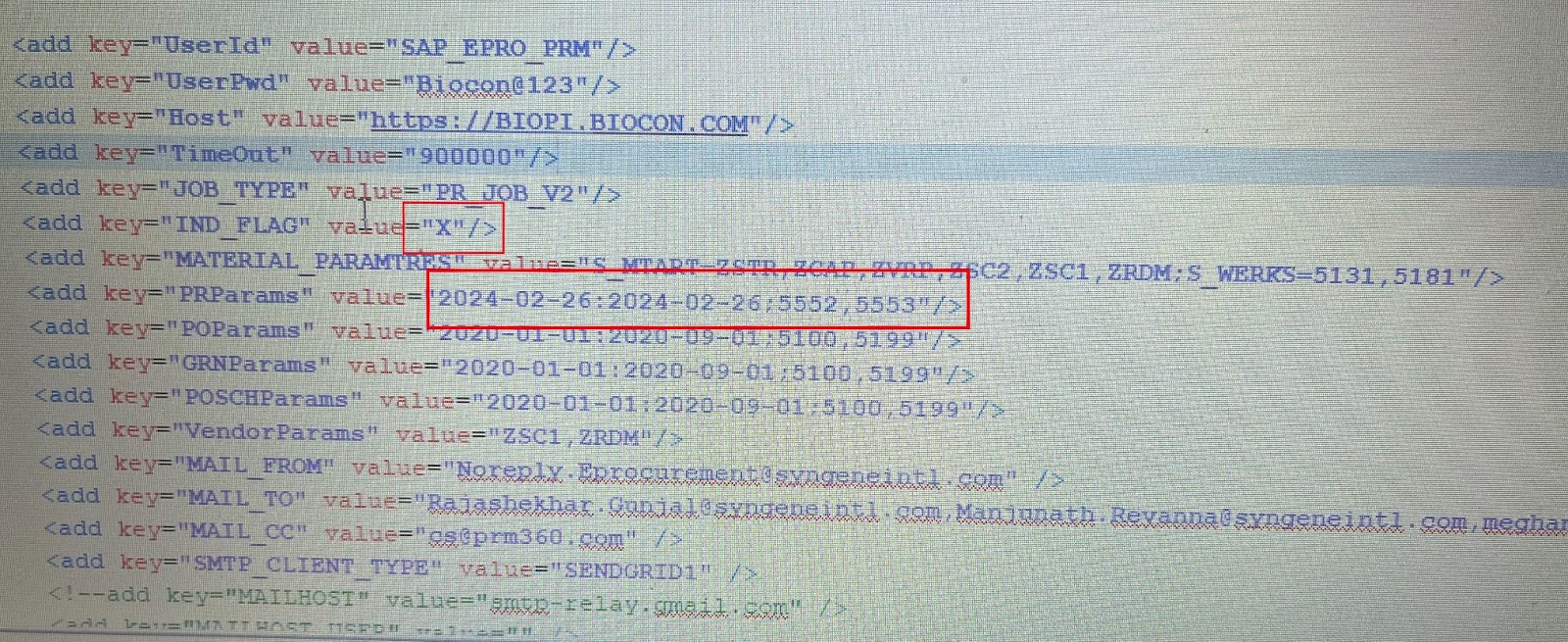
a)Remove the X indicator as <add key=’IND_FLAG” value=” ”/>
b)Change the date range and relace “ALL” with the respective PR “Plant_Code”(If PR plant is 5552,5553) as per the request received
Step 3:
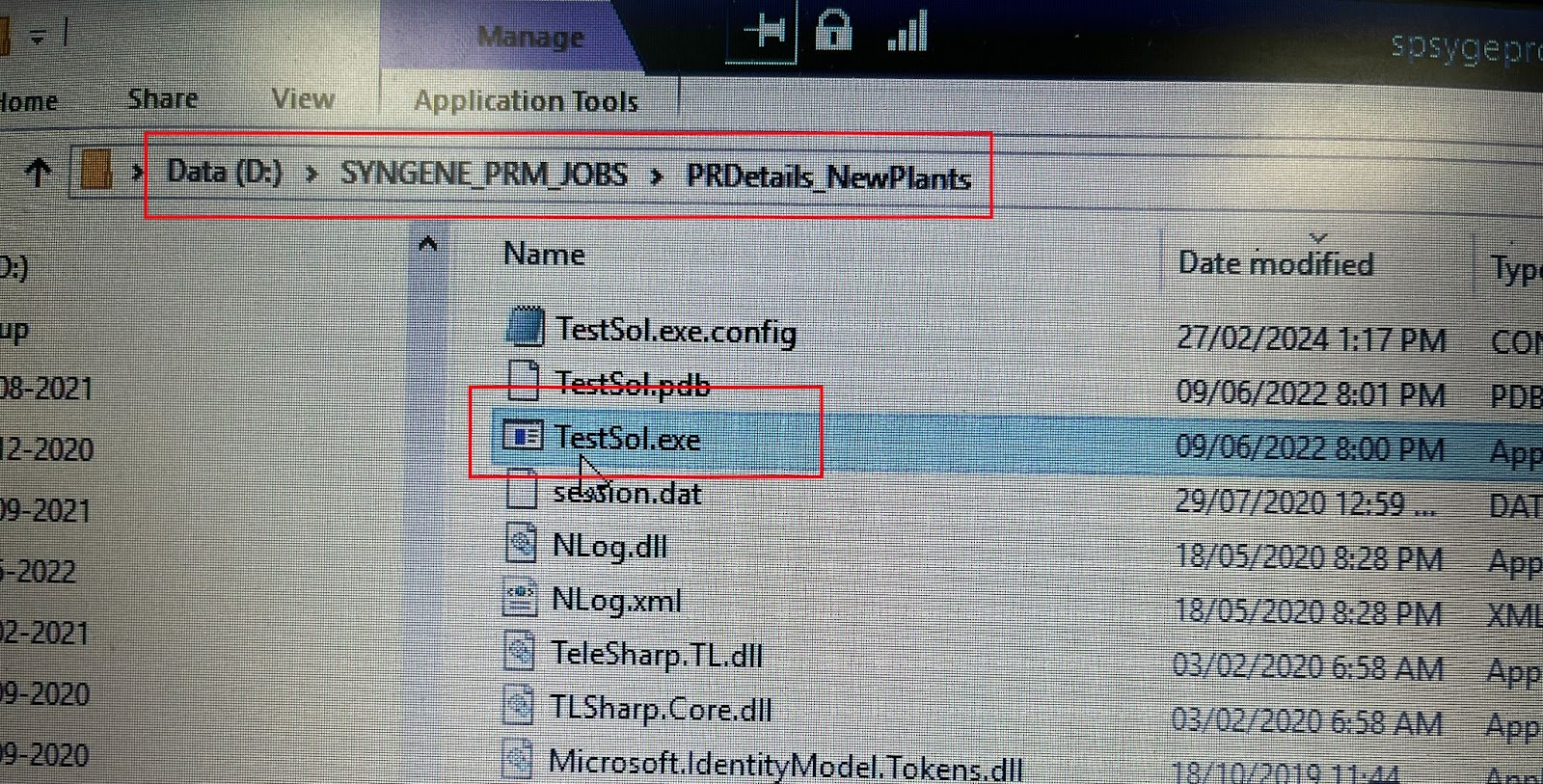
As per the above-mentioned changes have been made then double click on the .exe application to run the job
Step:4
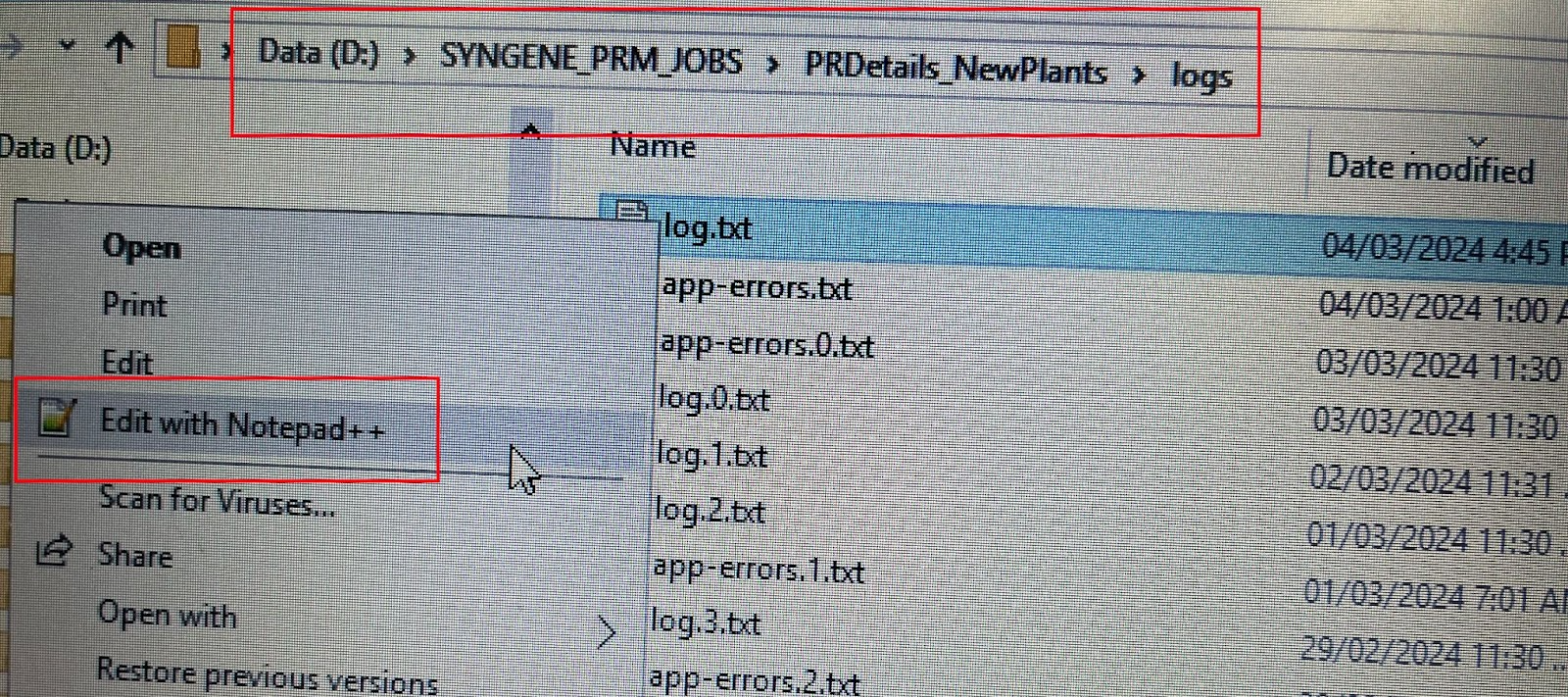
Check the logs to see if the data is being received or if any errors are being displayed.
Path:D:\SYNGENE_PRM_JOBS\PRDetails_NewPlants\logs
Right-click on the config file and select Edit with the Notepad++ option
Was this article helpful?
That’s Great!
Thank you for your feedback
Sorry! We couldn't be helpful
Thank you for your feedback
Feedback sent
We appreciate your effort and will try to fix the article