PO job run:
Step 1: Connect to the server
IP:45.127.102.158
user: administrator
password: C$FRK4Zhn_BT54c$
Go to the below-mentioned path once connected to the server and select the client as per the requirement.
D:\Acads\PRM\
Example:
D:\Acads\PRM\NeulandPROD\PO
Navigate to the Task Scheduler and locate the module for which job runs are to be disabled. Right-click on the module, and from the context menu, select "Disable."
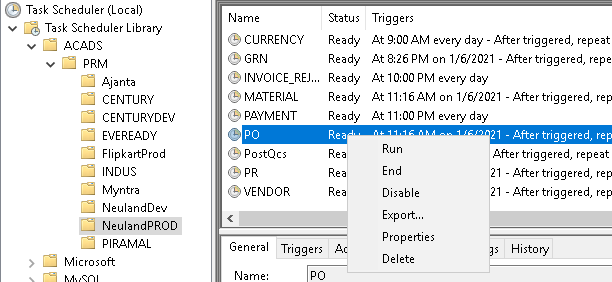
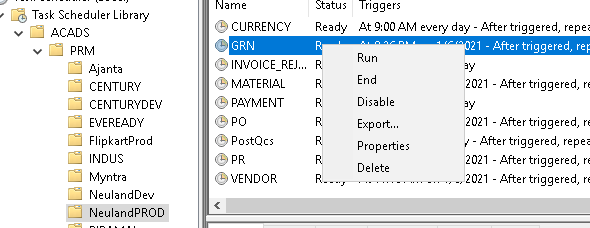
Step 2:
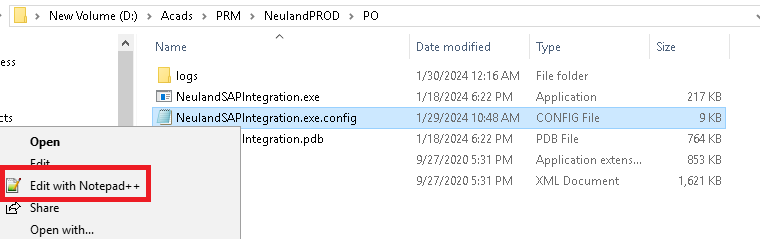
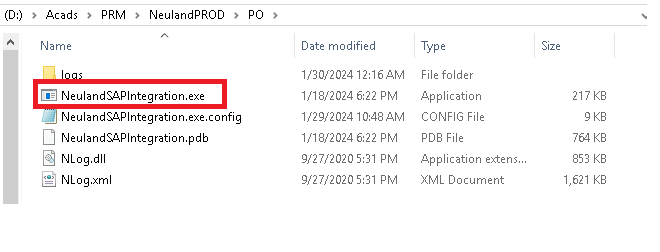
Navigate to the Path:D:\Acads\PRM\NeulandPROD\PO
Right-click on the config file and select Edit with Notepad++ option
Step 3:
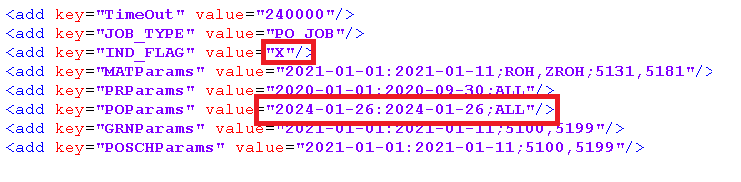
a)Remove the X indicator as <add key=’IND_FLAG” value=” ”/>
b)Change the date range as per the request received
Step 4:
As per the above-mentioned changes have been made then double click on the exe application to run the job
Step 5:
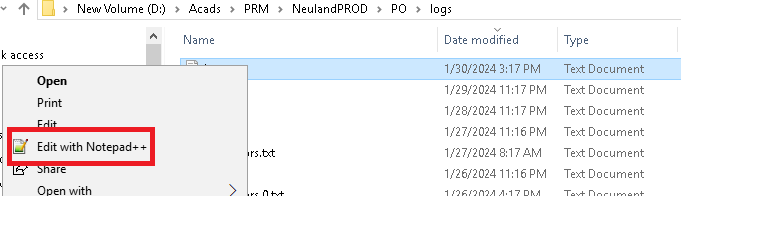
Check the logs to see if the data is being received or if any errors are being displayed.
D:\Acads\PRM\NeulandPROD\logs
Right-click on the config file and select Edit with the Notepad++ option
GRN job run:
Step 1: Connect to the server
IP:45.127.102.158
user: administrator
password: C$FRK4Zhn_BT54c$
Once connected to the server go to the below-mentioned path:
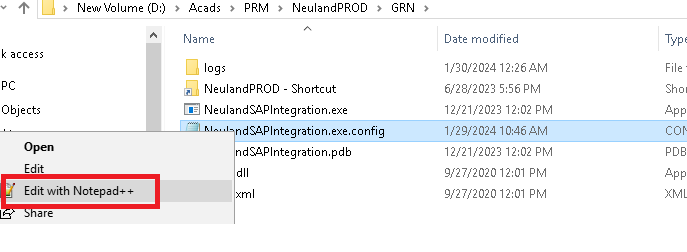
D:\Acads\PRM\NeulandPROD\GRN
Step 2:Right click on the config file and select edit with the notepad++ option
Step 3:
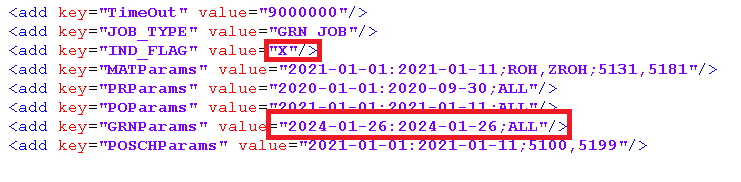
a)Remove the X indicator as <add key=’IND_FLAG” value=” ”/>
b)Change the date range as per the request received
Step 4:
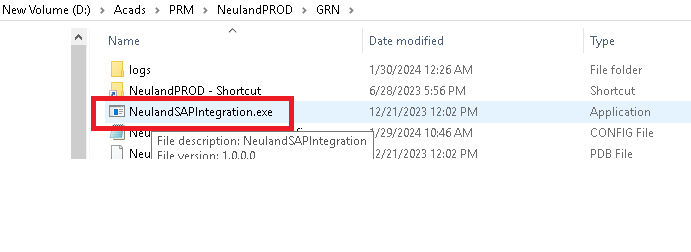
As per the above-mentioned changes have been made then double click on the exe application to run the job
Step 5:
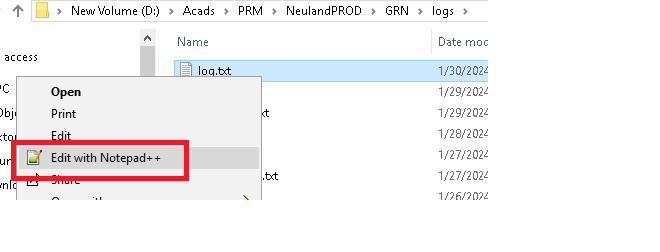
Check the logs to see if the data is being received or if any errors are being displayed.
D:\Acads\PRM\NeulandPROD\logs
Right-click on the config file and select Edit with Notepad++ option
Was this article helpful?
That’s Great!
Thank you for your feedback
Sorry! We couldn't be helpful
Thank you for your feedback
Feedback sent
We appreciate your effort and will try to fix the article