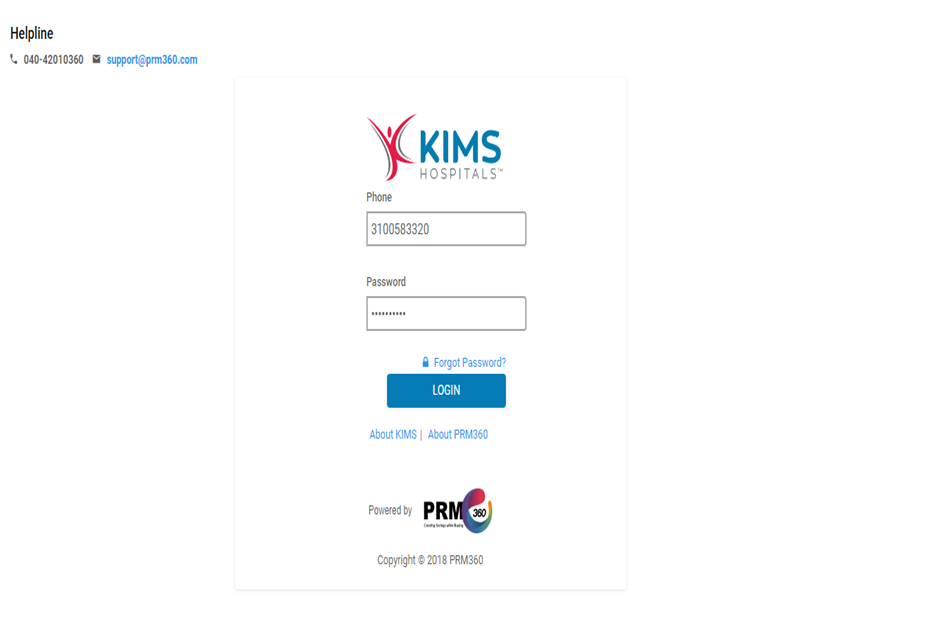
LOGIN PAGE
Users will be able to log in with below mentioned URL to log in at PRM360.
URL: http://www.kimshospitals.prm360.com/WEB/prm360.html#/login
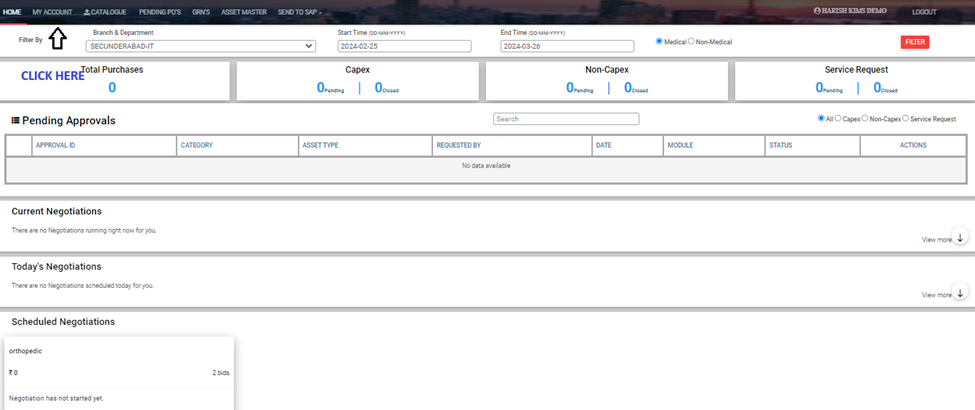
DASHBOARD
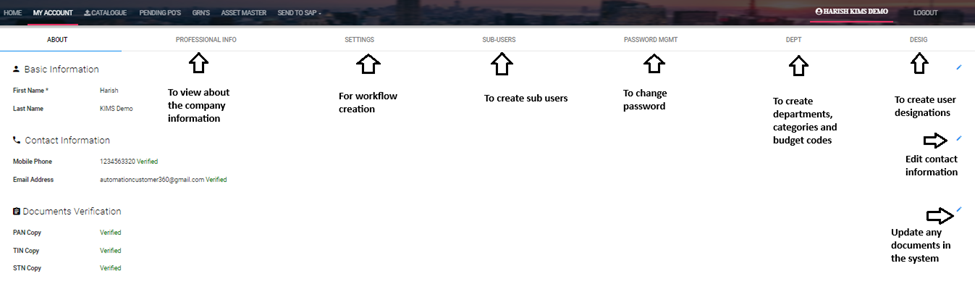
MY ACCOUNT
Below is the screen which is used to create user access.
Settings: to set the bidding rules, Create requirement categories, Create Workflow.
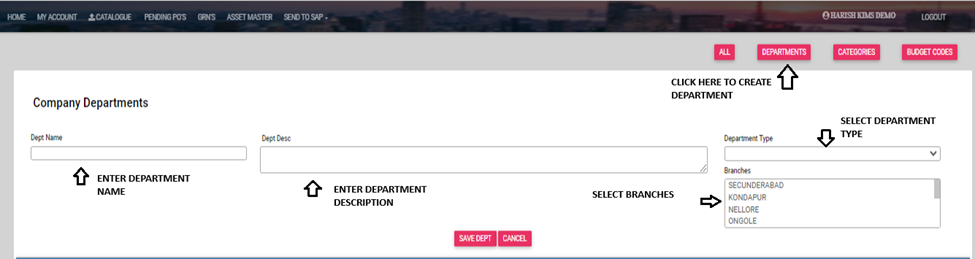
Department: To create departments, categories, and budget codes and assign those budget codes to categories.
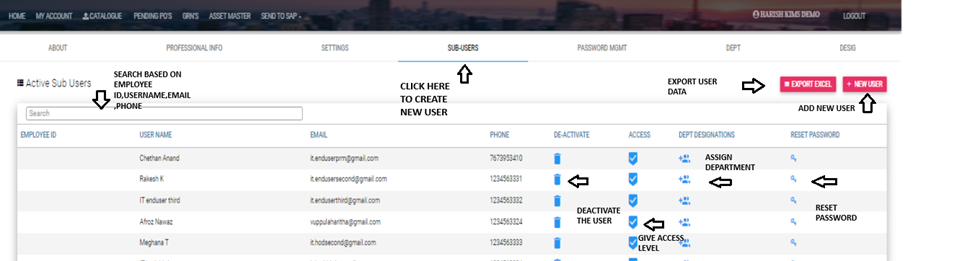
Sub-users: Create users and provide access to users.
Settings
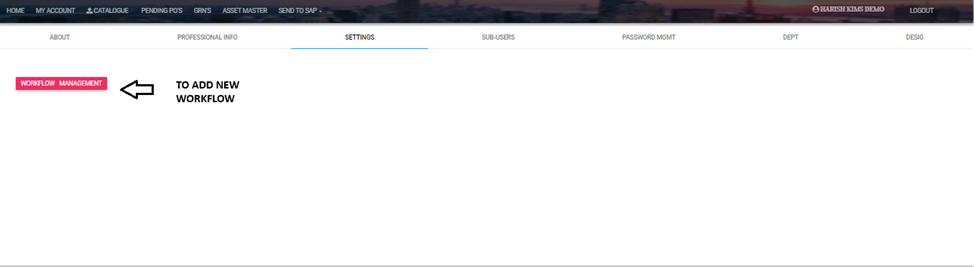
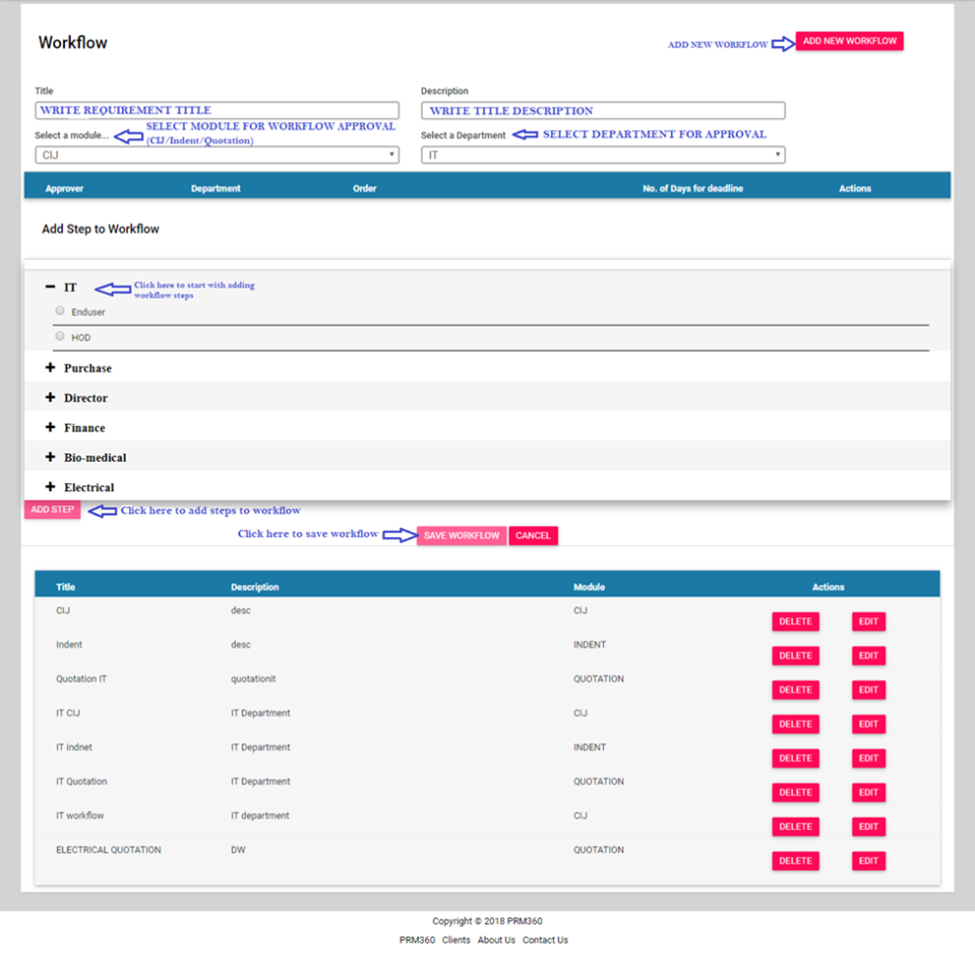
Workflow creation
Workflow is designed to implement approval hierarchy. To get the approval hierarchy from the authorities, the workflow can be created by the admin.
Title: To write the purpose/requirement of the workflow creation
Description: Mention description of the title
Select a Module: Modules like Indent, CIJ, and Quotation
Select a Department: Select the department for which the Indent, CIJ will be raised or Quotation to be received.
Add Steps to Workflow: To create approval hierarchy, add the workflow steps in order
The persons who are attached in the workflow has to approve the request raised by the user as per the hierarchy. The status of the workflow will be visible to the users and to the approvers.
Add users
1. Add New Users
2. Assign department
3. Assign access levels.
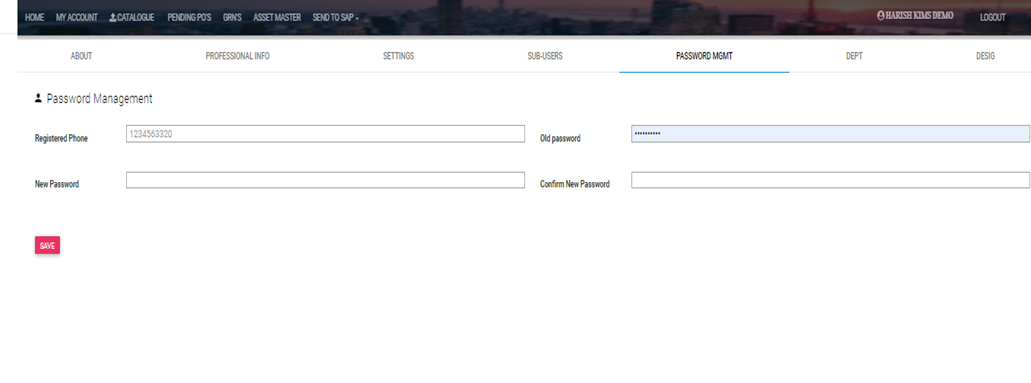
Password management - To Secure user Credentials and to Update them
Department Creation
1. Create Department.
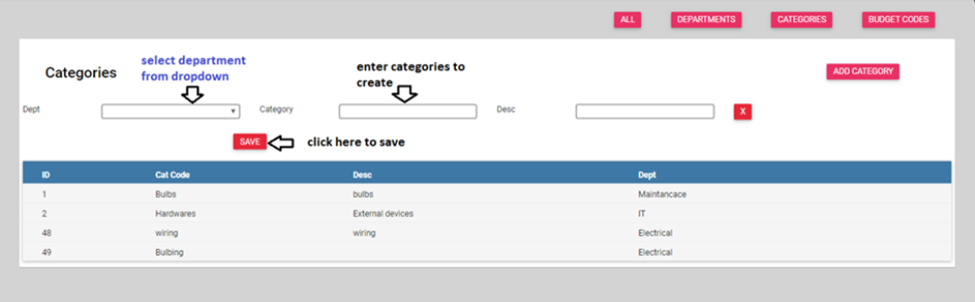
2. Create categories for department.
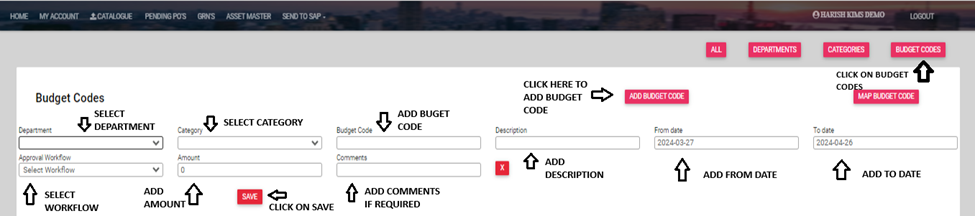
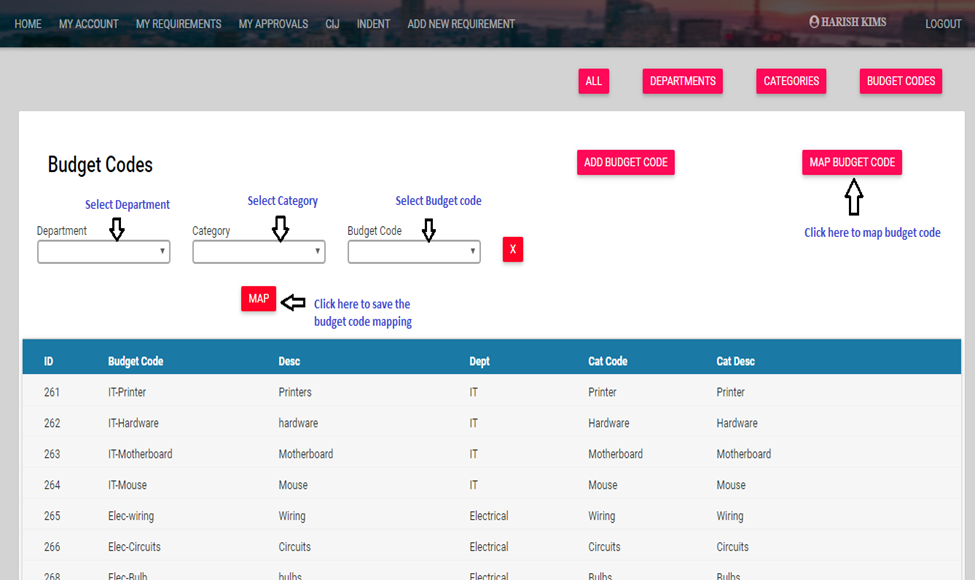
3. Assign budget code with respective department and categories.
Categories
Creating Budget code
MAP BUDGET CODE
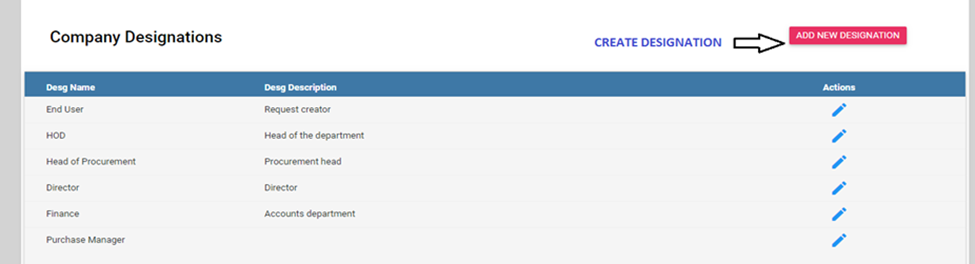
Designation Creation

REPORTS:
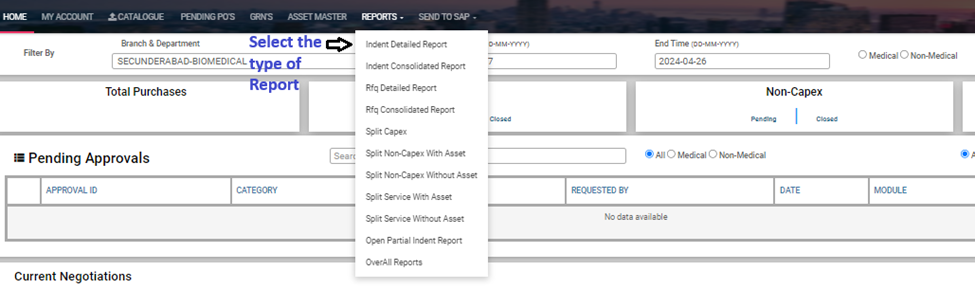
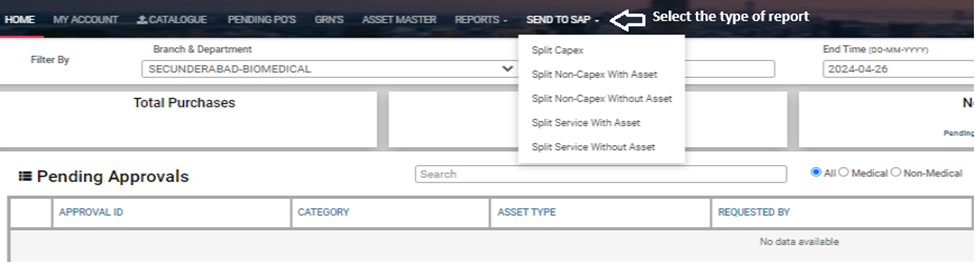
The Reports mentioned in the screen have common fields for all types of Reports:
• Split Capex
• Split Non-Capex with Asset
• Split Non-Capex without Asset
• Split Service with Asset
• Split Service without Asset
Was this article helpful?
That’s Great!
Thank you for your feedback
Sorry! We couldn't be helpful
Thank you for your feedback
Feedback sent
We appreciate your effort and will try to fix the article